How to Send Secure Documents to Clients, Partners, and Teams
Sending secure documents requires replacing standard email attachments with controlled sharing links, client portals, or scoped workspaces that encrypt files in transit and at rest. By protecting shares with passwords, expiration dates, per-recipient access grants, and disabled downloads, teams can revoke access at any time instead of leaving permanent copies in external inboxes.

Why Standard Email Fails When Sending Sensitive Documents
Once you attach a financial model, legal contract, or medical record to an email and press send, you lose control over where that file goes next. The attachment sits on external mail servers indefinitely, and any recipient on the thread can forward it to an unintended address or save an unencrypted copy to a personal laptop. Standard email also struggles with file size: services such as Gmail cap attachments at 25 MB, which pushes employees to paste open cloud links into messages when sending large spreadsheets, pitch decks, or closing binders.
Sending confidential documents safely depends on four controls that email attachments cannot provide:
- Encryption in transit and at rest: Files are encrypted while moving across the network and while stored on servers.
- Scoped permissions: Access is granted at the organization, workspace, or share level rather than leaving an entire company drive exposed.
- Link and download controls: Shared links carry passwords, expiration dates, per-recipient grants, and the option to disable local downloads.
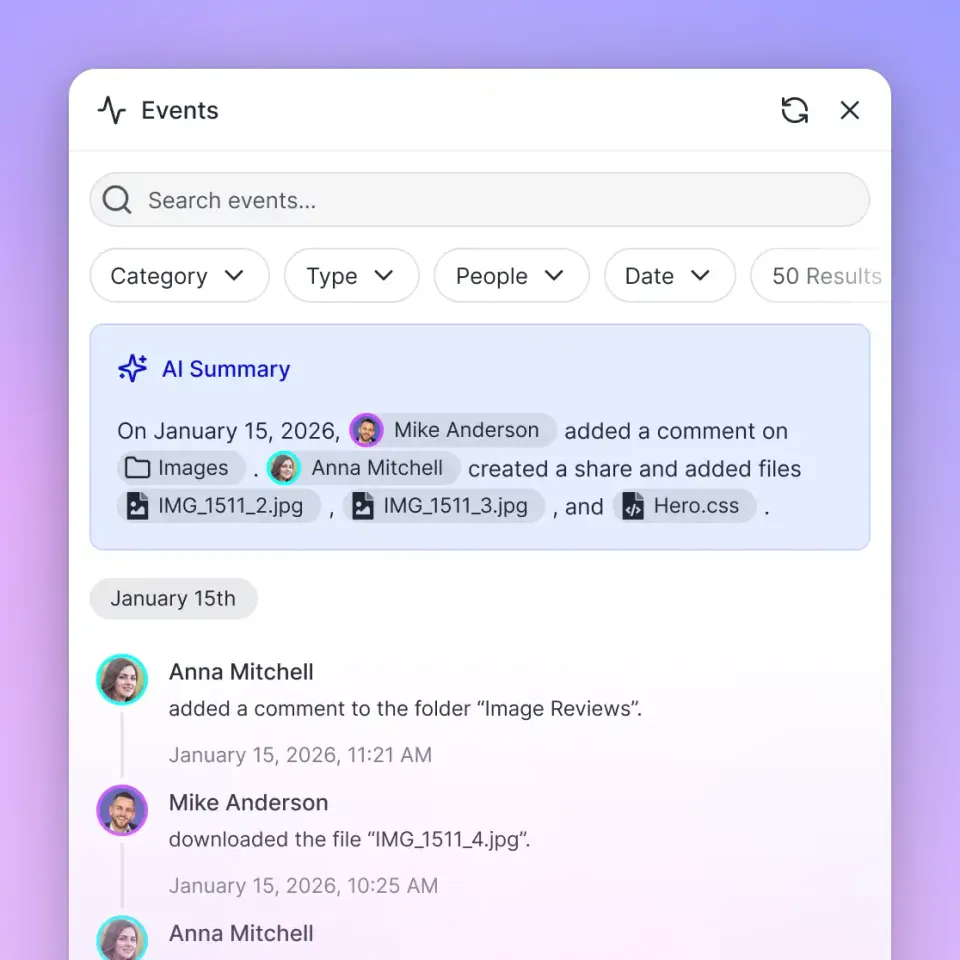
- A detailed activity log: The workspace records storage changes and system events across the organization, including uploads, edits, moves, deletions, permission changes, and share creation.
Helpful references: Fastio Workspaces, Fastio Collaboration, and Fastio AI.
Related guides
- How to Share Files Securely with EncryptionEncrypted file sharing protects files with cryptographic algorithms during transfer and storage, ensuring only...
- How to Share Files SecurelySending sensitive documents through email or public cloud links exposes your data to interception and unauthorized...
- How to Set Up Secure RAG Document Storage for AI AgentsSecure RAG document storage keeps original files, vector embeddings, and retrieval safe for AI agents in production....
- Cloud Document Management: Building a Secure Document Management SystemMost company drives mix confidential records, active drafts, and client deliverables inside folder trees that grew over...
- How to Set Up Secure File Sharing for Your BusinessSecure file sharing for business protects company documents across internal teams, external clients, and AI agents...
- How to Choose a Secure File Sharing PlatformPicking a secure file sharing platform means understanding what "secure" actually requires for your team. This guide...
More on this subject: Security and Access Control (32 guides)
Four Ways to Send Secure Documents
Different document handoffs call for different tools. Sending a single tax form to an accountant requires a simpler setup than running a multi-party deal room or giving an AI assistant access to project files.
1. Password-Protected Archives
Tools like 7-Zip generate AES-256 encrypted .7z or .zip archives on your local machine before you send the file. If you use this method, send the archive by one channel and deliver the password by another, such as a phone call or text message. The drawback is operational: once the recipient decrypts the archive, you cannot revoke their copy, update the file in place, or prevent them from forwarding the password.
2. Point-to-Point Transfer Services
Services such as WeTransfer and Tresorit Send replace email attachments with a download link that expires after a set window. They solve the 25 MB email attachment limit and keep large files off mail servers. However, once a recipient downloads the package to their local disk, the sender has no ongoing workspace for version updates, structured review, or signature collection.
3. Purpose-Built Shares (Send, Receive, and Exchange)
In Fastio, shares are separated by the direction of the handoff:
- Send shares: Deliver finished contracts, reports, or media packages to external recipients with optional passwords, expiration dates, and disabled downloads.
- Receive shares: Collect sensitive files from clients or vendors through a browser upload link without email attachments.
- Exchange shares: Give two sides a shared space to upload and revise files together without exposing your internal workspace.
4. Client Portals and Scoped Workspaces
For recurring client work, a branded Content Portal or a dedicated workspace gives external partners a single destination for their documents. In Fastio, external guests who open a share or portal by link do not need to create an account and do not consume a paid organization seat.



Send Confidential Documents Through Controlled Shares
Replace email attachments with password-protected shares, expiring links, client portals, and scoped workspaces for your team and AI assistants. Monthly plans start with a 14-day free trial.
Step-by-Step: How to Send Secure Documents via a Controlled Share
When sending confidential documents to an outside counsel, investor, or client, follow a repeatable setup so files are never exposed more broadly than intended.
- Isolate the files in a share or dedicated workspace: In Fastio, permissions are set per organization, workspace, and share through member roles. Every member of a workspace can reach all files inside that workspace according to their role. When a recipient should only see specific files or a single folder, place those items into a dedicated share or a separate workspace rather than adding the guest to your main team workspace.
- Grant per-recipient access or require a password: Add individual recipient grants so you can revoke one person's access later without breaking the share for everyone else. When sharing by link, enable password protection and share the password over a separate channel.
- Set an expiration date: Attach an expiration date (such as 7 or 14 days for a proposal, financial statement, or board packet) so links close automatically once the review window ends.
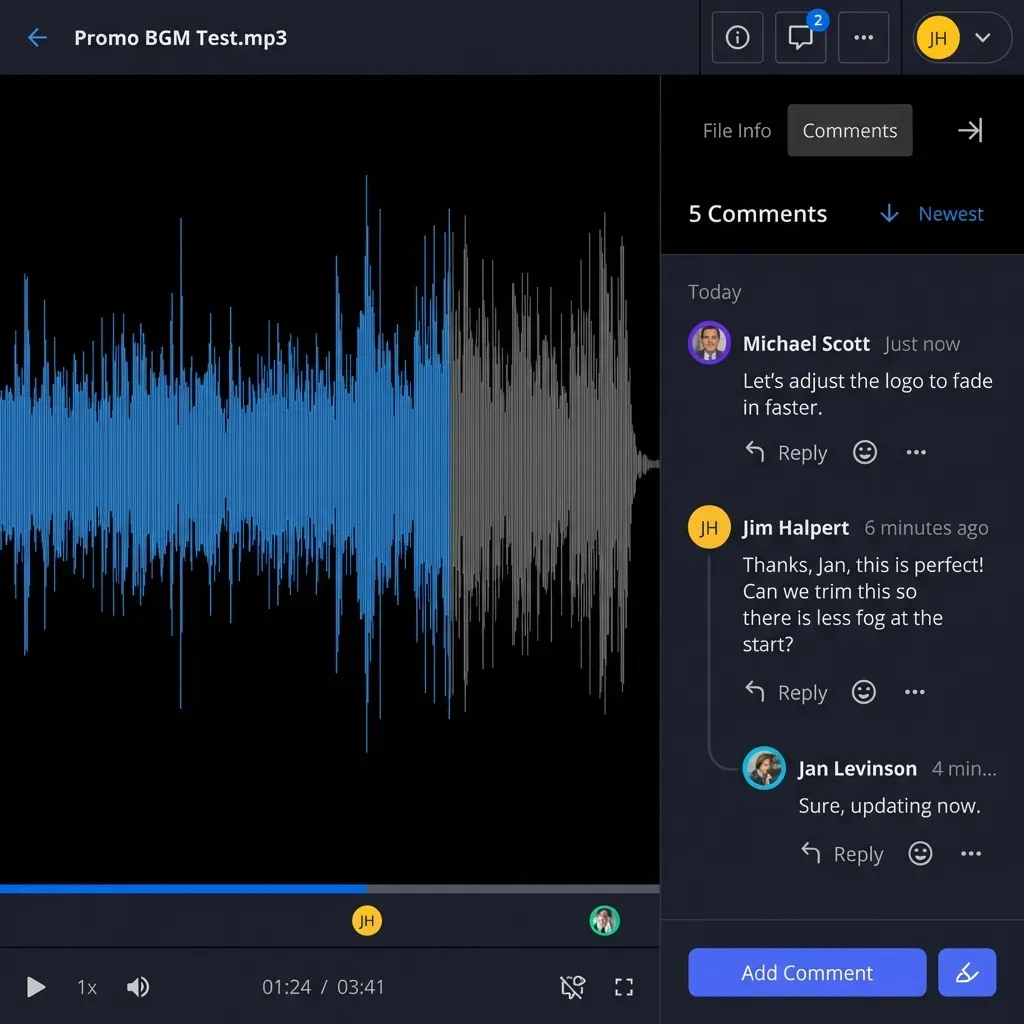
- Disable downloads for browser-only review: Turn off file downloads when recipients only need to read or review a document. Fastio renders in-browser previews for PDFs, Word documents, spreadsheets, audio, video, and design and camera formats (such as PSD, AI, RAW, and CAD files). Signed-in reviewers can leave comments anchored to a specific PDF page, image region, or video timestamp on that file version without downloading a copy.
- Send agreements through built-in e-signature: When a document requires signing, send it for e-signature directly from the workspace. You can route signers in sequence or in parallel, require an optional one-time passcode per signer by email or text message, and have the executed PDF filed back into the workspace automatically alongside an audit certificate that records who signed, when, and from which IP address and browser.
How Encryption and Activity Logs Protect Shared Documents
AES-256 encryption is the current standard for protecting documents used by governments and financial institutions, with no practical attacks recorded against properly implemented AES-256. However, encryption only protects files if both the network path and the storage layer are covered.
Encryption in transit protects documents while they move between a user's browser, an API client, and the cloud server. Modern platforms use TLS 1.3, the current standard for secure connections, so intercepted network traffic cannot be read.
Encryption at rest protects files while they sit on storage disks. Fastio encrypts stored files at rest and in transit and runs on cloud infrastructure partners, including Google Cloud Platform and Cloudflare, that are certified to industry-leading security standards.
Because the files stay in a workspace rather than a locally encrypted archive, your team keeps capabilities archive encryption cannot offer:
- Per-file version history and advisory file locks: Every file keeps its full version history so prior versions can be restored at any time. When people or agents coordinate edits in a workspace or share, they can acquire an advisory per-file lock, renew it by heartbeat, and release it when finished (with override available to anyone holding write permission).
- Structured extraction with Metadata Views: When a team collects dozens of signed agreements or invoices through a Receive share, Metadata Views can extract typed fields such as effective dates, counterparties, policy limits, or invoice totals into a sortable, filterable grid without manual data entry.
- Detailed activity log: Fastio maintains a detailed activity log of what changed across the organization and who changed it, covering both human members and AI agents. The log records uploads, edits, moves, deletions, membership and permission updates, and share creation.
Sharing Documents with Clients, Cloud Drives, and AI Assistants
For most small and mid-sized companies, the hardest part of document security is scoping access across existing cloud drives and AI tools without reorganizing years of folders.
Syncing Specific Folders Without Migrating Your Drive
Most organizations store their records in SharePoint, Google Drive, Box, or Dropbox, where internal folders often mix confidential executive files with documents that external partners or AI tools need to read. Restructuring those source drives is rarely practical.
With Fastio Cloud Sync, an IT administrator or team lead can connect specific folders from Google Drive, Dropbox, Box, and OneDrive (including SharePoint document libraries through OneDrive for Business) to a Fastio workspace, one-way or two-way, on a recurring schedule or on demand. A one-way scheduled sync brings only the selected folders into the workspace while leaving the source drive untouched.
Scoping File Access for Claude, ChatGPT, and Coding Agents
Connecting an AI assistant directly to an entire SharePoint site or Google Drive often exposes far more than a project requires because user-level drive permissions are wide. Placing only the target files into a dedicated Fastio workspace solves the scoping problem before the AI ever connects.
Fastio hosts a remote MCP server with a consolidated MCP toolset at per-client endpoints (https://mcp.fast.io/mcp/tools for Claude and general MCP clients, https://mcp.fast.io/mcp/operations or the Fastio plugin for ChatGPT and Codex, and https://mcp.fast.io/mcp/code for coding agents such as Claude Code and Cursor; see https://mcp.fast.io/docs for setup steps). During OAuth sign-in, a Review Permissions screen lets you choose Read Only or Read & Write access and pick the exact organizations and workspaces the assistant can reach. With Read Only selected, write tools are not offered to the assistant.
When an AI agent builds an organization on a client's behalf, it can hand the organization to a human at the client using ownership transfer and a claim link once the setup is complete.

How to Respond When a Shared Document Link Is Exposed
If a shared link is forwarded to the wrong person or an external contractor leaves a project, having your files in a controlled share or workspace lets you cut off access immediately.
Immediate containment (first 15 minutes):
- Revoke the share or recipient grant: Open the share settings and revoke the individual recipient's access or disable the share link entirely.
- Revoke connected agent or device sessions: If a scoped API key or MCP client connection was exposed, revoke the API key or open Settings, then Devices & Agents, then Connected Devices in Fastio and select Revoke.
- Disable downloads on remaining shares: If related shares are still active for other parties, switch them to view-only in the browser with downloads turned off.
Review and recovery (first 24 hours):
- Check the detailed activity log: Inspect the organization's detailed activity log to see all recorded changes during the exposure window, including any file uploads, edits, moves, deletions, permission changes, or newly created shares.
- Restore affected files from version history: If a collaborator or agent modified or overwrote a file in an Exchange share or workspace before access was revoked, restore the previous version from per-file version history.
- Issue a new scoped share: If the intended recipient still needs the files, create a fresh share with a new password, a short expiration date, and per-recipient access.
Sources
References used to verify factual claims in this guide.
-
AES-256 encryption is the current standard for protecting documents used by governments and financial institutions
-
TLS 1.3 is the current standard for secure connections
-
Email attachment size limits typically 25MB leading to insecure workarounds
Frequently Asked Questions
What is the safest way to send secure documents?
The safest way to send confidential documents is through an encrypted file share or client portal rather than an email attachment. Look for a platform that encrypts files in transit and at rest, lets you set a password and an expiration date on the link, supports disabling file downloads, and keeps a detailed activity log of changes and share creation.
How do I send confidential documents without email attachments?
Place the documents in a dedicated Send share or client portal and send the recipient the controlled link. Protect the link with a password delivered through a separate channel such as a text message or phone call, set a 7-day or 14-day expiration date, and disable downloads if the recipient only needs to read the file in their browser.
Is email safe for sending sensitive documents?
Standard email is not safe for confidential files. Once an attachment leaves your outbox, copies remain on mail servers indefinitely, anyone on the thread can forward the file, and you cannot revoke access if you sent it to the wrong address. Replacing attachments with a revocable share link keeps the file in one controlled place.
How do I send large documents securely when they exceed email limits?
Email providers such as Gmail cap attachments at 25 MB. To send large financial models, legal discovery sets, or media packages securely, upload them to a cloud workspace that supports chunked large-file uploads (in Fastio, maximum upload size is 25 GB on Starter, 50 GB on Business, and 100 GB on Enterprise) and share them via a password-protected link with an expiration date.
How can I share specific folders with a client or AI assistant without exposing our whole drive?
Create a separate workspace or share for that project. In Fastio, access is granted at the organization, workspace, and share level. You can sync only the required folders from Google Drive, Dropbox, Box, or OneDrive (including SharePoint libraries via OneDrive for Business) into a dedicated workspace, then invite the client to a share or scope Claude or ChatGPT to that single workspace.
Can I stop a recipient from downloading a shared document?
Yes. A Fastio share can disable file downloads so recipients view the document in their browser instead of saving a local copy. In-browser previews support PDFs, Word documents, spreadsheets, video, audio, and design and camera formats. Signed-in reviewers can leave comments anchored to specific pages or regions.
Related Resources

Send Confidential Documents Through Controlled Shares
Replace email attachments with password-protected shares, expiring links, client portals, and scoped workspaces for your team and AI assistants. Monthly plans start with a 14-day free trial.