How to Set Up Secure File Sharing for Your Business
Secure file sharing for business protects company documents across internal teams, external clients, and AI agents using encryption, role-based permissions, and expiring links. Most data exposure happens when folders mix internal and client files under broad drive permissions or unscoped AI connectors. This guide covers the core security controls for business file sharing and how to isolate access without migrating your existing cloud drives.

What Makes File Sharing Secure for Business?
When an employee emails a contract attachment or pastes a broad folder link into a chat thread, the company loses control over who forwards that file, who downloads a local copy, and whether an outside contractor can still open it months later. The same exposure happens internally when a business connects an AI assistant like Claude or ChatGPT straight to a company SharePoint site or Google Drive: because a user's drive permissions span years of folders, the assistant inherits access to confidential records that have nothing to do with the project at hand.
Secure file sharing for business is the practice of exchanging documents between employees, external clients, and software agents inside organization-owned boundaries with encryption, role-based access controls, expiring links, and a detailed activity log. Whether you run a 20-person consultancy or a company with many departments, the goal is identical: give each team, client, or AI agent access to the exact unit of work they need while keeping the underlying files under company ownership.
Helpful references: Fastio Workspaces, Fastio Collaboration, and Fastio AI.
Related guides
- How to Choose a Secure File Sharing PlatformPicking a secure file sharing platform means understanding what "secure" actually requires for your team. This guide...
- How to Choose a Managed File Transfer SolutionManaged File Transfer (MFT) is a secure platform for moving sensitive files between systems, partners, and customers...
- File Sharing with Password Protection for Download Links and FilesFile sharing with password protection stops forwarded or exposed links from turning into unauthorized access when you...
- How End-to-End Encrypted File Sharing Works (and When You Actually Need It)End-to-end encrypted file sharing ensures that only the sender and recipient can read a file, with the service provider...
- How to Share Files with External Stakeholders SecurelyExternal file sharing is the secure exchange of documents and digital assets with people outside your organization,...
- How to Share Files Securely with EncryptionEncrypted file sharing protects files with cryptographic algorithms during transfer and storage, ensuring only...
More on this subject: Security and Access Control (32 guides)
5 Security Controls Every Business File Sharing Setup Needs
Evaluating secure business file sharing starts with verifying how a platform protects data in motion, scopes internal and external users, and records changes across workspaces.
1. Encryption in Transit and at Rest
Business documents need encryption both while traveling over the network (in transit via TLS) and while stored on disk (at rest). If traffic is intercepted on an untrusted network, encrypted packets remain unreadable. Fastio encrypts files in transit and at rest and runs on cloud infrastructure partners, including Google Cloud Platform and Cloudflare.
2. Organization-Owned Workspaces and Scoped Permissions
When employees store work in personal cloud accounts, files stay tied to individuals rather than the business. Organization-owned workspaces keep every file, note, and share under company control even when staff or contractors change roles.
Platforms handle permission hierarchy in different ways. Corporate drives like Box, Dropbox, and SharePoint use nested folder trees, which often accumulate conflicting access rules over time. In Fastio, role-based permissions are set per organization, workspace, and share: every workspace member reaches that workspace according to their role. To give a team, client, or AI agent a narrower scope, you place that work in its own workspace (one workspace per deal, legal matter, client engagement, or department) or share a specific folder or set of files through a dedicated share. When an AI agent sets up an organization or workspace on behalf of a team, ownership transfer lets the agent hand the organization over to a human administrator via a claim link.
3. Purpose-Built External Shares with Link Controls
External handoffs are where file sharing most often breaks down. Instead of open links that anyone can forward and download forever, look for shares that support:
- Directional share types: Use a Send share for outbound deliverables, a Receive share to collect files from clients or vendors without email attachments, and an Exchange share when both sides need to upload and revise files together.
- Passwords and expiration dates: Protect sensitive shares with a password and set links to expire automatically when a project or audit window closes.
- Disabled downloads with in-browser previews: Turn off file downloads so external recipients review PDFs, spreadsheets, CAD drawings, PSDs, RAW photos, audio waveforms, and adaptive-streaming video directly in the browser without saving local copies.
- Per-recipient access grants: Grant and revoke access for individual recipients on a share without breaking the link for everyone else.
4. Version History, Advisory File Locks, and a Detailed Activity Log
Security also means protecting files from accidental overwrites and knowing what changed. Per-file version history keeps prior versions restorable while ensuring share recipients always see the current version. When multiple teammates or AI agents work in the same workspace, advisory per-file locks let a writer acquire and heartbeat a lease on a file, make changes, and release it, while anyone with write permission can override a stale lock if needed.
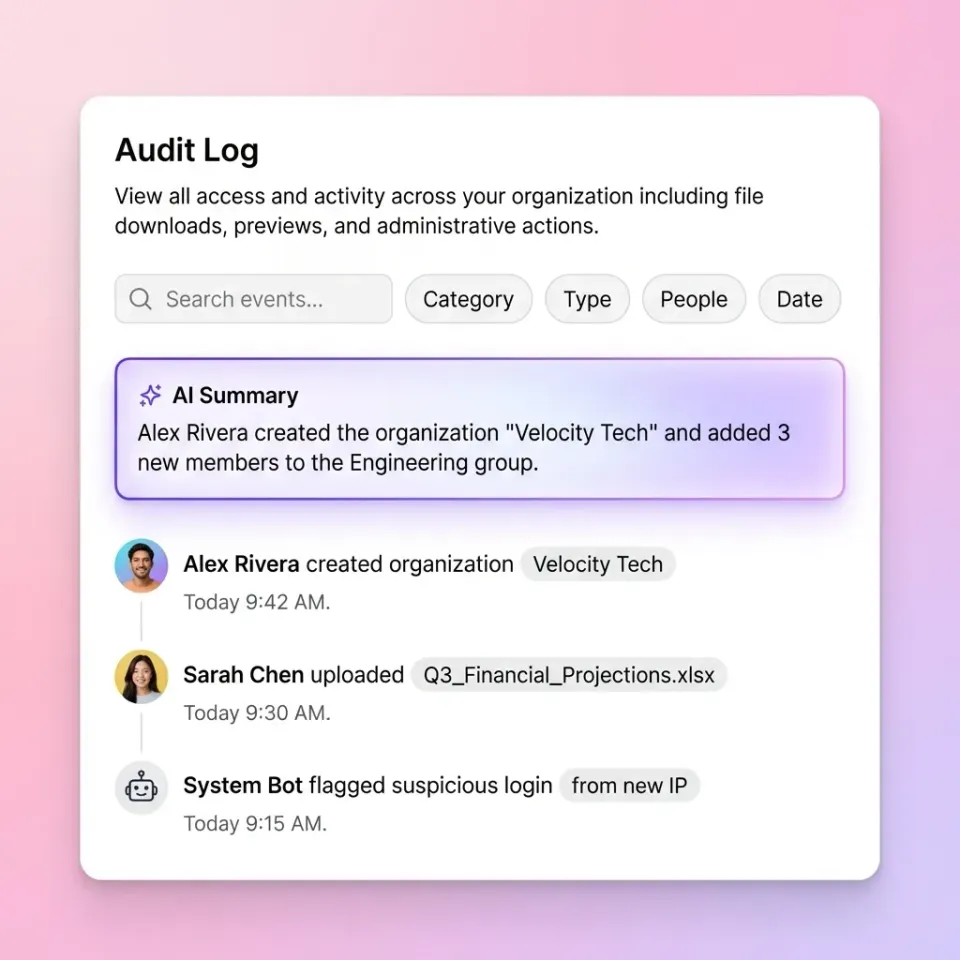
To track changes across the organization, a detailed activity log records uploads, edits, moves, deletions, membership and permission changes, and share creation by both people and agents. Teams can also subscribe to an events feed over WebSocket or long-poll to watch workspace activity as it happens, and Enterprise plans add legal holds, a compliance auditor role, security alerts, and an audit stream to a SIEM.
5. Scoped Cloud Sync and AI Access Without Migration
Most companies already keep their records in SharePoint, Google Drive, Box, or Dropbox, and restructuring years of folders is not realistic. With Cloud Sync, an IT lead brings selected folders from Google Drive, Dropbox, Box, and OneDrive (including SharePoint document libraries through OneDrive for Business) into a Fastio workspace on a schedule or on demand, one-way or two-way. One-way sync leaves the source drive unchanged.
Once those folders are in a workspace, administrators can connect Claude, ChatGPT, or coding agents using a consolidated MCP toolset: Claude at https://mcp.fast.io/mcp/tools, ChatGPT and Codex through the Fastio plugin or https://mcp.fast.io/mcp/operations, and coding agents at https://mcp.fast.io/mcp/code. During OAuth sign-in, the Review Permissions screen lets the user choose which specific workspaces the assistant can reach and whether it gets Read Only or Read & Write access, scoping the AI below the user's full corporate drive permissions.

Why Traditional File Sharing Falls Short
Many companies piece together file transfers from email, personal cloud drives, and legacy servers until a permission mistake forces a review.
Email attachments create permanent copies in external mailboxes with no expiration date, no version history, and no way to revoke a file after someone clicks send.
Ad-hoc transfer services like WeTransfer move large archives from point A to point B, but they do not provide persistent organization-owned workspaces, per-file version history, or scoped AI access.
Personal cloud storage ties business files to an individual's login, meaning project records can walk out the door when an employee or contractor leaves.
Broad corporate drives such as company-wide SharePoint sites or shared Google Drives keep ownership with the business, but folders frequently mix confidential executive files with client deliverables, making it unsafe to connect an AI assistant or invite an outside partner directly into the drive.
Legacy FTP servers and physical USB drives sit at the other extreme: FTP requires manual credential management without in-browser media previews or collaborative review tools, and USB drives are untraceable once they leave the office.


Scope business files for teams, clients, and AI agents
Sync selected folders from Drive, SharePoint, Box, or Dropbox into isolated workspaces with branded shares, in-browser previews, and a detailed activity log. Monthly plans start with a 14-day free trial.
How to Evaluate Secure Enterprise File Storage and Sharing
When comparing platforms such as Box, Dropbox, Egnyte, ShareFile, FileCloud, and Fastio, test how each platform handles four operational questions:
Who owns the workspace and credentials? Confirm that workspaces, shares, and version histories belong to the organization rather than an individual user. For automated pipelines and agents, check whether you can issue a scoped API key limited to one workspace so revoking one integration affects nothing else.
How are external guests billed and managed? In seat-only tools, inviting outside clients or counsel gets expensive fast. In Fastio, seats count organization members only, while external guests open branded shares and client portals by link without an account and without consuming a seat. Creating an account is free, and organizations run on paid subscriptions where monthly plans start with a 14-day free trial (credit card required). Storage and seats come with the plan, and AI work is metered by credits; see fast.io/pricing for current plan details.
Can teams review, comment, and sign inside the workspace? Every time a user downloads a file to review it, a local copy escapes your access controls. Look for in-browser previews paired with comments anchored to specific PDF pages, image regions, text selections, or video timestamps, plus Notes that support live co-editing with visible cursors for people and agents. When an agreement is ready to execute, built-in e-signature lets teams route documents to sequential or parallel signers with no signer account required, an optional passcode per signer, and an audit certificate that records each signer's IP address and browser before filing the signed copy back into the workspace.
Can you search and extract structured data across large document sets? A secure platform should also make documents useful once they are locked down. With workspace Intelligence enabled, Fastio indexes files as they arrive for hybrid search (full-text, semantic, and metadata queries) and citation-backed AI chat. When teams need structured tracking across hundreds of contracts, policies, or invoices, Metadata Views extract typed fields into a sortable, filterable grid without manual data entry.

Setting Up Secure Sharing for External Clients and Partners
Sharing files with clients, outside agencies, auditors, and counterparties requires isolating external users from your internal workspace while keeping the handoff simple enough that nobody falls back to email.
Create one workspace or share per unit of work. Keep internal drafts in your team workspace and share only the specific folder or files an outside party needs. For ongoing client relationships, publish a branded Content Portal with your logo, colors, custom background, and vanity URL so clients can open files without creating an account and immediately recognize your company's branding.
Set expiring links, passwords, and download restrictions by default. When delivering confidential financials, legal productions, or pre-release media, set an expiration date on the share, require a password where appropriate, and disable downloads so guests view files in the browser. Inside a portal, Ripley AI can also answer client questions directly from the shared documents with page-level citations.
Use Receive shares for inbound document collection. Instead of asking clients to email tax records, due diligence folders, or media raw files, send a Receive share link. Guests upload large files through chunked browser uploads (up to 25 GB on Starter, 50 GB on Business, and 100 GB on Enterprise) without seeing anything uploaded by other recipients.
Balancing Security Controls with Team Speed
A security policy only holds if the approved workspace is faster than the workaround. When sharing a file securely takes ten configuration steps or forces a department to abandon its existing folder structure, people revert to personal links and email attachments.
Sync existing folders instead of migrating drives. Let finance, legal, and operations teams keep their files in SharePoint, Google Drive, Box, or Dropbox, and use Cloud Sync to mirror only the active project folders into dedicated workspaces on a schedule or on demand. Nothing in the source drive changes with one-way sync, and each project team or AI assistant gets a clean boundary.
Keep feedback and handoffs in the browser and CLI. In-browser previews of video, images, CAD files, and documents let reviewers leave anchored comments without waiting on full downloads. For engineering and operations teams automating file delivery, the Fastio CLI (@vividengine/fastio-cli, run as fastio) and the REST API at https://api.fast.io/current/ allow scripted uploads, share creation, and advisory file locking using scoped credentials rather than shared admin logins.
Frequently Asked Questions
What is the safest way to share files for business?
The safest approach combines encryption in transit and at rest, organization-owned workspaces, role-based permissions set per organization, workspace, and share, expiring password-protected links with downloads disabled, and a detailed activity log that records file and permission changes.
How do companies securely share files with external clients?
Companies create dedicated shares (Send, Receive, or Exchange) or branded client portals that hold only the files or folder for that client. External guests open the link in their browser without creating an account or consuming a paid seat, while administrators can set a password, add an expiration date, disable file downloads, and revoke access per recipient.
How can a business give Claude or ChatGPT access to specific files without exposing SharePoint or Google Drive?
Use Cloud Sync to bring only the selected folders from Google Drive, Dropbox, Box, or OneDrive (including SharePoint libraries via OneDrive for Business) into a dedicated Fastio workspace on a schedule or on demand. Then connect Claude or ChatGPT to Fastio and use the Review Permissions screen to grant Read Only or Read & Write access to that specific workspace only.
How do permissions and activity logs work in business file sharing?
In Fastio, role-based access is granted at the organization, workspace, and share levels. To limit a team, client, or AI agent to certain files, place those files in their own workspace or in a dedicated share. A detailed activity log records uploads, edits, moves, deletions, membership and permission changes, and share creation by both people and agents.
How can businesses share large files securely without email limits?
Use a cloud workspace that supports chunked uploads, expiring share links, and in-browser streaming previews. Fastio supports maximum uploads of 25 GB on Starter, 50 GB on Business, and 100 GB on Enterprise, and recipients can preview video, CAD files, PSDs, and long PDFs directly in the browser without downloading the source file.
Related Resources

Scope business files for teams, clients, and AI agents
Sync selected folders from Drive, SharePoint, Box, or Dropbox into isolated workspaces with branded shares, in-browser previews, and a detailed activity log. Monthly plans start with a 14-day free trial.