Secure File Transfer: How to Send Sensitive Files Online
Secure file transfer protects documents in transit and at rest while keeping control over who can open, edit, or download them after delivery. Email attachments and personal drive links scatter sensitive files across outside inboxes with no way to revoke access or verify what changed. Moving transfers into organization-owned workspaces and branded shares lets teams exchange large files with clients, partners, and AI agents under clear permissions and a detailed activity log.

What Is Secure File Transfer?
When a team emails a contract attachment or drops a personal drive link into a chat thread, the sender loses control the moment the message leaves the outbox. The file sits in external mail servers indefinitely, can be forwarded to unintended recipients, and remains accessible even after a project ends or an employee leaves the company.
Secure file transfer is the process of moving documents and media between people, organizations, and automated systems using encryption, scoped permissions, and change logging so only authorized parties can reach the data. Unlike basic file delivery that only moves bytes from one device to another, a secure transfer protects the file while it travels across the network and while it lives in cloud storage.
Three technical controls separate a secure transfer from an ordinary link:
- Encryption in transit and at rest: Data is encrypted with TLS in transit and encrypted at rest.
- Scoped access controls: Permissions are assigned at the organization, workspace, and share level, paired with expiring links, passwords, and download restrictions for external recipients.
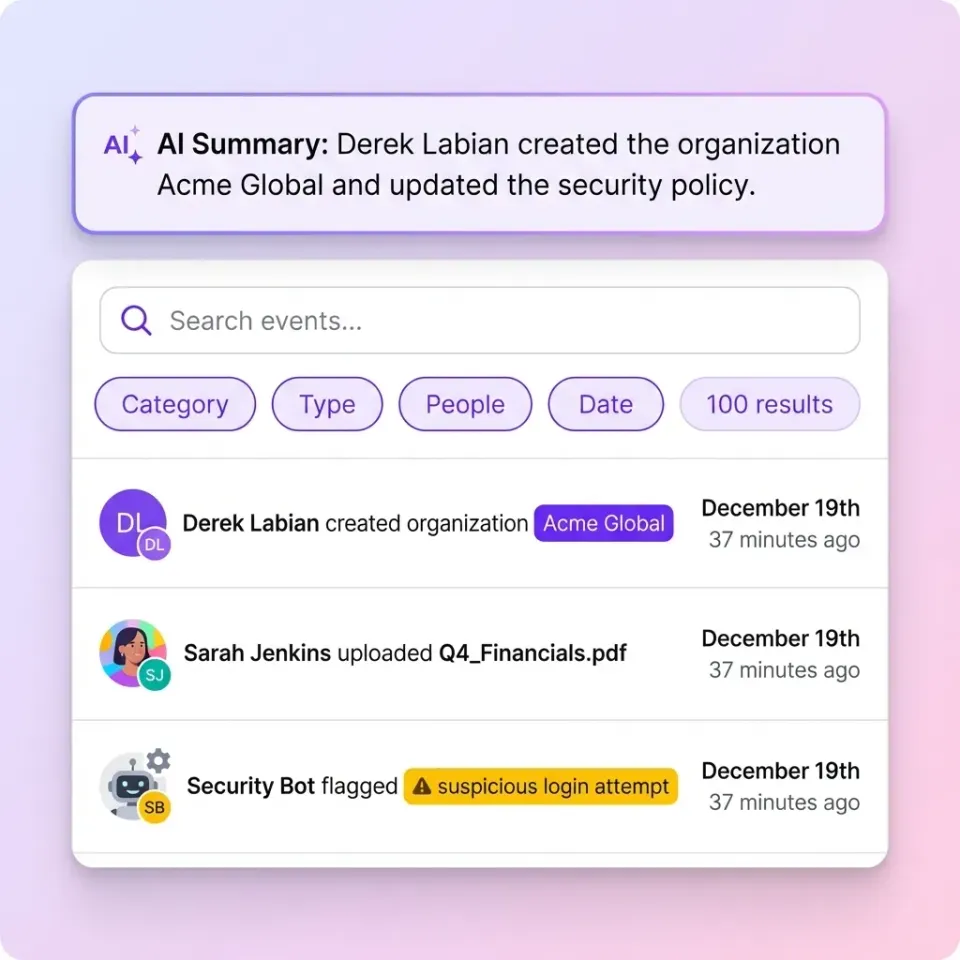
- A detailed activity log: An organization-wide record tracks every upload, edit, move, deletion, permission update, and share creation across human teammates and AI agents.
Helpful references: Fastio Workspaces, Fastio Collaboration, and Fastio AI.
Related guides
- File Sharing with Password Protection for Download Links and FilesFile sharing with password protection stops forwarded or exposed links from turning into unauthorized access when you...
- How to Share Files Securely with EncryptionEncrypted file sharing protects files with cryptographic algorithms during transfer and storage, ensuring only...
- How to Set Up Secure File Sharing for Your BusinessSecure file sharing for business protects company documents across internal teams, external clients, and AI agents...
- How to Choose a Secure File Sharing PlatformPicking a secure file sharing platform means understanding what "secure" actually requires for your team. This guide...
- How End-to-End Encrypted File Sharing Works (and When You Actually Need It)End-to-end encrypted file sharing ensures that only the sender and recipient can read a file, with the service provider...
- How to Share Files SecurelySending sensitive documents through email or public cloud links exposes your data to interception and unauthorized...
More on this subject: Security and Access Control (32 guides)
Why Everyday File Sharing Methods Expose Sensitive Data
Most companies transfer files all day, but convenience tools create blind spots once confidential documents leave an internal network.
Email attachments create permanent copies in every recipient's inbox. Once sent, an attachment cannot be revoked, updated, or expired. If a recipient's mail account is compromised two years later, every historical contract or financial spreadsheet in their archive is exposed.
Personal cloud storage accounts tie business files to individual users rather than the organization. When an employee or contractor uses a personal Google Drive or Dropbox account to send files to a client, the company has no central visibility into those links. When that person leaves the company, their files either leave with them or remain shared through unmonitored links.
Over-permissioned AI connectors introduce a newer exposure risk. Many small and mid-sized companies roll out Claude or ChatGPT across the organization while keeping their files in SharePoint, Google Drive, Box, or Dropbox. Connecting an AI assistant directly to a full corporate drive often exposes folders that mix confidential executive records with routine project files, because user-level drive permissions are wider than what an assistant or outside collaborator should reach.
Physical media and ad-hoc chat uploads strip away governance entirely. USB drives can be lost without a trace, and files dropped into messaging channels separate important deliverables from their version history.
Core Controls for Secure File Transfer in the Cloud
Evaluating a cloud transfer platform means looking past surface marketing claims and verifying the specific controls that govern encryption, access scope, change tracking, and document execution.
1. Encryption in Transit and at Rest
Files require protection in two states: while moving across the internet (in transit) and while stored on cloud disks (at rest).
In transit: Look for TLS 1.2 or TLS 1.3 encryption on every connection so network observers cannot intercept files during upload or download.
At rest: Look for encryption on stored files and backups, not only on files in transit. Fastio encrypts files in transit and at rest and runs on cloud infrastructure partners, including Google Cloud Platform and Cloudflare, that are certified to industry-leading security standards.
2. Organization, Workspace, and Share Permissions
Effective access control keeps ownership with the company and scopes visibility cleanly:
- Organization level: Files and workspaces belong to the organization, not individual accounts. When a team member departs, revoking their organization membership immediately removes their access across every workspace.
- Workspace level: Permissions are set per workspace through member roles. Instead of maintaining brittle rules inside a single sprawling drive, teams create one workspace per client, deal, matter, or department so members only reach the workspaces assigned to their role.
- Share level: When an outside client, vendor, or counsel needs access to specific files or a single folder without joining the workspace, teams place those items into a dedicated share with its own password, expiration date, and download setting.
- Ownership transfer: When an AI agent builds an organization and organizes files for a client, Fastio supports ownership transfer: the agent hands the organization to a human with a claim link, and that person manages billing and permissions going forward.
3. Detailed Activity Logs, Version History, and File Locks
Supporting a compliant file transfer process requires knowing what changed and being able to recover from mistakes. In Fastio, a detailed activity log records storage changes across the organization for human and agent actions alike: uploads, edits, moves, and deletions, plus membership changes, permission updates, and share creation.
Every file also keeps per-file version history, allowing administrators or teammates to restore an earlier version if a document is overwritten. When people and AI agents work in the same workspace, advisory file locks provide per-file leases that writers can acquire, heartbeat, and release to coordinate edits, with override available to anyone holding write permission while version history preserves every save.
4. Completing a Secure File Transfer with Electronic Signature
Sensitive file transfers frequently end with a document that needs to be signed, such as a non-disclosure agreement, statement of work, or closing package. Moving files to a separate signing service creates extra copies and breaks the workspace record.
With Fastio E-Signature, teams send documents for electronic signature directly from a workspace. Signers can be routed in sequence or in parallel, and external signers do not need a Fastio account. Senders can require an optional one-time passcode per signer, and each completed envelope generates an audit certificate that records the signer's IP address and browser before filing the executed copy back into the workspace.

Comparing Secure File Transfer Tools
Teams choosing among secure file transfer tools generally weigh point-to-point delivery services against enterprise content repositories and workspace platforms.
- WeTransfer: Designed for one-off file delivery where a sender packages files into a download link for a recipient. Password protection is available on all plans, including the free one. Free and Starter transfers stay online for up to 3 days, and Ultimate and Teams keep them for up to 30 days. It fits transient media handoffs where recipients only need to download a bundle, rather than an ongoing shared workspace with version history or document chat.
- Box: An enterprise content management and file transfer platform offering shared folders, link permissions, and governance features. It fits organizations that want to standardize all internal storage and external sharing inside a single corporate repository.
- Google Drive, OneDrive, SharePoint, and Dropbox: General-purpose cloud drives where most company documents already live. They work well for everyday internal authoring, though scoping an external partner or an AI assistant to a narrow subset of files without restructuring years of existing folders can be difficult.
- Fastio: A cloud workspace platform for teams and AI agents that combines branded shares, client portals, e-signature, and scoped AI access. Through Cloud Sync, IT leads connect selected folders from Google Drive, Dropbox, Box, and OneDrive (including SharePoint document libraries through OneDrive for Business) to a Fastio workspace on a schedule or on demand, one-way or two-way. The files stay in the source drive without a migration, while each workspace and share enforces its own permissions.
How to Send and Receive Sensitive Files Online
A practical secure transfer setup separates outbound delivery, inbound collection, large media review, and AI agent access into purpose-built flows.
1. Sending Files to Clients and Partners
For outbound delivery, use Send shares or branded Content Portals rather than email attachments. External guests can open a share link in their browser without creating an account and without consuming a paid seat.
- Set expiring links: Attach an expiration date to every external share so links close automatically when a project or review window ends.
- Require a password: Protect confidential shares with a password and send that password over a separate channel, such as a text message or phone call, rather than in the same email as the link.
- Disable downloads when only review is needed: Shares can disable file downloads so recipients view documents, images, and videos in the browser without saving local copies to unmanaged devices.
2. Collecting Files from External Senders
When vendors, clients, or applicants need to send sensitive data to your team, open a Receive share (a dedicated upload portal) instead of granting access to an internal workspace. Senders upload files through a branded link using chunked uploads for large packages, and they cannot see any other files uploaded to that destination. An Exchange share fits when both sides need to see and add files.
3. Transferring Large Media and Sensitive Files
When sensitive files run to gigabytes, forcing recipients to download raw archives before reviewing them slows down projects. Fastio supports chunked uploads (up to 25 GB per file on Starter, 50 GB on Business, and 100 GB on Enterprise) and provides in-browser previews across PDF, spreadsheets, audio with waveform navigation, video with adaptive HLS streaming, CAD drawings, RAW camera photos, and design formats including PSD and AI files.
Reviewers can attach anchored comments pinned to a specific file version, PDF page, text selection, image region, or frame-accurate video timestamp. For document-heavy transfers, teams can also use Metadata Views (Document Data Extraction) to define a natural-language schema and extract structured fields such as contract dates, counterparties, or invoice totals across workspace files, alongside citation-backed AI search and chat.
4. Scoping File Transfers for AI Assistants and Agents
When an IT lead wants Claude, ChatGPT, or a coding agent to work with transferred files without exposing the company's entire SharePoint or Google Drive environment, Fastio scopes access at the workspace boundary:
- Claude and general MCP clients: Connect to the remote MCP server at
https://mcp.fast.io/mcp/toolsover Streamable HTTP (see setup steps athttps://mcp.fast.io/docs). - ChatGPT and Codex: Install the Fastio plugin from the plugin directory, or connect a custom MCP server at
https://mcp.fast.io/mcp/operations. - Coding agents: Connect Claude Code, Cursor, VS Code, Cline, or Gemini CLI to
https://mcp.fast.io/mcp/code. - CLI and headless automation: Scripts and CI jobs can transfer files using scoped API keys or the
@vividengine/fastio-clipackage (fastio upload file,fastio share create), documented at Fastio CLI.
During interactive OAuth sign-in, a Review Permissions screen lets the administrator choose Read Only or Read & Write access and select the exact workspaces the assistant can reach.



Send and Receive Sensitive Files in Branded Workspaces
Share large files with clients and AI agents using encryption, expiring links, password protection, and a detailed activity log. Monthly plans start with a 14-day free trial.
Secure File Transfer by Industry and Use Case
Different teams apply workspace and share controls in distinct ways depending on what they transfer.
Legal and Professional Services
Law firms and litigation support teams organize one workspace per matter so case files stay isolated from other clients. Attorneys use Receive shares to collect discovery documents from clients, use Metadata Views and citation-backed AI chat to review long filings, and deliver closing binders through password-protected shares with expiring links. Legal file sharing solutions cover these matter-level setups in detail.
Video, Architecture, and Creative Production
In-house brand teams and studios working with outside agencies exchange multi-gigabyte video cuts, CAD drawings, RAW camera photos, and PSD or AI design files. Using branded shares with adaptive video streaming, in-browser previews, and frame-accurate anchored comments lets stakeholders review unreleased creative work in the browser with downloads disabled.
Private Equity, Finance, and Executive Search
Deal teams and search firms frequently keep master folders in SharePoint, Box, or Google Drive where confidential internal notes sit alongside documents meant for external parties. By syncing only the shareable folders into a deal-specific Fastio workspace, administrators give outside advisors or internal Claude users a clean, scoped repository, collect signatures with built-in e-signature, and revoke share links in one click when a transaction closes.
Enterprise Governance Controls
For organizations with dedicated security operations teams, Fastio's Enterprise plan adds legal holds, a compliance auditor role, security alerts, and an audit stream to a SIEM.
Checklist for Evaluating Your File Transfer Setup
Use this checklist to audit how your organization currently sends and receives confidential files:
Encryption check
- Are all file transfers encrypted with TLS in transit and encrypted at rest?
Permission and link-control check
- Are permissions managed per organization, workspace, and share rather than left on personal user accounts?
- Can you share a single folder or file set externally using expiring links, passwords sent via a second channel, and disabled downloads?
- Can you collect inbound files through a dedicated Receive share without exposing internal folders?
- When connecting Claude, ChatGPT, or other AI agents, can you restrict the connection to specific workspaces and Read Only or Read & Write mode?
Activity, versioning, and ownership check
- Does a detailed activity log record uploads, edits, moves, deletions, permission changes, and share creation across people and agents?
- Does every file keep version history with advisory file locks available to coordinate concurrent writers?
- Can documents be routed for electronic signature inside the same workspace with an audit certificate recording the signer's IP address and browser?
- Does the organization retain ownership of all workspaces when employees depart, and can an agent that builds an organization hand it to a human with an ownership transfer claim link?
Frequently Asked Questions
What is the most secure way to transfer files online?
Combine TLS encryption in transit and encryption at rest with organization-owned workspaces and scoped shares. When sending files outside your company, use branded shares or portals with expiration dates, require a password sent through a separate channel, and disable downloads when recipients only need to preview files in the browser. Pair those controls with per-file version history and a detailed activity log of changes.
What makes a cloud file transfer secure vs insecure?
An insecure transfer, such as an email attachment or an unrestricted personal drive link, creates copies that cannot be revoked, expired, or tracked after delivery. A secure cloud platform keeps files under organization ownership, scopes permissions at the workspace and share level, protects links with passwords and expiration dates, and records uploads, edits, moves, deletions, and permission changes in a detailed activity log.
How can I complete a secure file transfer with an electronic signature?
In Fastio, you can send documents for e-signature directly from the workspace where your files live. You can route signers in sequence or in parallel, require an optional one-time passcode per signer, and let external recipients sign in the browser without creating an account. Once signed, an audit certificate recording each signer's IP address and browser is attached, and the executed document files itself back into the workspace.
How do I receive sensitive files from clients without exposing my workspace?
Create a Receive share, which acts as a dedicated upload portal. External senders open your branded link and upload files (including multi-gigabyte packages via chunked uploads) directly into that share without needing an account and without seeing any other files or folders in your workspace.
How do I scope AI assistants like Claude or ChatGPT when transferring company files?
Sync only the specific folders you want the AI to use from Google Drive, Dropbox, Box, or OneDrive (including SharePoint libraries via OneDrive for Business) into a dedicated Fastio workspace. When connecting Claude or ChatGPT through Fastio's consolidated MCP toolset or plugin, use the Review Permissions screen during OAuth sign-in to select only that workspace and choose either Read Only or Read & Write access.
What security controls support compliant file transfer workflows?
Key technical controls include TLS encryption in transit, encryption at rest, role-based permissions at the organization, workspace, and share level, password-protected and expiring share links, download restrictions, e-signature audit certificates, per-file version history, and a detailed activity log that records file and permission changes across human users and AI agents. On the Enterprise plan, organizations can also apply legal holds, assign a compliance auditor role, and stream activity events to a SIEM.
Related Resources

Send and Receive Sensitive Files in Branded Workspaces
Share large files with clients and AI agents using encryption, expiring links, password protection, and a detailed activity log. Monthly plans start with a 14-day free trial.