How to Create a Secure File Upload Portal for Clients
A secure file upload portal is a dedicated web page where external clients, vendors, and partners submit documents and large media directly to your organization without creating an account or viewing your internal folder structure. It replaces 25 MB email attachment limits and over-permissioned cloud drive links with branded, password-protected intake that lands files directly into a scoped workspace.

What Is a Secure File Upload Portal?
Gmail and Outlook.com cap attachments at 25 MB. When a client tries to send raw video footage, a multi-page financial binder, a CAD assembly, or a batch of high-resolution photos, the message bounces. When teams work around that limit by sharing a folder inside their main SharePoint, Google Drive, or Box environment, they hit a second problem: user-level and folder-level sharing in a live company drive makes it easy to expose adjacent files or force IT to restructure years of directories.
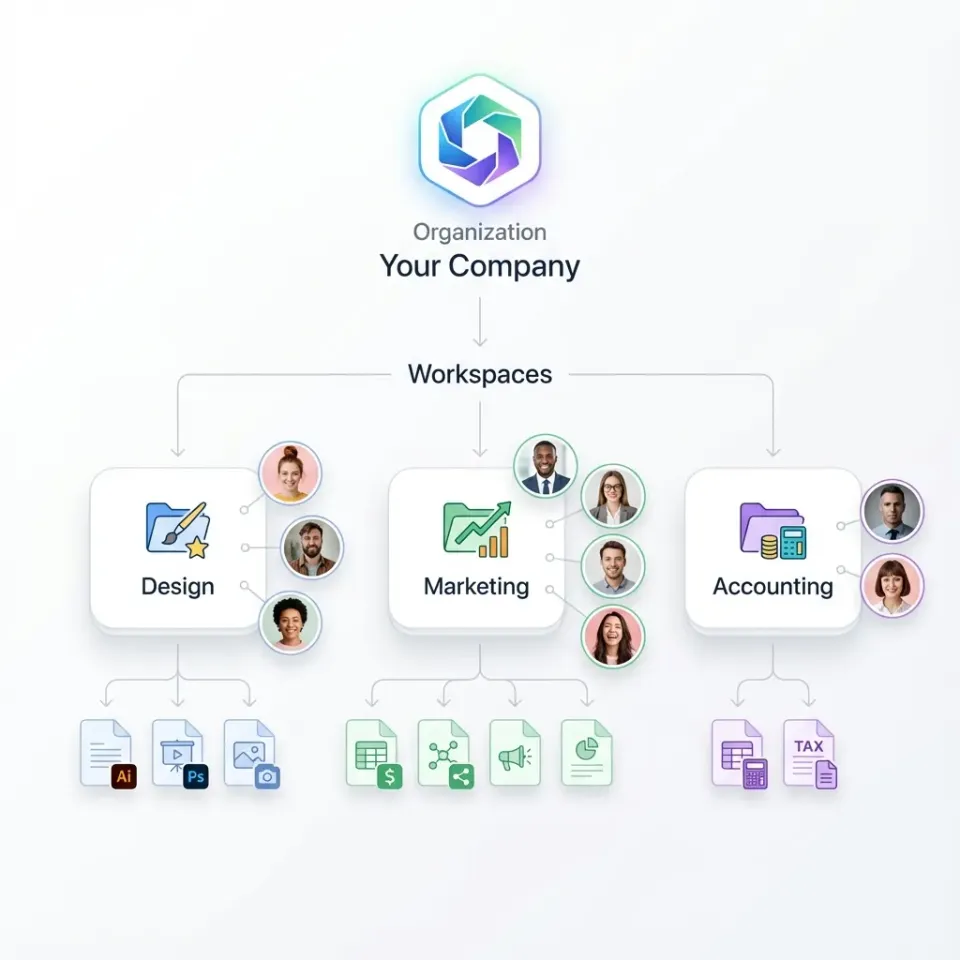
A secure file upload portal solves both problems. It is a dedicated web page where external clients or collaborators upload files directly to your organization without registering an account, remembering a password for a new platform, or seeing any of your internal systems. Think of a client upload portal as a one-way digital drop box: the sender opens your branded link in a browser, drags and drops their files, and the submission lands in an isolated workspace that only your authorized team members and AI tools can reach.
Organizations rely on a file upload portal whenever work depends on collecting materials from outside the company:
- Accounting and finance teams collect tax returns, W-2s, 1099s, bank statements, and audit schedules from hundreds of clients during filing windows.
- Law firms gather discovery productions, witness exhibits, and closing binders from opposing counsel and external experts.
- Creative agencies and brand teams receive raw camera footage, PSD and AI design assets, and brand guidelines from clients and external studios.
- Architecture, engineering, and construction firms collect drawings, subcontractors' insurance certificates, inspection photos, and RFIs from field crews.
- Executive search and HR teams run a dedicated upload portal, collecting resumes, identity verification forms, and onboarding packets without routing personal data through shared email inboxes.
Replacing email chains with an upload portal removes four recurring operational failures: attachment bouncebacks on large files, sensitive documents sitting unencrypted across multiple mail servers, ZIP archives or PDFs silently quarantined by spam filters, and version confusion when contract_final_v3.pdf arrives across three separate threads.

Related guides
- How to Set Up a Client File Sharing Portal That Actually Gets UsedA client file sharing portal is a secure, branded digital space where businesses share files with clients, collect...
- How to Set Up an HOA Document Portal for Board Members and HomeownersAn HOA document portal is a secure online hub where homeowners associations share governing documents, meeting minutes,...
- Enterprise File Sharing Solutions in 2026: Comparison and Buyer's GuideEnterprise file sharing (EFSS) gives organizations central ownership, role-based access controls, and activity logging...
- How to Set Up File Sharing for Business Without the HeadachesBusiness file sharing is how organizations get files to the right people, inside and outside the company. Most tools...
- Portal vs Shared Drive: Which One Should You Use for Client Files?Portals and shared drives solve different problems. A shared drive works well for internal teams who already have...
- How to Set Up a Project Delivery Portal for Client HandoffsA project delivery portal is a branded platform where agencies and service providers share final deliverables with...
More on this subject: File Sharing (155 guides)
Essential Controls in a Secure Upload Portal
When an IT lead or operations manager evaluates portal upload software, the goal is balancing zero friction for the outside sender with strict scope control inside the organization. Five capabilities separate a purpose-built upload portal from an ordinary shared link.
1. Upload-Only Guest Access Without Account Registration
Asking a client to create a username, verify an email address, and manage another login lowers completion rates. A client document upload portal should open directly in the browser so the recipient can drop files and finish in seconds. In Fastio, Receive shares allow clients to upload files without creating an account, and external guests who open or upload to a share do not consume an organization seat on your plan. Because a Receive share is write-only for visitors, one client can never see what another client has submitted to the same portal.
2. Password Protection, Link Expiration, and Download Controls
Public intake links and confidential deal links need different guardrails. For sensitive submissions, adding a password to the portal ensures that only recipients who have both the URL and the password can submit files. For time-boxed workflows such as RFP submission windows, grant applications, or quarterly tax intake, setting an expiration date closes the portal automatically once the deadline passes. When a portal also includes reference templates or instructions for the client, put templates in a separate Send share, or use an Exchange share.
3. Encryption and a Detailed Activity Log
Files moving through a secure file upload portal should be encrypted in transit over HTTPS/TLS and encrypted at rest once stored. When a client asks whether their submission arrived before a deadline, your team also needs an accurate record. Fastio keeps a detailed activity log across the organization that records uploads, edits, moves, deletions, membership and permission changes, and share creation by both people and AI agents. Every file also retains per-file version history, so if a client uploads an updated spreadsheet with the same filename, earlier versions remain restorable.
4. Workspace-Level Scoping
A common failure in do-it-yourself file collection is dropping external uploads straight into a department's primary cloud drive where broad user permissions or connected AI assistants can read everything at once. In Fastio, permissions are set per organization, workspace, and share through member roles. Creating one workspace per client, matter, or deal gives that unit of work its own boundary, and a Receive share collects outside files into that specific workspace without exposing any other project.
5. Custom Branding for Client Trust
Clients hesitate when an email asks them to upload tax records or legal exhibits to an unfamiliar, generic file-transfer URL. Branding the upload portal with your company logo, colors, background, and custom share details reassures the sender that they have reached your organization's official intake page. When you allow clients to upload files to a website by linking a button on your site to a branded portal, the visual transition stays consistent.
Upload Portal vs. File Request vs. Client Portal and Data Room
Teams often use upload portal, file request, client portal, and data room interchangeably, but each model handles visibility and direction of file transfer differently. In Fastio, branded shares are organized around three directional modes (Send, Receive, and Exchange) alongside full Content Portals and workspaces.
- Upload portal (Receive share): inbound only, no uploader account, chunked browser uploads (25 GB to 100 GB per file by plan), and guests cannot see existing files. Uploads land in one scoped workspace.
- Two-way client portal (Exchange share): both sides upload and preview, guests need no account, and guests see the shared contents. Files stay in the workspace with version history.
- Email attachments: capped at 25 MB on Gmail and Outlook.com, every recipient on the thread sees every attachment, and files scatter across individual inboxes.
- Direct cloud drive folder: access depends on folder settings, often requires a vendor account, and risks exposing sibling files in the internal drive hierarchy.
Choosing the right setup depends on what happens after the file arrives:
- Receive share (upload portal or file request): Best when external people need to drop files off without seeing anything else in the folder. You can keep one persistent Receive link open for ongoing vendor invoices, or create a dedicated Receive share with an expiration date for a single client request.
- Send share: Best for outbound delivery when you want to hand deliverables to a client with in-browser previews, optional password protection, link expiration, and the option to disable downloads.
- Exchange share and Content Portals: Best when clients need to both upload source files and review your team's deliverables in one branded space, complete with anchored comments and per-file version history.
- Data room: Best for due diligence, M&A transactions, and legal matters where external parties review organized disclosures under strict access controls. See Fastio data rooms for transaction-specific setups.
If your company's files already live in SharePoint, Google Drive, Box, or Dropbox and you do not want to migrate, Cloud Sync connects Google Drive, Dropbox, Box, and OneDrive folders (including SharePoint document libraries through OneDrive for Business) to a Fastio workspace on a schedule or on demand, one-way or two-way. You can keep existing drives intact while using scoped Fastio workspaces and shares for client intake and AI processing.


Create Your Upload Portal
Start collecting files from clients securely. No accounts needed for uploaders, no per-seat charges for external access.
How to Create a Secure File Upload Portal
Organizations have several ways to set up an upload portal. Teams already running self-hosted infrastructure sometimes deploy tools like FileCloud for server-managed file transfer forms, while teams doing simple one-off collection inside a single suite often use Dropbox File Requests, Box File Request, or Microsoft OneDrive's Request files feature. When you need a branded client upload portal that isolates each client into a clean workspace, handles large media previews, and connects directly to AI assistants and structured data extraction, you can set up a Fastio Receive share in a few minutes.
Step 1: Create a Scoped Workspace for the Client or Matter
Start by creating a workspace dedicated to the client, project, or intake category. Because Fastio sets permissions at the organization, workspace, and share level, dedicating a workspace per client or deal ensures that only the team members and agents assigned to that workspace can access the uploaded files.
Step 2: Create a Branded Receive Share
Inside the workspace, create a Receive share for inbound file collection. A Receive share acts as a dedicated upload portal: visitors with the link can upload files and folders through chunked browser uploads (supporting files up to 25 GB on the Starter plan, 50 GB on Business, and 100 GB on Enterprise) without viewing or downloading other files in the space.
Step 3: Set Password Protection and Expiration Rules
Configure the share's access rules to match the sensitivity of the files:
- Turn on password protection if the upload link will carry financial, legal, or personal documents, and share the password through a separate channel.
- Set an expiration date if the portal should stop accepting uploads after a filing deadline or project cutoff.
- Add your logo, brand colors, and custom portal messaging so clients recognize your organization immediately.
Step 4: Share the Link or Connect It to Your Website
Send the portal link directly to clients, include it in onboarding emails, or place it behind an upload button on your website so clients can upload files from your site without custom backend code. As files arrive, the workspace events feed and notifications alert your team, and every upload is recorded in the detailed activity log.
Step 5: Put Incoming Files to Work
Collecting the file is usually only the first step. Once documents and media land in a Fastio workspace, your team and agents can work on them in place:
- Extract structured data with Metadata Views: Describe the fields you want in plain English (such as invoice totals, vendor names, contract effective dates, or policy limits) and Metadata Views populate a sortable, filterable spreadsheet across uploaded PDFs, Word documents, spreadsheets, images, and scanned pages.
- Search and ask questions: With Intelligence Mode enabled, uploaded files are indexed for hybrid search (combining exact full-text matching, semantic meaning, and metadata values) and citation-backed chat across a file or an entire folder. Inside branded Content Portals, Ripley AI can also answer client questions about shared documents with page-level citations.
- Send documents for e-signature: If an uploaded intake packet requires a counter-signature or client sign-off, send it for signature directly from the workspace with sequential or parallel signers, an optional one-time passcode per signer, and a tamper-evident audit certificate recording the signer's IP address and browser. The executed PDF files itself back into the workspace.
- Connect Claude, ChatGPT, and coding agents: Fastio provides a consolidated MCP toolset over Streamable HTTP (
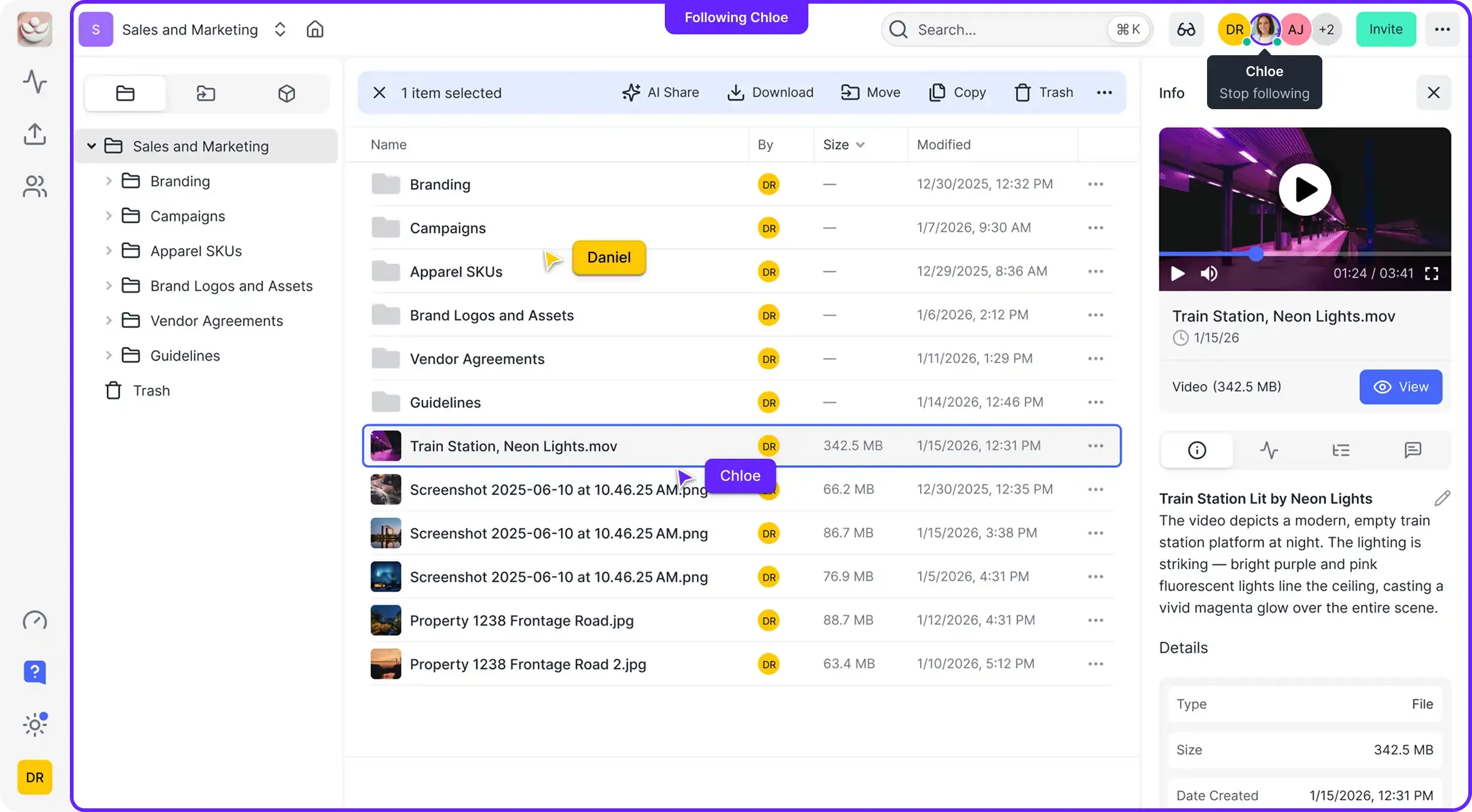
https://mcp.fast.io/mcp/toolsfor Claude and general MCP clients,https://mcp.fast.io/mcp/operationsfor ChatGPT and Codex, andhttps://mcp.fast.io/mcp/codefor coding agents), plus the@vividengine/fastio-clicommand-line tool (fastio). On connect, you choose which specific workspaces the AI can reach and whether it gets Read Only or Read & Write access. When multiple people or agents work in the same workspace, file locks show who is editing, Notes support live co-editing, and version history keeps every version. An agent that sets up an organization or workspace can hand it to a human via an ownership transfer claim link.
Industry Workflows for Client Document and Photo Upload Portals
Different teams configure an upload portal around the file formats and review steps their work requires.
How to Create a Photo Upload Portal for Agencies, Studios, and Field Teams
Teams that collect photos from outside contributors usually deal with two headaches: email size caps that block batches of high-resolution images, and messaging apps that strip metadata or compress RAW files and video. By setting up a branded Receive or Exchange share in Fastio, photographers, external agencies, wedding or event contributors, and construction field crews can upload uncompressed RAW photos, PSDs, AI files, CAD drawings, audio stems, and 4K video straight from a browser or mobile device.
Once the assets arrive, the workspace's media engine generates in-browser previews and adaptive bitrate HLS video streaming while preserving the original files. Reviewers can pin anchored comments directly to an image region, a video timestamp, or a PDF page on that specific file version, and use Metadata Views to tag photos with subjects, settings, or dominant colors. For multi-agency workflows, see our guide on setting up an agency client portal.
Onboarding and Identity Document Uploads
Accounting practices, executive search firms, insurance brokers, and HR departments regularly need an upload portal where candidates, new hires, or clients submit identification documents, tax forms, certificates of insurance, and signed disclosures. Using one Receive share per client or candidate prevents mix-ups and keeps sensitive onboarding files out of general email inboxes.
After the client uploads their packet, Metadata Views can extract dates, policy numbers, counterparties, and totals into a structured grid, and your team can verify completeness without opening thirty separate PDFs by hand.
Legal Matter Intake and Private Equity Deal Submissions
Law firms and transaction advisors handle multi-gigabyte productions from clients, co-counsel, and target companies. By provisioning one workspace per matter or transaction and collecting external submissions through a password-protected Receive share, the firm keeps outside uploads isolated from internal privileged notes. When the team uses Claude or ChatGPT connected through Fastio, the assistant is scoped strictly to that matter's workspace rather than the firm's entire SharePoint or Box tenant, and every upload or file change is recorded in the detailed activity log.

Choosing the Right Portal Upload Software for Your Team
Before rolling out an upload portal across a company, IT and operations leads typically weigh four categories of tools:
- Standalone cloud storage file requests (Dropbox File Requests, Box File Request, OneDrive Request files): If your team only needs a basic drop link that deposits small or mid-sized files into an existing user folder, the file request feature inside your current storage suite is the fastest path. The tradeoff appears when you want to connect AI assistants like Claude or ChatGPT to those files: user-level permissions in a sprawling corporate drive are almost always wider than what an AI agent should see, and reorganizing legacy folders is rarely practical.
- Self-hosted enterprise file transfer (such as FileCloud): Organizations that must run their own storage servers on-premises or in a private cloud use platforms like FileCloud to host custom file upload forms and manage storage nodes directly, trading higher infrastructure administration for self-managed hosting.
- Vertical practice management portals: Accounting, legal, or construction suites often bundle a client portal tied to their billing or case database. However, they frequently require clients to register and maintain login credentials, which slows down one-off submissions from outside parties, witnesses, or subcontractors.
- Scoped workspaces with branded shares (Fastio): Fastio combines zero-account Receive and Exchange shares, custom branding, passwords, and link expiration with workspace-level scoping, Cloud Sync for Google Drive, Dropbox, Box, and OneDrive, in-browser media previews, anchored comments, Metadata Views, e-signature, and native MCP connections for Claude and ChatGPT. Creating an account is free, and organizations run on monthly or annual subscriptions (Starter, Business, and Enterprise) with a 14-day free trial on monthly plans (credit card required).
Sources
References used to verify factual claims in this guide.
-
Gmail and Outlook.com cap attachments at 25 MB
-
Gmail and Outlook.com cap attachments at 25 MB
Frequently Asked Questions
What is a secure file upload portal?
A secure file upload portal is a branded web page where external clients, vendors, or partners upload files directly to your organization over HTTPS without needing an account or access to your internal folders. Submissions land in a designated workspace protected by role-based permissions, optional passwords, and link expiration dates, with every upload recorded in a detailed activity log.
How do I allow clients to upload files to my website without an account?
Create a Receive share in Fastio, customize it with your logo and brand colors, and optionally set a password or expiration date. Copy the share URL and link it to an upload button or intake page on your website. Clients click the link, drag and drop their files in the browser without registering an account, and the files appear immediately in your workspace without counting external guests against your organization's seat limit.
How do I create a photo upload portal for large images and video?
Set up a Receive or Exchange share inside a dedicated Fastio workspace and send the link to your photographer, client, or field crew. Chunked browser uploads support large batches of RAW photos, PSDs, CAD files, and 4K video (up to 25 GB per file on Starter, 50 GB on Business, and 100 GB on Enterprise). Once uploaded, your team can preview RAW images, design files, and adaptive HLS video directly in the browser and leave anchored comments on exact image regions or video timestamps.
When should I use a dedicated portal for profile document uploads instead of email?
Use a dedicated upload portal whenever you collect onboarding packets, tax forms, identity documents, insurance certificates, or candidate portfolios. Unlike email, which caps attachments at 25 MB on Gmail and Outlook.com and scatters personal documents across individual inboxes, a Receive share encrypts transfers in transit and at rest, hides existing submissions from other uploaders, and lets you extract structured fields automatically using Metadata Views.
Can an upload portal work alongside Google Drive, SharePoint, Box, or Dropbox?
Yes. Fastio Cloud Sync connects Google Drive, Dropbox, Box, and OneDrive folders (including SharePoint document libraries through OneDrive for Business) to a Fastio workspace on a schedule or on demand, one-way or two-way. You can collect outside files through a branded Fastio upload portal and keep folders synchronized with your existing cloud drive without migrating your company's storage.
How do AI assistants like Claude or ChatGPT work with files uploaded through a portal?
When files arrive in a Fastio workspace with Intelligence Mode enabled, they are indexed for hybrid search, summaries, and citation-backed chat. You can also connect Claude, ChatGPT, or coding agents to Fastio through its remote MCP server endpoints and scope the connection to specific workspaces in Read Only or Read & Write mode, so your AI assistant works only on the files inside that client portal's workspace and never sees the rest of your company's drives.
Related Resources

Create Your Upload Portal
Start collecting files from clients securely. No accounts needed for uploaders, no per-seat charges for external access.