How to Set Up Construction Document Management That Actually Works
Construction document management is how project teams organize, version, and share drawings, specifications, contracts, submittals, and closeout records from bid to handover. When files scatter across office drives and email threads, field crews risk building from superseded plans and subcontractors see folders outside their scope. Setting up a central construction document hub gives office staff, external trades, and field teams reliable access to the current set.


What Construction Document Management Covers From Bid to Handover
When a structural engineer issues a revised foundation drawing on Tuesday afternoon and the concrete crew on site pours on Wednesday morning from a PDF attached to last week's email, the resulting tear-out starts as a file routing problem. Construction document management is the system of storage, version tracking, permission scoping, and distribution that keeps every party on a project working from the active record.
Unlike general office file storage, a construction document hub has to bridge multiple companies and physical environments at the same time. Project managers and estimators work from large monitors in the office, external subcontractors and municipal inspectors need restricted access to specific trade packages, and superintendents need to open documents on phones and tablets where cell coverage is weak.
A complete system tracks four groups of records across the life of a job:
Pre-Construction and Contracting
- Bid packages, addenda, and subcontractor proposals
- Prime contracts, trade agreements, and schedules of values
- Building permits, zoning approvals, and environmental clearances
- Certificates of insurance, performance bonds, and payment bonds
- Geotechnical reports, boundary surveys, and existing-condition photos
Design Drawings and Specifications
- Architectural plans, elevations, sections, and finish schedules
- Structural drawings and engineering calculations
- Mechanical, electrical, and plumbing (MEP) sheet sets
- Civil grading, utility, and landscape drawings
- Project manuals and CSI division specifications
Active Construction Records
- Shop drawings, product data submittals, and material samples
- Requests for Information (RFIs) with attached field sketches and responses
- Change order requests, construction change directives, and signed modifications
- Daily field reports, safety checklists, and jobsite progress videos
- Third-party inspection reports, test results, and punch lists
Closeout and Turnover Packages
- Redlined field markups and final as-built drawings
- Operations and maintenance (O&M) manuals organized by building system
- Manufacturer and workmanship warranties with start dates
- Final lien waivers and certificates of occupancy
Each group carries its own access boundaries. An electrical subcontractor needs the current MEP set and Division 26 specifications, not the prime contract or other trades' pricing. The building owner needs approved progress records and closeout manuals, not internal estimating worksheets.
Helpful references: Fastio Workspaces, Fastio Collaboration, and Fastio AI.
Related guides
- How to Set Up Vendor Portal Document Management That Actually WorksVendor portal document management centralizes the collection, storage, and tracking of vendor-submitted documents like...
- How to Master BIM Collaboration for Large Projects in 2026BIM collaboration is the backbone of modern construction, but sharing gigabyte-sized Revit and ArchiCAD files often...
- How to Build a Customer Self-Service Portal That Reduces Support TicketsA customer self-service portal is a secure web interface where customers independently access documents, submit...
- How to Set Up an Employee Document Portal That People Actually UseAn employee document portal gives your team self-service access to pay stubs, tax forms, benefits information, and...
- How to Set Up Team File Sharing That Actually WorksTeam file sharing puts files in a central location where everyone with the right access can find them. Teams lose hours...
- How to Build a Wealth Management Client Portal That HNW Clients Actually UseA wealth management client portal is a branded digital workspace where wealth managers securely share portfolio...
More on this subject: Team Collaboration (126 guides)
Where Construction Document Control Breaks Down
Most construction firms, architecture studios, and owner representatives already store files in the cloud, yet field errors and administrative delays still happen at handoffs between organizations.
Superseded Drawings in the Field
When revised sheets travel through email attachments, text messages, and separate cloud links, nobody can verify whether the PDF on a foreman's tablet matches the set approved by the architect. If Rev_A and Rev_C live as separate files in different folders rather than versions of the same record, a crew can frame a wall or rough in conduit before realizing a bulletin moved the partition.
Over-Exposed Office Drives
Many small and mid-sized firms keep project folders in SharePoint, Google Drive, Box, or Dropbox. Those drives work well for internal staff, but sharing a sub-folder with dozens of outside subcontractors, suppliers, and inspectors quickly creates permission sprawl. Teams either grant wider folder access than intended, exposing internal budgets and correspondence, or copy files into ad-hoc transfer links that fall out of sync the next day.
Heavy Files on Mobile Connections
Full plan sets, CAD drawings, high-resolution site photos, and walkthrough videos are too large to download in full over a weak cellular connection. Desktop-oriented storage tools that require downloading the complete file before opening it cause field crews to fall back on paper sets that go stale as soon as the next addendum arrives.
Unscoped AI Assistants Across Project Folders
Firms rolling out Claude or ChatGPT want project engineers to query specification books, check contract terms, and summarize RFI histories. Connecting an AI assistant directly to an entire corporate SharePoint site or Google Drive exposes sensitive HR, finance, and unrelated client folders alongside the active project files. Restructuring years of existing drive folders just to limit what an assistant can read is rarely practical.
How to Structure a Construction Document Hub
A predictable folder hierarchy and naming standard let any project manager, superintendent, or AI assistant locate a drawing or submittal in seconds without asking the person who uploaded it.
Numbered Folder Structure by Project Phase
Use two-digit numeric prefixes so folders sort by project chronology rather than alphabetically:
Project_Name/
├── 00_Admin/
│   ├── Contracts/
│   ├── Insurance_and_Bonds/
│   └── Permits/
├── 01_Design/
│   ├── Architectural/
│   ├── Structural/
│   ├── MEP/
│   └── Specifications/
├── 02_Submittals/
│   ├── 01_Subcontractor_Inbound/
│   └── 02_Architect_Reviewed/
├── 03_RFIs/
├── 04_Change_Orders/
├── 05_Field_Reports_and_Photos/
└── 06_Closeout/
    ├── As_Builts/
    ├── OM_Manuals/
    └── Warranties/
Keeping the same top-level template across every job means a superintendent moving from one site to another already knows where approved shop drawings and current structural sheets live.
File Naming That Sorts Cleanly
Avoid vague filenames like floorplan_updated_final2.pdf. Put the ISO date, sheet or spec number, short description, and revision code in every filename:
2026-10-15_A201_FloorPlan_L1_RevC.pdf
Dates written as YYYY-MM-DD sort chronologically in any browser or command-line listing. Including the discipline prefix (A for architectural, S for structural, M/E/P for mechanical, electrical, and plumbing) keeps sheets grouped by trade.
Per-File Version History and Advisory File Locks
Instead of scattering RevA, RevB, and RevC into separate folders where old links keep pointing at outdated plans, use a workspace that maintains per-file version history. When a document controller uploads a new revision over an existing file in Fastio, shared links automatically serve the current version while every prior version remains stored and restorable.
When multiple people or automated agents update shared project schedules, submittal logs, or markdown notes in the same workspace, Fastio provides advisory per-file locks. A writer or agent can acquire a lease on a file, heartbeat it while working, and release it when finished; other workspace members can see who holds the lock, and anyone with write permission can override a stale lock if needed. Even if concurrent writes occur, version history preserves every version so no work is lost.



Keep Every Drawing and Submittal in One Project Workspace
Give office engineers, field crews, external subcontractors, and AI assistants scoped access to current plans and specs without migrating your existing cloud drives. Monthly plans start with a 14-day free trial.
Field Team Access to Construction Documents on Job Sites
Field access succeeds or fails on how fast a superintendent or trade foreman can open a drawing on a phone while standing on a slab.
In-Browser Previews for Drawings, Photos, and Video
Field crews should not have to install specialized CAD viewers or wait for a 400 MB file to finish downloading over cellular data before checking a dimension. Dedicated construction suites like Procore and Autodesk Construction Cloud provide mobile plan viewers tied to their project management modules. For teams using a workspace platform like Fastio, built-in universal previews render PDFs, CAD drawings, PSD and AI design files, RAW site photos, spreadsheets, and documents directly in the mobile browser. Jobsite walkthrough videos play through adaptive HLS streaming with instant scrubbing, because Fastio generates optimized proxies while preserving the original high-resolution file.
Pinned Markup with Anchored Comments
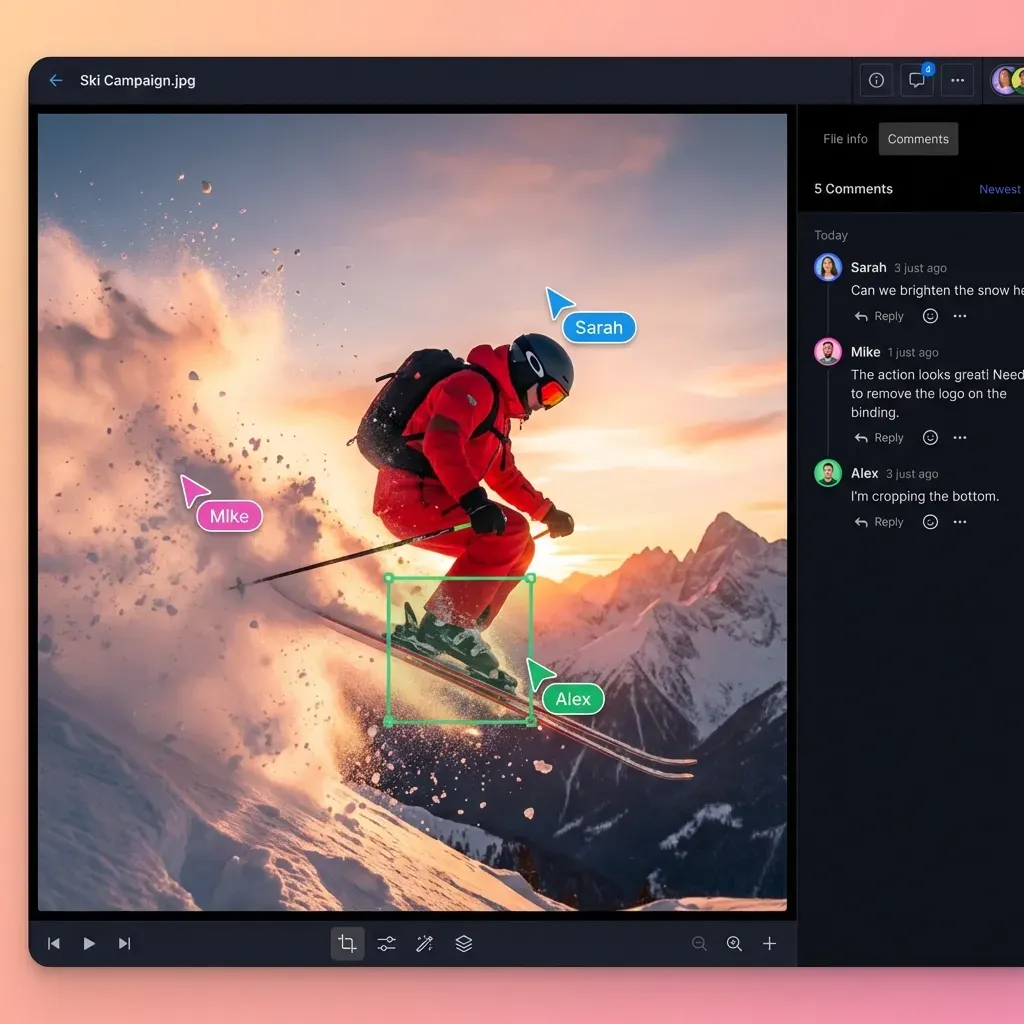
When a field engineer spots a conflict between a ductwork run and a structural beam, describing the location in an email thread leads to misunderstandings. In Fastio, team members can leave anchored comments pinned to a specific PDF page, a selected region on a site photo or drawing, a text passage in a specification, or an exact timestamp in a site video. Office engineers and architects open the link and see the comment attached to the exact spot on the file version under discussion.
Collecting Field Photos and Logs Without Extra Seats
Superintendents, safety inspectors, and trade foremen often need to send daily progress photos, delivery tickets, and signed inspection sheets back to the project hub. With a Fastio Receive share, anyone holding the link can upload files from a phone browser directly into the designated workspace folder without needing a user account or consuming a paid organization seat.
Sharing Files with Subcontractors, Inspectors, and Owners
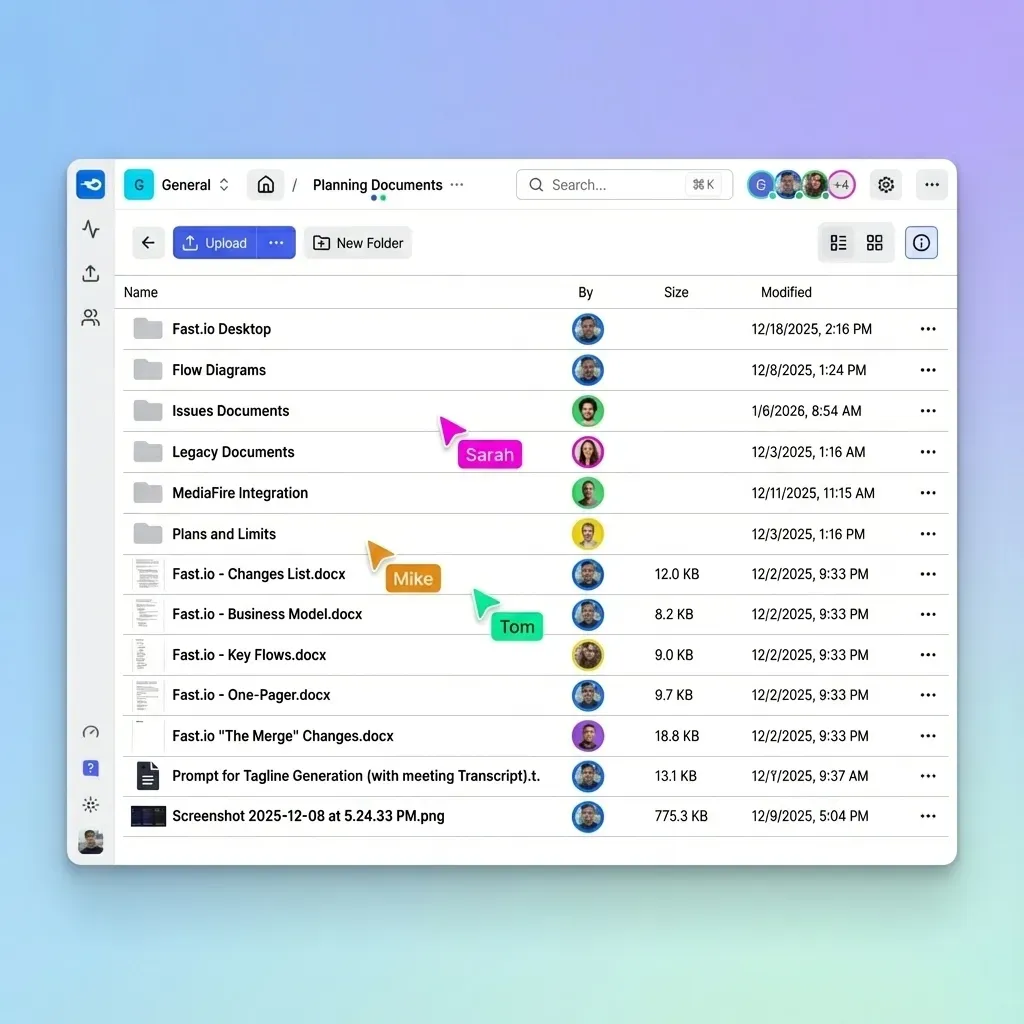
A commercial build brings in many outside firms. Giving each party the exact documents they need, without exposing the rest of the project or buying dozens of software seats, requires separating internal workspace access from external shares.
Scoping Access by Workspace and Share
In Fastio, role-based access is granted at the organization, workspace, and share level. Every member of a workspace can reach the contents of that workspace according to their role. That model makes scoping explicit and predictable:
- One workspace per project or unit of work: Keep each construction project in its own workspace so internal staff and connected AI agents assigned to Job A never touch files from Job B.
- Branded shares for external trades: To give a subcontractor or inspector access to only one folder or a specific set of drawings, place that folder or file set in a Fastio share (
Sendfor distributing approved plans and specs,Receivefor collecting bids and submittals, orExchangefor two-way collaboration with an engineering consultant). - Branded client portals for owners: Publish a password-protected Content Portal with your firm's logo, colors, and custom branding where project owners and lenders can browse current drawings, progress videos, and closeout binders. External guests who open a share or portal by link do not need an account and do not take up a paid seat on your plan.
Controlling Links and Downloads
When sending sensitive bid packages, engineering calculations, or proprietary design details outside the company, configure share controls to match the risk:
- Set an expiration date so bid links stop working after the submission deadline.
- Require a password where supported by the share mode.
- Grant and revoke access per recipient so a trade contractor's access ends when their scope is complete.
- Disable file downloads on a share when recipients should preview drawings and documents in the browser without saving local copies.
Built-In E-Signature for Change Orders and Waivers
Construction projects generate constant signature requests: subcontractor agreements, change orders, pay application certifications, and lien waivers. Fastio includes built-in e-signature on every plan, allowing teams or agents to send documents for signature directly from a workspace. Signers can be routed in sequence or in parallel, need no Fastio account, and can verify with an optional one-time passcode. Every completed envelope produces an audit certificate recording who signed, when, and from which IP address and browser, and the executed PDF is filed automatically back into the workspace.

Connecting Office Cloud Drives and AI Assistants to Your Project Hub
For an IT lead or operations director at a construction firm, architecture practice, or engineering consultancy, adopting a new tool cannot mean migrating terabytes of historical folders out of SharePoint, Google Drive, Box, or Dropbox.
Syncing Existing Cloud Folders Without Migration
Fastio's Cloud Sync connects folders from Google Drive, Dropbox, Box, and OneDrive (including SharePoint document libraries through OneDrive for Business) directly to a workspace, one-way or two-way, on a recurring schedule or on demand. An operations lead can pick the exact SharePoint or Google Drive folders for an active build and sync them into a dedicated project workspace. One-way sync leaves the source drive unchanged. One-time imports are also available via Cloud Import when pulling archival files from a drive or public URL.
Answering Questions Across Specs and Extracting Submittal Data
Once project documents arrive in a workspace with Intelligence enabled, Ripley AI indexes PDFs, Word specs, spreadsheets, scanned pages, and markdown notes automatically:
- Hybrid search and citation-backed chat: Project engineers can run exact full-text searches (such as a CSI section number, valve model, or clause) combined with semantic search across thousands of specification pages. Asking a question in document chat or inside a client portal returns an answer with page-level citations pointing to the exact source file and passage.
- Metadata Views for structured tracking: With Metadata Views, teams describe the fields they want in plain English, and AI extracts typed columns (Text, Integer, Decimal, Boolean, URL, JSON, Date & Time) across matching workspace documents into a sortable, filterable spreadsheet. Construction teams can extract effective dates and contract sums from trade agreements, policy numbers and expiration dates from subcontractor insurance certificates, or warranty durations from equipment manuals without setting up OCR templates.
Scoping Claude, ChatGPT, and Agents via MCP
Instead of connecting an AI assistant to an entire corporate drive, teams connect Claude, ChatGPT, or custom agents to Fastio's remote MCP server over Streamable HTTP using a consolidated MCP toolset. During OAuth sign-in in the browser, the Review Permissions screen lets the administrator choose which specific workspaces the assistant can access and whether the connection is Read Only or Read & Write.
- Claude (web, desktop, mobile, and Claude Cowork): Add a custom connector at
https://mcp.fast.io/mcp/toolsand sign in to select the project workspace. - ChatGPT and Codex: Install the Fastio plugin from the plugin directory, or connect a custom MCP server at
https://mcp.fast.io/mcp/operations. - Coding and automation agents (Claude Code, Cursor, VS Code, Gemini CLI, Devin Desktop): Connect to
https://mcp.fast.io/mcp/code. Headless scripts and server agents can also authenticate with a scoped Bearer API key or use the@vividengine/fastio-clicommand-line client (fastio) to upload drawings, manage shares, and query workspace files. Full setup details are documented athttps://mcp.fast.io/docs.
Document Control Procedures and Project Closeout Handover
Consistent daily habits keep a construction document management system reliable from mobilization through final turnover.
Tracking Changes With a Detailed Activity Log
When drawings, schedules, or submittals change, project managers need an accurate record of what happened. Fastio maintains a detailed activity log across the organization that records storage changes (uploads, edits, moves, and deletions) alongside membership changes, permission updates, and share creation by both human team members and connected AI agents. Teams and agents can also subscribe to the workspace events feed over WebSocket or long-poll to see new uploads and version updates as they occur.
Building the Closeout Package From Day One
Assembling closeout documentation in the final week before substantial completion holds up retainage release. Collect turnover files inside 06_Closeout/ as each trade finishes its work:
- Capture as-built markups continuously: Have superintendents and subcontractors upload redlined PDFs and anchored field notes as underground utilities, framing, and MEP rough-ins are inspected.
- File O&M manuals upon equipment delivery: Require subcontractors to upload PDF manuals and start-up test reports into a Receive share before billing for stored or installed equipment.
- Extract warranty dates into a live grid: Use Metadata Views to pull warranty start dates, coverage terms, and manufacturer contacts from uploaded PDFs so the facility manager receives a structured schedule alongside the source files.
Handing Over the Project Workspace at Turnover
At project completion, the general contractor, architect, or digital delivery consultant can deliver the complete record to the building owner in two ways. They can provide a branded Content Portal where the owner's facility staff can search manuals and ask Ripley AI questions across the closeout library, or, when an agent has built a dedicated organization for the owner, the agent can use Fastio's ownership transfer feature to hand the organization to the owner with a claim link.
Frequently Asked Questions
How do you organize construction documents for a new project?
Create a dedicated workspace for the project using numbered top-level folders that follow the build sequence, such as 00_Admin, 01_Design, 02_Submittals, 03_RFIs, 04_Change_Orders, 05_Field_Reports_and_Photos, and 06_Closeout. Name every file with the ISO date (YYYY-MM-DD), sheet or specification number, discipline description, and revision code so files sort chronologically and crews can identify the current set at a glance.
How do you give field teams access to construction documents on mobile devices?
Field team access to construction documents works best when superintendents and foremen can open drawings and videos directly in a phone or tablet browser without downloading multi-gigabyte files first. In Fastio, universal in-browser previews render PDF plan sets, CAD drawings, and site photos on demand, adaptive HLS streaming plays jobsite videos smoothly, and anchored comments let field staff pin questions directly to a PDF page or photo region.
How can contractors share drawings with subcontractors without paying per seat?
Use scoped shares or client portals rather than adding outside trade contractors as full organization members. In Fastio, seats count organization members only; external subcontractors, suppliers, and inspectors who open a Send, Receive, or Exchange share by link do not consume a paid seat and do not need an account. You can set expiration dates, require passwords, and disable file downloads on any share.
Can we set up a construction document hub without migrating off SharePoint or Google Drive?
Yes. Fastio Cloud Sync connects existing folders from Google Drive, Dropbox, Box, and OneDrive (including SharePoint document libraries via OneDrive for Business) to a Fastio workspace, one-way or two-way, on a schedule or on demand. Your office files remain in their original drive while project teams, external trades, and AI assistants work inside the scoped workspace.
How does Fastio track document revisions and project activity?
Every file in a Fastio workspace keeps per-file version history, so uploading a revised drawing updates the active file for everyone on the share link while keeping earlier revisions restorable. An organization-wide detailed activity log records every upload, edit, move, deletion, permission change, and share creation performed by people and AI agents.
How can construction teams use AI safely on project specifications and contracts?
Put each project in its own workspace and connect Claude, ChatGPT, or other MCP-compatible assistants to Fastio using OAuth. During sign-in, select only the specific project workspaces the assistant is allowed to access and choose Read Only or Read & Write permissions. Inside the workspace, teams can also use built-in hybrid search, document chat with page-level citations, and Metadata Views to extract contract dates, insurance limits, and warranty terms into a structured grid.
Related Resources

Keep Every Drawing and Submittal in One Project Workspace
Give office engineers, field crews, external subcontractors, and AI assistants scoped access to current plans and specs without migrating your existing cloud drives. Monthly plans start with a 14-day free trial.