How to Manage Multi Cloud Storage and Consolidate Multiple Cloud Accounts
Teams rarely plan to run multi cloud storage across four providers, yet most end up with internal files in SharePoint or Google Drive and client folders in Box or Dropbox. Connecting AI assistants like Claude or ChatGPT directly to those drives exposes too much, while full migrations break active shared links. This guide covers how to unify or consolidate online storage using folder sync, cloud migration tools, and scoped workspaces.


Why Multi Cloud Storage Happens and Where It Breaks
When a company keeps deal sheets in SharePoint, internal drafts in Google Drive, and client deliverables in Box or Dropbox, each provider enforces its own identity and sharing rules. The moment an IT lead tries to connect an AI assistant like Claude or ChatGPT across those files, or give a project team access to folders spanning two drives, the setup breaks down: user-level permissions on the source drives expose far more than a specific project or AI agent should read, and reorganizing years of folders across four clouds breaks existing links.
Organizations end up running multiple cloud storage services for practical reasons. Marketing and creative teams often store video and design files in Dropbox. Finance and operations work inside OneDrive and SharePoint document libraries. Product and engineering teams collaborate in Google Drive, while outside counsel or enterprise clients require Box. Mergers, acquisitions, and agency retainers add more accounts on top.
Individual users and business teams approach multi cloud storage with very different goals:
- Personal account pooling: Individuals usually want to merge storage quotas from several personal sign-ups into one virtual drive using a desktop mounter or transfer utility.
- Business cloud storage unification: A company with dozens or hundreds of employees needs consistent access controls, cross-account search, version history, and a way to scope what teammates, external clients, and AI agents can access without moving every file out of its home drive.
Left unmanaged, multi-cloud sprawl creates three operational problems:
Over-broad AI and user access. Standard connectors for Claude or ChatGPT inherit whatever the signed-in user can see in SharePoint or Google Drive. Because departmental folders mix sensitive records with shareable project files, connecting an entire cloud account exposes documents the assistant has no business reading.
Split versions and duplicate capacity. A teammate downloads a contract from Box, edits it locally, and uploads the revision to Google Drive. Both copies stay live, nobody knows which file is current, and the company pays to store duplicate directories across accounts.
Fragmented administration. Answering who changed a file or revoking a departing contractor's access requires checking separate admin consoles across Google Workspace, Microsoft 365, Dropbox, and Box.
Related guides
- Cloud Transfer: 5 Ways to Move Files Between Cloud Storage ServicesA direct cloud transfer moves files between storage providers over data center connections instead of routing gigabytes...
- How to Plan a Cloud Storage Migration: The Complete ChecklistMoving files between cloud providers is straightforward until it isn't. Permission mismatches, broken sharing links,...
- How to Choose Video Cloud Storage for CreatorsVideo cloud storage is online storage optimized for large video files, offering streaming playback, organization, and...
- How to Transfer Google Drive Files to Another Account or ServiceGoogle Drive transfer is the process of moving files, folders, or entire accounts from Google Drive to another Google...
- File Hosting Services: What They Are, How They Work, and How to Choose OneA file hosting service is a cloud-based platform that stores, organizes, and enables sharing of digital files over the...
- Best Cloud Storage for Video: 7 Options for Production TeamsVideo files demand more from cloud storage than documents or photos. You need large file support, fast transfers, and...
More on this subject: File Sharing (155 guides)
Four Ways to Manage Multiple Cloud Storage Accounts in One Place
Before moving files, decide whether your team needs a local drive interface, a cloud-to-cloud byte transfer tool, a permanent tenant migration, or a shared workspace that syncs selected folders from your existing providers.
1. Desktop drive mounters (ExpanDrive, Mountain Duck, rclone mount)
Can teams working across several cloud accounts rely on ExpanDrive? For an individual contributor, ExpanDrive is a practical desktop utility: it mounts Google Drive, Dropbox, Box, OneDrive, SharePoint, and Amazon S3 accounts as network drives in macOS Finder or Windows Explorer so one person can browse remote folders without filling a local hard drive.
For a team, however, a desktop drive mounter has clear boundaries. It runs on each person's computer rather than creating a shared workspace. It cannot unify permissions across providers, provide centralized full-text and semantic search across accounts, or give cloud AI assistants like Claude and ChatGPT a single scoped connection.
2. Pass-through transfer managers (MultCloud, rclone copy)
Browser-based transfer managers such as MultCloud and command-line tools such as rclone connect to multiple cloud storage services and copy or sync files directly from one outside cloud to another. They work well when an individual wants to copy a directory from Dropbox to Google Drive without downloading it first.
For business teams, pass-through transfer managers solve byte transport but leave governance untouched. Copying files from Box into SharePoint still leaves you managing folder permissions inside SharePoint, with no unified workspace boundary, no shared AI indexing across providers, and no branded client portal.
3. Tenant migration platforms (CloudM, Microsoft Migration Manager)
When IT is permanently retiring an on-premises file server or shutting down a redundant cloud tenant after an acquisition, dedicated admin migration tools handle bulk cutovers and user mapping.
- CloudM Migrate: Often used when teams migrate a file server or cloud tenant to Google Drive or Microsoft 365 with permissions mapping, translating source access control lists into destination user and group roles.
- Migration Manager (which replaced Mover): Microsoft acquired the Mover migration tool and folded its capabilities into Migration Manager inside the Microsoft 365 admin center, retiring the standalone consumer transfer web app. In 2026, Microsoft Migration Manager transfers files from Google Drive, Dropbox, Box, Egnyte, and file shares into OneDrive and SharePoint as the destination; it does not support Google Drive as a migration destination. Organizations migrating into Google Drive use Google Workspace Migrate, CloudM, or
rcloneinstead.
4. Synced multi-cloud workspaces (Fastio)
When your files must stay in SharePoint, Google Drive, Box, or Dropbox for the departments and clients that already work there, a workspace layer lets you unify selected folders without a full migration.
Fastio's Cloud Sync brings chosen folders from Google Drive, Dropbox, Box, and OneDrive (including SharePoint document libraries through OneDrive for Business) into a Fastio workspace, one-way or two-way, on a recurring schedule or on demand. One-way sync never alters the source drive. Instead of exposing an entire SharePoint tenant or corporate Google Drive, an administrator syncs only the right project or deal folders into a dedicated workspace and sets team, client, and AI agent access there. When you are ready to retire an old account completely, Fastio's Cloud Import also runs one-time OAuth imports that preserve folder structure.
Step 1: Audit Accounts and Deduplicate Large Cloud Libraries
Whether you are setting up ongoing cloud storage unification or executing a full cloud storage consolidation to close old accounts, start with an inventory of every storage service in use.
List every corporate tenant, departmental drive, and external client folder your team touches. For each account, record:
- Total data volume and file counts by top-level directory, paying special attention to any account holding terabytes of video, CAD drawings, or archival deal rooms
- Active external sharing links that clients, vendors, or outside agencies still open
- Service accounts and scripts that read from or write to specific folders
- Last modified timestamps to separate active project folders from dormant archives
Once you have the inventory, clean up duplicate files before syncing or importing them into a central workspace. Duplicates accumulate whenever someone downloads a document from Google Drive, edits it locally, and uploads it into a Dropbox folder, or when a backup script mirrors directories across accounts.
- Export file inventories from each provider with file paths, byte sizes, modification dates, and content hashes.
- Within a single provider, use built-in admin storage reports or
rclone dedupeto identify identical content hashes and redundant copies. - Across providers, compare file hashes or size-and-timestamp pairs and pick one canonical version to bring into your workspace.
- Replace filename variants (
contract-v3-final.docx) with proper versioning. In a Fastio workspace, per-file version history keeps every prior version restorable under a single file, and advisory per-file locks (which people or agents can acquire, heartbeat, release, or override if they hold write permission) help writers coordinate edits without creating conflicting copies.


Bring All Your Cloud Files Into One Workspace
Fastio imports files from Google Drive, Dropbox, OneDrive, and Box with folder structure preserved.
Step 2: Map Permissions Across Google Drive, Dropbox, Box, and SharePoint
Permission mismatches stall most efforts to combine cloud storage. Every provider models access control differently:
- Google Drive combines individual file ownership in My Drive with Shared Drives where members hold role-based access (Viewer, Commenter, Contributor, Content Manager, Manager).
- Dropbox relies on team folders with group access levels alongside shared links that support passwords and expiration dates.
- OneDrive and SharePoint inherit Microsoft 365 site permissions, document library roles, and tenant sharing rules.
- Box assigns collaboration roles at the folder level, ranging from Uploader and Previewer to Editor and Co-Owner.
If you are migrating directly into Google Drive or SharePoint with an admin tool like CloudM, build a permission mapping table before moving data so each source user or group maps to an explicit destination role.
If you are unifying files in Fastio so teammates, clients, and AI assistants can work together without restructuring the source drives, the permission model is simpler by design. In Fastio, access is granted per organization, workspace, and share through member roles. Every member of a workspace accesses that workspace's contents according to their role.
That structure solves the scoping problem that breaks direct drive integrations:
- Give each unit of work its own workspace: Create one workspace per deal, legal matter, client engagement, department, or AI agent, and sync only the folders that belong in that scope.
- Use branded shares for external subsets: When a client or vendor needs access to only one folder or a handful of files, put those files or that folder into a branded Share (Send, Receive, or Exchange) or a Content Portal. External guests can open a share by link without creating an account and without consuming a member seat, and you can set passwords, expiration dates, per-recipient access grants, or disable file downloads.
Step 3: Sync Active Folders or Run a Phased Consolidation
Most organizations use a mix of ongoing folder sync for active accounts they must keep and phased imports for legacy accounts they plan to close.
Path A: Unify active accounts with Cloud Sync
When your company is keeping SharePoint, Google Drive, Box, or Dropbox as the system of record, use Cloud Sync to bring specific folders into a Fastio workspace on a recurring schedule or on demand:
- Authenticate your Google Drive, Dropbox, Box, or OneDrive for Business account via OAuth.
- Pick the specific project, client, or departmental folders that belong in the target workspace.
- Select one-way sync if the workspace should pull updates from the source drive without writing changes back, or two-way sync if edits and new files in the workspace should sync back on the next scheduled or on-demand run.
Path B: Consolidate online storage and retire old accounts
When you want to shut down redundant storage subscriptions, transfer the files in four phases using server-side Cloud Import (plus URL import for public web files) so directory structures transfer without routing terabytes through a local laptop:
- Phase 1: Dormant archives and completed projects. Import reference folders first to validate directory structures and byte counts with zero risk to active work.
- Phase 2: Internal department folders. Move shared team libraries next and point internal collaborators to the new workspace.
- Phase 3: Active project files. Schedule the cutover for a weekend or low-activity window, then verify that member roles and workspace connections match your plan.
- Phase 4: External client links and dropboxes. Replace old provider links with branded Send, Receive, or Exchange shares. Keep the legacy cloud accounts in read-only mode for 60 to 90 days before canceling the old subscriptions.
Step 4: Put Unified Files to Work for Teams, Clients, and AI Agents
Bringing files from Google Drive, Dropbox, Box, and OneDrive into a single workspace pays off once your team, clients, and AI tools work on the same indexed library.
Scope Claude, ChatGPT, and coding agents to the right files. Instead of connecting an AI assistant to an entire corporate drive, connect it to Fastio's remote MCP server (https://mcp.fast.io/mcp/tools for Claude and general MCP clients, https://mcp.fast.io/mcp/operations for ChatGPT and Codex custom servers, or https://mcp.fast.io/mcp/code for coding agents, documented at https://mcp.fast.io/docs). During browser OAuth sign-in, a Review Permissions screen lets you pick which workspaces the assistant can reach and choose Read Only or Read & Write access. For automated agents, a scoped API key limits an agent to one workspace, so revoking it affects nobody else. An agent can also build an organization and workspace on its own and transfer ownership to a human via a claim link.
Search, chat, and extract structured data across every source. Workspaces with Intelligence enabled index files as they arrive for hybrid search (combining exact full-text matching with semantic retrieval) and RAG chat answers that cite the exact file, page, and passage. You can ask a whole folder a question across documents that originated in three different clouds. When you need structured fields from contracts, invoices, policies, or project files you choose, Metadata Views extract the columns you describe in plain English into a typed, sortable, filterable spreadsheet without manual data entry.
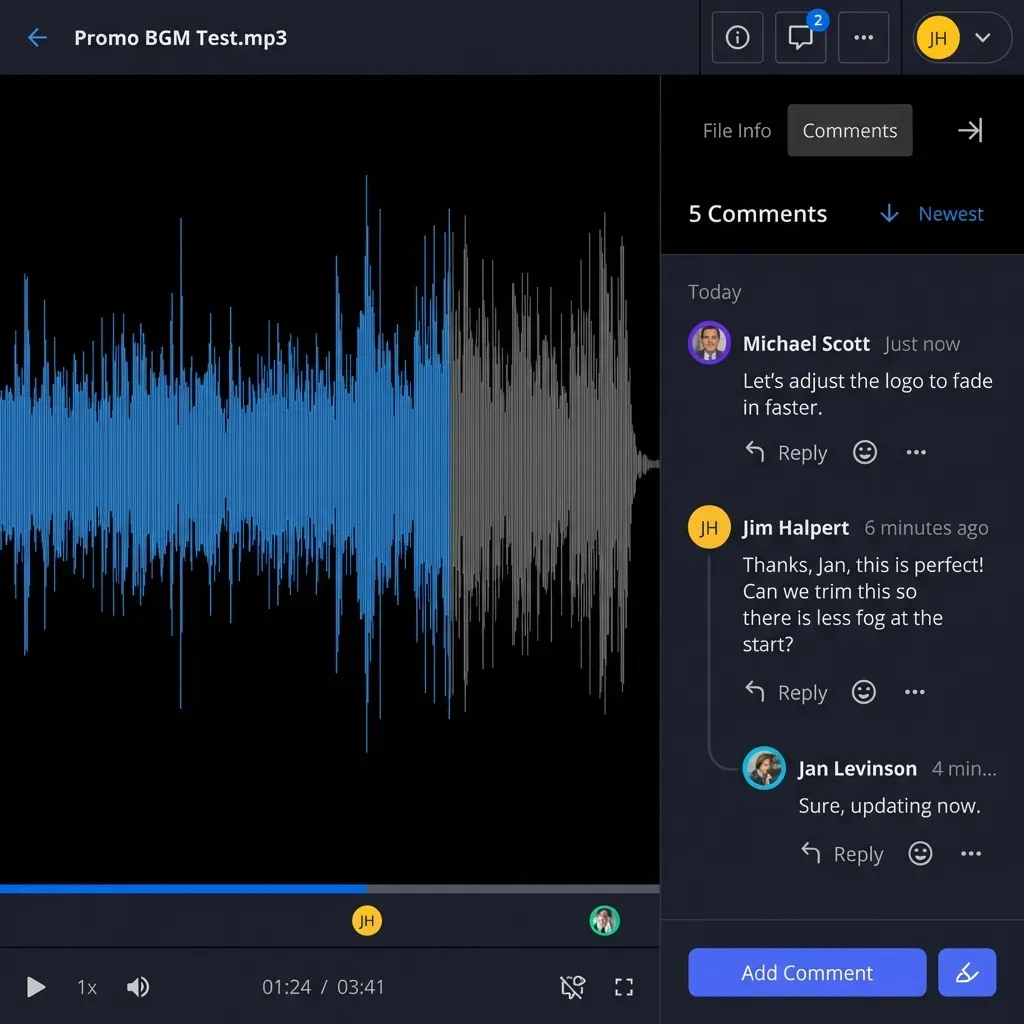
Review, sign, and audit in one workspace. Team members and guests can open in-browser previews of PDFs, Word documents, spreadsheets, images, audio waveforms, video streams, PSDs, AI files, RAW photos, and CAD drawings, and signed-in reviewers can pin anchored comments to specific file versions, PDF pages, image regions, or video timestamps. When a contract is ready for execution, send it for e-signature from the workspace with sequential or parallel signers, optional one-time passcodes, and an audit certificate that records each signer's IP address and browser. Across the organization, a detailed activity log records every upload, edit, move, deletion, membership change, permission update, and share creation by people and agents alike, protected with encryption in transit and at rest.

Frequently Asked Questions
How do I manage multi cloud storage in one place without migrating every file?
Connect your existing providers to a workspace that supports scheduled or on-demand folder sync. With Fastio Cloud Sync, you can select specific folders from Google Drive, Dropbox, Box, and OneDrive (including SharePoint document libraries through OneDrive for Business) and sync them one-way or two-way into a workspace. Your files stay in the drives they came from, while your team and AI assistants get unified search, role-based workspace permissions, and in-browser previews in one place.
Can teams working across several cloud accounts rely on ExpanDrive?
ExpanDrive works well for an individual who wants to mount Google Drive, Dropbox, Box, OneDrive, or S3 accounts as local network drives in macOS Finder or Windows Explorer. Because it runs on each user's computer, however, it does not create a shared team workspace, unify permissions across accounts, index files for cross-account semantic search, or provide a scoped connection for cloud AI assistants like Claude and ChatGPT.
How do I combine cloud storage from Google Drive, Dropbox, Box, and OneDrive?
Start by auditing your accounts to locate active project folders, external sharing links, and duplicate files. If you want a one-time cutover to retire old subscriptions, use Fastio Cloud Import to pull folders server-side from Google Drive, Dropbox, Box, and OneDrive with folder structure preserved. If other departments or clients still work in those source drives, use Cloud Sync to keep selected folders updated in a single workspace on a schedule or on demand.
Does the Mover migration tool support Google Drive as a destination in 2026?
No. After Microsoft acquired Mover and retired its standalone web transfer service, its migration engine became part of Microsoft Migration Manager in the Microsoft 365 admin center. In 2026, Microsoft Migration Manager migrates files from sources such as Google Drive, Dropbox, Box, and file shares into OneDrive and SharePoint, not into Google Drive. Teams migrating into Google Drive use CloudM Migrate, Google Workspace Migrate, or rclone, or bring folders from both ecosystems into a Fastio workspace.
How does permissions mapping work during cloud storage consolidation?
Google Drive uses individual file ownership and Shared Drive roles, Dropbox uses team folders and shared links, OneDrive inherits SharePoint site roles, and Box assigns collaboration roles per folder. When migrating tenant-to-tenant with tools like CloudM, admins build a mapping table that translates source users and groups to destination roles. In Fastio, access is granted per organization, workspace, and share by member role, so teams create a separate workspace for each project, client, or AI agent and use branded shares when external guests need access to a single folder.
What is the difference between combining multiple personal cloud accounts and business cloud storage unification?
Individuals combining multiple personal cloud accounts usually use a transfer manager like MultCloud or rclone to pool storage quotas across separate sign-ups. Business cloud storage unification focuses on governance and scoping: bringing project folders from SharePoint, Google Drive, Box, and Dropbox into an organization-owned workspace where IT controls which teammates, clients, and AI agents can read or edit the files, backed by per-file version history and a detailed activity log.
Should I delete files from old cloud accounts right after consolidating?
Keep old accounts in read-only mode for 60 to 90 days after completing a phased migration. This overlap window gives your team and external partners time to catch any missed folders or legacy sharing links before you downgrade or close the old storage accounts.
Related Resources

Bring All Your Cloud Files Into One Workspace
Fastio imports files from Google Drive, Dropbox, OneDrive, and Box with folder structure preserved.