Cloud Transfer: 5 Ways to Move Files Between Cloud Storage Services
A direct cloud transfer moves files between storage providers over data center connections instead of routing gigabytes through a laptop. Whether you are planning a full cloud storage migration or pulling selected folders from Google Drive, Dropbox, Box, and OneDrive into a shared workspace for your team and AI agents, the right method depends on where your files need to live afterwards. Here are five ways to handle cloud-to-cloud file transfer and ongoing folder sync.


What Cloud-to-Cloud File Transfer Actually Means
Cloud-to-cloud file transfer is the process of moving files from one cloud storage provider to another without routing data through your local machine. Instead of downloading files from Google Drive to your laptop and re-uploading them to Dropbox, you set up a direct path between the two services, and the files move through data center connections.
This matters more than it used to. Over 54% of people now use three or more cloud storage providers, according to recent surveys. Teams commonly split files across Google Drive for collaboration, Dropbox for external sharing, OneDrive for Microsoft integrations, and Box for compliance-sensitive documents. When a project moves teams, a vendor changes, or you consolidate storage accounts, you need a way to move files between these services without the manual grind.
The download-reupload approach has three practical problems that get worse as file volumes grow:
- It wastes bandwidth twice. You download files from Provider A using your internet connection, then upload the same files to Provider B using that same connection. A 50 GB migration consumes 100 GB of your bandwidth.
- It depends on your local machine staying online. If your laptop goes to sleep, your Wi-Fi drops, or your browser tab closes mid-transfer, you get a partial migration with no easy way to resume.
- It strips metadata and permissions. Downloaded files lose their sharing settings, version history, and folder structure. You start from scratch on the destination side.
Server-side transfer methods avoid all three problems. The files move between cloud data centers at gigabit speeds while your machine does something else entirely.
Related guides
- How to Transfer Google Drive Files to Another Account or ServiceGoogle Drive transfer is the process of moving files, folders, or entire accounts from Google Drive to another Google...
- How to Manage Multi Cloud Storage and Consolidate Multiple Cloud AccountsTeams rarely plan to run multi cloud storage across four providers, yet most end up with internal files in SharePoint...
- How to Import Cloud Files Without Downloading Them FirstServer-side cloud import copies files directly between cloud providers without routing data through your local machine....
- How to Plan a Cloud Storage Migration: The Complete ChecklistMoving files between cloud providers is straightforward until it isn't. Permission mismatches, broken sharing links,...
- Fastest Cloud Storage Services Compared: Speed Benchmarks 2026Cloud storage speed goes beyond raw upload numbers. Specialized UDP-based services like MASV offer the fastest raw...
- How to Transfer Files Between Computers: Fast, Secure Methods ComparedLearning how to transfer files between computers requires matching data volume and physical proximity to the right...
More on this subject: File Sharing (155 guides)
5 Cloud Transfer Methods for Moving Files Between Providers
Not every cloud transfer solves the same problem. Moving a few project folders for a client handoff is different from running a company-wide cloud storage migration or scoping documents for an AI assistant. Here are five practical methods for cloud-to-cloud file transfer and cloud data transfer, ordered from everyday workspace connectors to custom engineering pipelines.
1. Workspace Cloud Import and Cloud Sync
When your team needs files from several storage accounts in one place, a cloud workspace can pull folders directly from your existing providers over OAuth. Instead of downloading files to a laptop, you connect Google Drive, Dropbox, Box, or OneDrive and let the workspace copy or sync the folders server-side.
Fastio's Cloud Import and Cloud Sync work this way. Fastio is not a pass-through migration tool that moves files directly from one outside cloud to another. Instead, it brings folders from Google Drive, Dropbox, Box, and OneDrive (including SharePoint document libraries through OneDrive for Business) into a Fastio workspace. You can run a one-time import (or pull individual files via generic URL import), or set up Cloud Sync to keep selected folders synced one-way or two-way on a schedule or on demand. Folder structures stay intact, and with Intelligence Mode enabled, files are indexed for hybrid search and AI Q&A.
Best for: Small and mid-sized teams that keep their primary files in SharePoint, Google Drive, Box, or Dropbox, and want selected folders in a dedicated workspace for clients, teammates, or AI assistants like Claude and ChatGPT without migrating the whole company drive.
Transfer path: Server-side between the source provider and your Fastio workspace. One-way sync leaves the source folders untouched.
2. Third-Party Cloud Transfer Services
A dedicated cloud transfer service (also called a cloud file transfer service) such as MultCloud, CloudFuze, or Cloudsfer connects to two external cloud providers and moves files directly between them. You authenticate with both your source and destination accounts, configure a transfer or sync job, and the service copies the data over its own infrastructure.
These tools are built for direct provider-to-provider transfers where no native integration exists, such as moving folders from Dropbox straight to Google Drive or Box. Most also offer scheduled jobs so you can run a cloud-to-cloud transfer overnight.
Best for: One-time migrations or scheduled transfers directly between two external cloud storage accounts.
Limitations to watch: Most web-based services offer a free entry tier that caps monthly data volume and transfer threads. Because files pass through the vendor's servers during transit, review the service's security architecture before moving sensitive business records.
3. Native Provider Migration Tools
The major hyperscale cloud platforms ship native tools built to migrate data to the cloud or move data between object storage buckets at large scale:
- Google Storage Transfer Service handles cloud-to-cloud data transfer between Amazon S3, Azure Blob Storage, and Google Cloud Storage with automatic retries and detailed logging.
- Azure Data Box and AzCopy move data to the cloud from on-premises hardware or from external object storage into Azure.
- AWS DataSync automates data transfer to cloud storage across on-premises file systems, Amazon S3, and other AWS storage services.
Best for: Large enterprise cloud storage migration projects where the destination is AWS, Azure, or Google Cloud infrastructure.
Limitations: These utilities only pull data into their own ecosystem. Google Storage Transfer Service will not copy project folders from Google Drive into Dropbox.
4. Open-Source CLI Tools (rclone)
rclone is a free, open-source command-line program for cloud file transfer. It connects to dozens of cloud storage providers and can copy, sync, or verify files between any two configured remotes.
A standard rclone transfer command looks like this:
rclone copy gdrive:ProjectFiles dropbox:ProjectFiles --transfers 8
That command copies the ProjectFiles folder from Google Drive to the matching path in Dropbox using 8 parallel transfer threads. rclone authenticates via OAuth for consumer and business drives and stores credentials in a local configuration file.
Best for: Technical leads and administrators who want scriptable control over a cloud-to-cloud data transfer or want to avoid per-gigabyte fees.
Transfer path: rclone routes data through the machine where it runs. Running it on a laptop uses your local connection; running it on a cloud virtual machine keeps the data path inside data center networks.
Key advantage: rclone preserves modification timestamps, verifies checksums, and supports incremental runs so follow-up jobs only transfer changed files.
5. Custom API Integration
For organizations with specialized data governance or recurring pipeline rules, building a custom integration against cloud provider REST APIs gives full control over how files move. Your script authenticates with the source and destination APIs, lists objects, and streams content while applying your own retry and logging logic.
This approach fits workflows that transform files during a cloud data transfer, such as renaming documents, converting formats, or filtering by metadata before writing to the destination.
Best for: Engineering teams embedding automated file movement into an internal application or data pipeline.


Stop Juggling Multiple Cloud Accounts
Import files from Google Drive, Dropbox, OneDrive, and Box into one workspace with 250 GB of storage or more. Start your 14-day Business Trial.
How to Transfer Files Without Downloading to Your Computer
The most common question about cloud-to-cloud transfer is whether you can skip the local download entirely. The answer is yes, but the method depends on what you are moving and where it is going.
For files in Google Drive, Dropbox, OneDrive, or Box, the simplest path is a cloud workspace with built-in import. Fastio's Cloud Import connects to these four providers through OAuth. You pick folders from your source account, and Fastio copies them server-side. Your laptop never touches the files, and the folder hierarchy stays intact.
For files in S3, Azure Blob, or Google Cloud Storage, use the destination provider's native migration tool. Google Storage Transfer Service can pull from S3 and Azure. AWS DataSync handles the reverse. These transfers run entirely within cloud infrastructure.
For any other provider combination, third-party services like MultCloud or Cloudsfer act as intermediaries. You authenticate with both accounts, and the service coordinates the transfer through its own servers.
If you need more control, run rclone on a cloud VM instead of your laptop. Spin up a small instance on DigitalOcean, Linode, or a free-tier cloud VM. The VM has a high-bandwidth data center connection, so rclone transfers files between providers at near-native speeds without touching your local network.
The key principle across all these methods: keep the data path between data centers. Every time files route through a residential internet connection, you add hours to the transfer and introduce failure points.
What Happens to Permissions and Metadata
One thing no transfer method handles perfectly is permissions. When you move files from Google Drive to another provider, the sharing settings, comments, and version history from Google Drive don't carry over. This is a limitation of how cloud storage APIs work, not a flaw in any specific tool.
Plan for this before you start:
- Export a list of shared files and their collaborators from the source provider
- Set up equivalent sharing permissions on the destination after the transfer completes
- Communicate the change to collaborators so they update their bookmarks and links
- If version history matters, consider keeping the source account read-only for a transition period rather than deleting it immediately
Picking the Right Method for Your Migration
The best transfer method depends on three factors: how much data you are moving, how often you need to do it, and how technical your team is.
Small one-time transfers (under 10 GB)
Use URL import or a third-party transfer service. The setup takes minutes, and the transfer finishes before you could configure anything more sophisticated. Fastio's Cloud Import handles this well for files coming from Google Drive, Dropbox, OneDrive, or Box.
Medium migrations (10 GB to 500 GB)
A third-party transfer service or rclone running on a cloud VM. At this scale, transfer speed and reliability matter. Free tiers on transfer services may not cut it, so budget for a paid plan or use rclone with parallel threads on a VM. Test with a small subset first to catch permission issues or file name encoding problems before committing to the full migration.
Large enterprise migrations (500 GB and up)
Native provider tools (Google Storage Transfer Service, AWS DataSync, Azure Data Box) or a custom API pipeline. At this scale, you need detailed logging, automatic retry, bandwidth throttling to avoid disrupting other services, and a way to verify that every file arrived intact. The major cloud providers built these features into their migration tools because they handle this scale routinely.
Recurring sync between providers
rclone with --sync mode or a third-party service with scheduling. If you need to keep two cloud accounts in sync on an ongoing basis, you want incremental sync that only transfers changed files. rclone excels here. Set it up as a cron job and it runs unattended.
Consolidating multiple cloud accounts into one workspace
This is where a workspace-first approach shines. Rather than picking one cloud provider and migrating everything there, you can use a platform like Fastio to pull files from Google Drive, Dropbox, OneDrive, and Box into a single workspace. The imported files keep their folder structure, get indexed for search, and become available to your entire team in one place. If your team also uses AI tools, enabling Intelligence Mode means imported files are available for semantic search and document Q&A.

Common Problems and How to Solve Them
Cloud-to-cloud transfers fail in predictable ways. Here are the issues that come up most often and how to handle them.
File name conflicts and encoding issues
Different cloud providers handle special characters differently. Google Drive allows colons in file names. Windows-based services like OneDrive don't. Files with emoji, non-Latin characters, or very long paths can also cause problems during transfer.
Fix: Run a dry-run or test transfer with a small folder first. Most tools (including rclone) have a --dry-run flag that shows what would happen without actually moving files. Check the output for skipped files or name conflicts before starting the real transfer.
OAuth token expiration mid-transfer
OAuth tokens from Google
Drive and Dropbox typically expire after one hour. If your transfer takes longer than that, the token expires and the transfer fails partway through.
Fix: Use tools that handle token refresh automatically. rclone, Fastio Cloud Import, and most third-party transfer services refresh tokens in the background. If you are building a custom integration, make sure your code catches 401 errors and refreshes the token before retrying.
Storage quota on the destination
It is easy to forget that your destination account needs enough free space for everything you are transferring. Google Drive's free tier is 15 GB. If you are migrating 20 GB of files from Dropbox, you'll hit the limit and the transfer will stop partway.
Fix: Check available storage on both source and destination before starting. For large migrations, clean up the destination first or upgrade the storage plan. Fastio offers a 14-day Business Trial (card required; see /pricing/) with paid plans starting at 250 GB, handling consolidation scenarios without tight limits.
Duplicate files after partial transfers
If a transfer fails partway and you restart it, some tools re-transfer files that already made it to the destination, creating duplicates.
Fix: Use tools with incremental or resumable transfers. rclone's copy command checks file sizes and modification times and skips files that already exist at the destination. Most third-party services track transfer progress and resume from where they left off.
Shared links break after migration
Any links shared from the source provider stop working after you move the files. If your team or external collaborators use direct links to files in Google Drive, those links won't redirect to the new location.
Fix: There is no automated solution for this. Before migrating, inventory all actively shared links and update them manually after the transfer. For high-traffic shared files, consider keeping the originals in place as read-only copies for a transition period and adding a note pointing to the new location.
Setting Up Cloud Import and Cloud Sync in Practice
When teams ask how to transfer files to cloud storage workspaces, the goal is often narrower than a full provider switch. An IT lead or department manager usually has years of documents in SharePoint, Google Drive, Box, or Dropbox that cannot be restructured, but needs to share specific project folders with outside partners or connect them to Claude or ChatGPT without exposing the rest of the company drive.
Fastio's Cloud Import and Cloud Sync features let you pull selected folders from Google Drive, Dropbox, Box, and OneDrive into a scoped Fastio workspace. Here is how that setup works in practice.
Step 1: Create a dedicated workspace. Log into Fastio and create a workspace for the unit of work, such as a client engagement, deal room, or department project. In Fastio, access is granted per organization, workspace, and share through member roles, so a project in its own workspace is reachable only by the people and AI agents you add to it.
Step 2: Connect your source drive with OAuth. Open Cloud Import or Cloud Sync and choose Google Drive, Dropbox, Box, or OneDrive (which also connects SharePoint document libraries via OneDrive for Business). Complete the OAuth sign-in flow. Fastio uses revocable OAuth tokens rather than storing your provider password.
Step 3: Pick folders and choose import or sync. Select the specific folders you need in the workspace. Choose Cloud Import for a one-time server-side copy, or choose Cloud Sync to keep the workspace folders synced one-way or two-way on a schedule or on demand. A one-way sync brings updates into the workspace while leaving your source drive unchanged.
Step 4: Run the server-side transfer. Start the job. Files transfer directly between cloud data centers in the background with folder hierarchy preserved, so you can close your browser tab while the transfer completes.
Step 5: Verify files and connect tools or collaborators. Once the folders arrive, review the workspace contents. If your team connects Claude or ChatGPT to Fastio, the permissions screen on connect lets you restrict the assistant to specific workspaces and choose Read Only or Read & Write access.
Working With Files After the Transfer
Bringing folders from multiple drives into a workspace gives you these features without moving the rest of your storage:
- Unified search and AI Q&A across all imported and synced folders when Intelligence Mode is on, with answers that cite specific files and pages, plus Metadata Views for extracting structured fields into a filterable grid
- Organization, workspace, and share permissions managed by role in one place instead of re-creating permission trees across Google Drive, Dropbox, Box, and OneDrive
- Branded shares and client portals using Send, Receive, and Exchange shares so external clients can preview files or upload deliverables without an account, with optional passwords, expiration dates, and disabled downloads
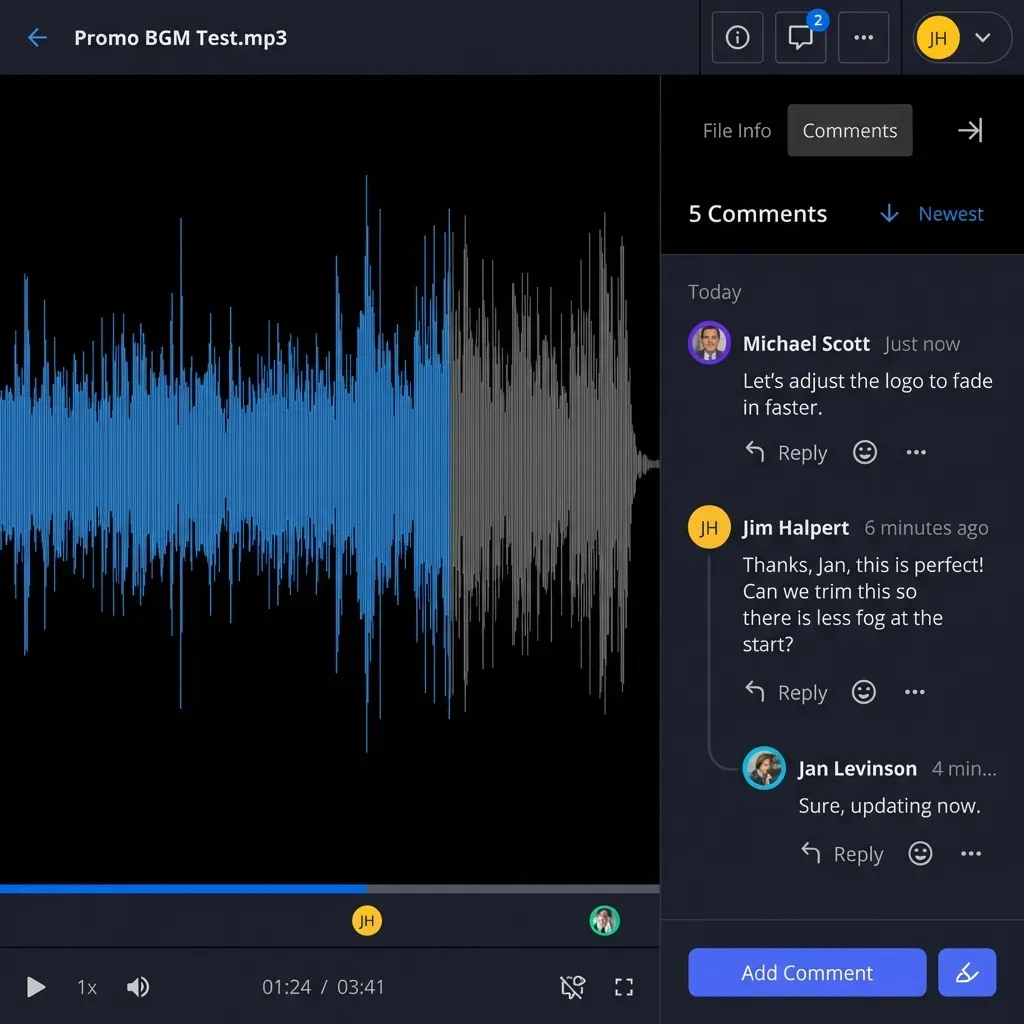
- In-browser previews and file coordination including inline previews of PDFs, video, audio, images, and design formats, comments anchored to pages or video timestamps, per-file version history, and advisory file locks
- Detailed activity log that records uploads, edits, moves, deletions, membership and permission changes, and share creation by both people and agents
- Agent integration and handoff through Fastio's consolidated MCP server (with endpoints at
https://mcp.fast.io/mcp/tools,https://mcp.fast.io/mcp/operations, andhttps://mcp.fast.io/mcp/code) and ownership transfer so an agent can assemble a workspace and hand it to a human via a claim link
Sources
References used to verify factual claims in this guide.
-
Over 54% of people use three or more cloud storage providers
-
Average U.S. upload speed around 62 Mbps
Frequently Asked Questions
How do I transfer files from one cloud to another without downloading?
Use a cloud platform with built-in import (like Fastio Cloud Import), a third-party transfer service (MultCloud, Cloudsfer), or run rclone on a cloud VM. All three methods move files directly between cloud data centers without routing data through your local machine. The key is keeping the data path between servers rather than pulling files through your home internet connection.
What is the fastest way to move files between cloud services?
Direct server-side cloud transfer is usually faster than downloading files to a computer and re-uploading them. For large object-storage migrations between AWS, Azure, and Google Cloud, native tools like Google Storage Transfer Service or AWS DataSync move data directly across provider backbones. To transfer files directly between two everyday cloud drives such as Dropbox and Google Drive, use a third-party cloud transfer service like MultCloud or run rclone on a cloud VM. If your goal is to pull folders from Google Drive, Dropbox, Box, or OneDrive into a shared workspace for your team and AI tools rather than migrating between two outside clouds, Fastio's Cloud Import and Cloud Sync copy those folders server-side.
Can I transfer files from Dropbox to Google Drive directly?
Not natively. Neither Dropbox nor Google Drive has a built-in feature to transfer files to the other. You need a third-party tool. Options include MultCloud (web-based) or rclone (command line, free and open source).
Is cloud-to-cloud transfer safe for sensitive files?
It depends on the tool. Native provider migration tools (Google Storage Transfer Service, AWS DataSync) keep data within the provider's infrastructure and encrypt transfers. Third-party services route files through their servers, so check their encryption and compliance documentation. For sensitive files, prefer tools that use OAuth (no password sharing) and encrypt data in transit with TLS.
How long does a cloud-to-cloud transfer take?
Transfer time depends on the total file size, the method used, and the providers involved. Server-side transfers between major cloud providers typically run at hundreds of megabits per second. A 10 GB transfer usually finishes in 5 to 15 minutes with a direct server-side method. The same transfer through a local download-reupload cycle could take 2 to 4 hours on a typical home internet connection.
Do I lose file permissions when transferring between cloud providers?
Yes. Sharing permissions, comments, and version history from the source provider do not transfer to the destination. These settings are specific to each provider's platform. Plan to re-establish sharing permissions on the destination after the transfer completes, and notify collaborators about the new file locations.
Can I automate recurring transfers between cloud services?
Yes. rclone supports scheduled sync through cron jobs or task schedulers. Third-party services like MultCloud offer built-in scheduling for recurring transfers. For custom needs, you can build an API integration that runs transfers on a schedule using cloud provider APIs and a serverless function or cron job.
Related Resources

Stop Juggling Multiple Cloud Accounts
Import files from Google Drive, Dropbox, OneDrive, and Box into one workspace with 250 GB of storage or more. Start your 14-day Business Trial.