How to Connect OpenAI Codex to Microsoft OneDrive
Connecting OpenAI Codex to OneDrive enables autonomous coding agents to access personal and enterprise OneDrive storage via remote MCP without triggering local file system hydration locks. By syncing OneDrive folders into an intelligent workspace, developers ground automated code generation against live documentation and architectural specs without risking zero-byte read failures or disk bloat.

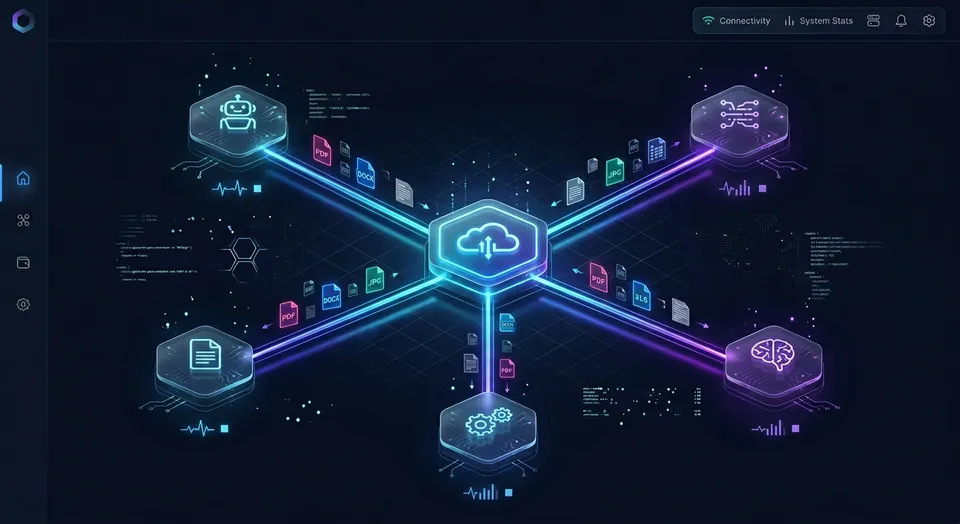
The Local Sync Dilemma: Why Codex Fails on OneDrive Placeholder Files
When an autonomous coding agent attempts to inspect an API specification in a locally synced OneDrive folder, the underlying operating system often hands back an empty file containing zero bytes.
Modern engineering projects rarely live entirely in Git repositories. While core application logic resides in version control, essential architectural context frequently lives in cloud storage managed by cross-functional teams. Product managers draft requirements documents in shared OneDrive folders. System architects publish OpenAPI definitions, database schemas, and technical design memos. Design leads maintain design token tables, brand guidelines, and UI asset directories.
When developers use OpenAI Codex within development environments or automated scripting pipelines, they want the model to ground its code generation in these authoritative specifications. A developer implementing payment webhooks needs the exact payload structures defined in the architecture specification. A frontend engineer building data tables needs the precise schema contracts agreed upon by backend and product teams.
The standard developer reaction is to access cloud files directly through the local file system. Engineers install the Microsoft OneDrive desktop sync client on Windows or macOS and attempt to link the synchronized cloud directory into their local coding environment. Some developers create operating system symbolic links from the OneDrive directory into their project root. Others open their synced OneDrive folder directly as an additional workspace root in their editor.
Both approaches break down because of how modern cloud storage clients manage local disk capacity. To prevent enterprise storage repositories from exhausting local laptop drives, Microsoft uses OneDrive Files-On-Demand. This system replaces physical files on disk with virtual placeholders, known technically as dataless files or reparse points. On Windows, Files-On-Demand operates through NTFS reparse points and the Cloud Files API. On macOS, it relies on Apple's File Provider framework.
In File Explorer and Finder, these placeholder files show the file name, modified timestamp, and logical file size alongside a blue cloud status icon. However, the physical size on disk remains zero bytes until the file is hydrated. While human users double-click a file to trigger immediate download and operating system hydration, autonomous coding tools encounter severe operational failures:
Silent Zero-Byte Reads: When OpenAI Codex or an automated file-parsing script opens an unhydrated placeholder file, standard POSIX and Win32 file system calls do not consistently invoke shell-level download handlers. The file system returns an immediate end-of-file condition or a buffer of zero bytes. Codex reads the file as empty text. Believing the specification file has no contents, the agent hallucinates data structures, invents missing interface parameters, and outputs broken code that fails compilation.
Workstation Hydration Freezes: When automated tooling attempts recursive directory scans or runs grep-like searches across a synced OneDrive tree, it can inadvertently trigger hydration interrupts across hundreds of files simultaneously. The local OneDrive sync client responds by queuing bulk downloads of massive PDFs, presentations, and binary assets. The developer workstation experiences sudden network saturation, storage I/O bottlenecks, and editor interface lag while waiting for synchronous transfers to finish.
Broken Workspace Boundaries: If an engineer attempts to protect disk space by selectively unchecking heavy folders in OneDrive settings, those folders vanish from the local file system entirely. Codex can no longer discover the specifications, severing the agent from project context.
Connecting OpenAI Codex to OneDrive requires an architecture that separates cloud storage retrieval from local workstation file systems. Instead of mounting dataless placeholders on developer machines, agents need remote, authenticated access to indexed file content.
Related guides
- How to Connect Devin AI with Microsoft OneDriveConnecting Devin AI to Microsoft OneDrive allows developers to make large datasets and design documents accessible to...
- Claude OneDrive MCP: Connect Claude to Microsoft OneDrive via Fast.ioClaude OneDrive MCP connects Anthropic Claude models to Microsoft OneDrive storage for reading, searching, and...
- How to Connect OpenAI Codex Agents to SharePoint Document LibrariesConnecting OpenAI Codex to SharePoint allows autonomous coding agents to query enterprise architecture documentation,...
- How to Connect OpenAI Codex to Google Drive via MCP ServerConnecting OpenAI Codex to Google Drive gives coding agents access to project documentation, API schemas, and...
- How to Connect OpenAI Codex to Dropbox StorageConnecting OpenAI Codex to Dropbox allows coding agents to search, read, and ground code in Dropbox-hosted files using...
- OpenAI Codex Context Limit: Agent Execution Caps and MCP RetrievalThe OpenAI Codex context limit bounds the prompt instructions, tool definitions, shell execution logs, and file diffs...
More on this subject: AI Coding Assistants (96 guides)
Comparing Native OneDrive Connectors with Remote MCP Architecture
Engineering teams have explored several architectural patterns to connect OpenAI Codex to Microsoft OneDrive repositories. Understanding the trade-offs between local sync, direct API integrations, and remote protocol connectors clarifies why direct file system access fails for autonomous agents.
1. Local Directory Mounts and Selective Sync
The most common approach relies on the local OneDrive client running on the developer workstation. Developers mount synced folders into their coding environment or create local symlinks.
- Operational Mechanism: Files sync from Microsoft cloud servers to the local workstation disk using OneDrive Files-On-Demand.
- Failure Modes: Unhydrated placeholders return zero-byte buffers during non-interactive agent reads. Bulk scans trigger workstation freezes and disk bloat. Symlinks frequently break across operating system boundaries, containerized build environments, and remote development hosts.
- Suitability: Unreliable for autonomous AI agents and automated code generation workflows.
2. Direct Microsoft Graph API Integration
Technical teams often attempt to bypass local synchronization by writing custom scripts that interact directly with the Microsoft Graph API.
- Operational Mechanism: The agent or integration script uses OAuth 2.0 client credentials to query OneDrive drive items via Microsoft Graph endpoints (
/v1.0/me/drive/itemsor/v1.0/drives/{drive-id}/root). - Implementation Challenges: Graph API integrations require extensive administrative setup. Teams must register an application in Microsoft Entra ID, configure application permissions (
Files.Read.AllorFiles.ReadWrite.All), obtain tenant administrator consent, and implement custom token refresh routines. - Context Bottlenecks: Microsoft Graph returns raw file streams. The integration script must implement custom parsing for Word documents, PDFs, and spreadsheets, perform text chunking, and calculate embeddings. When Codex needs context, the agent must either ingest entire files into its context window or rely on custom-built retrieval infrastructure.
- Suitability: Viable for large enterprise platform teams with dedicated infrastructure engineering resources, but heavy and maintenance-intensive for typical development groups.
3. Third-Party API Tool Routers
Platforms like Composio provide managed tool routers that expose Microsoft Graph actions to agents over the Model Context Protocol (MCP).
- Operational Mechanism: The platform hosts an MCP bridge that translates natural language prompts into Microsoft Graph API calls, allowing Codex to execute specific file actions such as searching drive items or reading file contents.
- Operational Limits: Tool routers treat cloud storage as an unindexed file store. When Codex needs to ground a code generation task, the router fetches entire raw files over the wire and places them into the agent prompt context. For large specification documents, this consumes excessive tokens and increases response latency.
- Suitability: Effective for simple automation tasks such as moving files or checking directory listings, but inefficient for semantic document grounding during deep coding tasks.
4. Remote MCP Through an Intelligent Workspace
The intelligent workspace pattern combines cloud synchronization with server-side indexing and remote MCP endpoints. Instead of modifying enterprise OneDrive infrastructure or mounting local folders, the team connects their existing OneDrive folder to a Fast.io workspace.
- Operational Mechanism: Fast.io Cloud Sync maintains a scheduled or on-demand connection to target OneDrive folders (or SharePoint document libraries via the OneDrive for Business connector). As files sync into the workspace, Fast.io automatically indexes content using hybrid search (exact full-text matching combined with semantic vector retrieval).
- Agent Access: Codex connects directly to Fast.io's remote MCP server over Streamable HTTP. When Codex requires project context, it calls the MCP search tool, querying the pre-indexed workspace to retrieve precise text snippets, schema definitions, and citations without downloading whole files.
- Local Independence: Because all storage, synchronization, and indexing occur in the cloud, developer workstations remain free from dataless placeholders, disk saturation, and hydration locks.
In connector evaluations published at fast.io/benchmarks, Fastio was measured the fastest and the lowest cost of the providers tested.


Ground OpenAI Codex in Your OneDrive Files
Connect your OneDrive storage to Fast.io workspaces via Cloud Sync, query indexed documentation over remote MCP, and eliminate local hydration errors during automated code generation. Start with a 14-day free trial.
How to Connect Codex to OneDrive via Fast.io in Three Steps
Connecting OpenAI Codex to Microsoft OneDrive through an intelligent workspace takes three primary configuration steps: linking your storage folder, indexing workspace content, and adding the Fast.io MCP endpoint to Codex.
Step 1: Link OneDrive to Fast.io via Cloud Sync
Sign in to Fast.io and create a workspace for your repository or engineering project. From the workspace settings, configure Cloud Sync to connect your Microsoft cloud storage:
- In your workspace settings, select Cloud Sync and choose Microsoft OneDrive from the available storage providers.
- Authenticate through the Microsoft OAuth window and authorize Fast.io to access the required OneDrive folder or SharePoint document library.
- Configure your synchronization direction. Select one-way sync (OneDrive to Fast.io) if you only need Codex to read and ground code generation against existing architectural documents. Select two-way sync if you also want Codex or team members to write generated documentation, test reports, or OpenAPI specifications back to OneDrive.
- Define your sync frequency. Cloud Sync connects Google Drive, Dropbox, Box and OneDrive folders to a workspace, one-way or two-way, on a schedule or on demand (never continuous, live or real-time; SharePoint libraries are reached through the OneDrive connector). Select a schedule that matches your documentation release cycle, or trigger an on-demand sync whenever architects publish new specifications.
Step 2: Enable Workspace Intelligence for Hybrid Retrieval
Once the initial synchronization finishes, enable Intelligence Mode in your workspace settings. Fast.io automatically processes incoming OneDrive files and builds a comprehensive retrieval index:
- Hybrid Search Indexing: Content is indexed using both exact full-text matching and semantic embeddings. When Codex queries a technical phrase, the search engine matches exact function names, error codes, and class declarations while simultaneously capturing conceptual meaning across natural language paragraphs.
- Broad Format Parsing: Text extraction processes Word documents (
.docx), PDF files, OpenAPI definitions (.yamland.json), Markdown files, text files, and spreadsheets without requiring manual conversion scripts. - Structured Data Extraction: For complex document collections containing variable schema definitions or contract terms, teams can configure Metadata Views to automatically extract typed columns (such as schema versions, endpoints, or data types) into a filterable table accessible to agents.
Step 3: Connect OpenAI Codex to the Remote MCP Server
OpenAI Codex interacts with external tools through the Model Context Protocol. Fast.io hosts an official remote MCP server over Streamable HTTP, removing the need for local npm processes or stdio bridges.
Depending on your Codex operating environment, configure the connection using one of the two supported methods:
Method A: Install the Fastio Plugin (Preferred)
Fastio is available directly in the ChatGPT and Codex plugin ecosystem. This is the recommended route for developers using the Codex CLI or the ChatGPT desktop interface.
In the Codex CLI, run:
codex plugin add fast-io@openai-curated-remote
Alternatively, open /plugins in the CLI interface, or navigate to the Plugins tab within Codex in the ChatGPT desktop application. Follow the browser prompt to sign in to Fastio.
Method B: Add a Custom MCP Server (Alternative and IDE Route)
If your organization policies restrict plugin installations, or if you are using the Codex IDE extension (which interacts directly with custom MCP definitions), configure the server endpoint manually.
In the Codex CLI, register the remote server:
codex mcp add fastio --url https://mcp.fast.io/mcp/operations
Then complete authentication by running:
codex mcp login fastio
This opens your default browser to Fast.io's OAuth 2.0 PKCE authentication flow. The Review Permissions screen prompts you to choose your access level (Read Only or Read & Write) and select exactly which organizations and workspaces Codex can reach.
For headless environments, continuous integration (CI) runners, or automated backend scripts where interactive browser sign-in is not possible, pass a long-lived scoped API key as an Authorization: Bearer <api key> header on the connection.
Detailed configuration steps are maintained in the Fast.io MCP documentation, while comprehensive tool parameter definitions can be reviewed in the MCP tool reference.
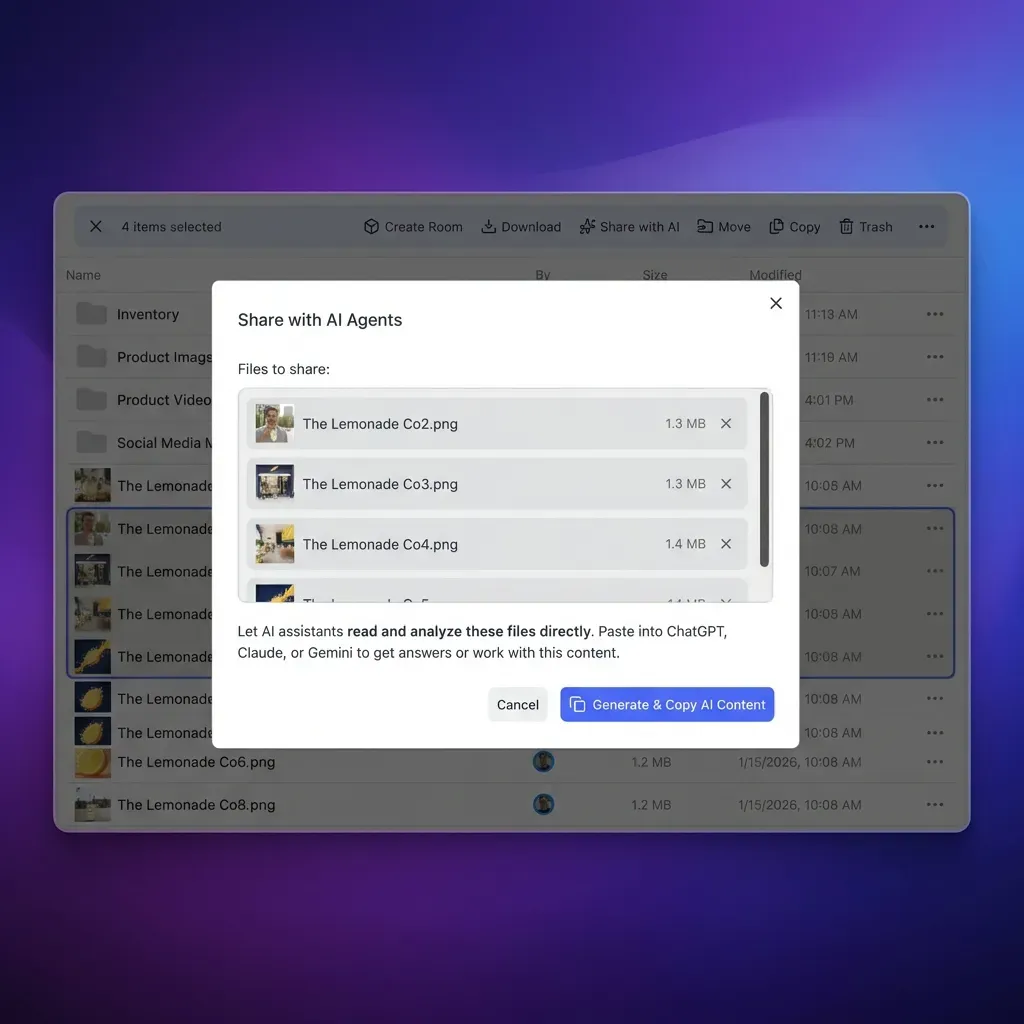
Autonomous Coding Workflows: Grounding Codex in Live Cloud Specifications
Once Codex connects to your indexed OneDrive repository through Fast.io, the agent can reference live architectural specifications, schemas, and design guidelines directly during code generation sessions.
Precision Retrieval Versus Context Window Saturation
When developers pass cloud storage documents to LLMs using standard file uploads or unindexed tool routers, they risk saturating the model's context window. An enterprise technical specification can easily span 80 pages of text, tables, and change logs. Feeding an entire document into Codex consumes thousands of prompt tokens, increases inference cost, and dilutes the model's attention, leading to missed implementation constraints.
Fast.io's remote MCP architecture solves this by providing targeted semantic search. When Codex needs information from OneDrive, it invokes the workspace search tool with a natural language query or technical keyword. The MCP server queries the pre-indexed files and returns only the most relevant text chunks, accompanied by exact file paths and page citations. Codex receives precisely the context required to generate code, preserving its context window for source code and compiler feedback.
Practical Code Generation Examples
Here are three real-world development workflows enabled by connecting Codex to OneDrive via remote MCP:
1. Generating API Client Code from OneDrive OpenAPI Specs
Technical architects often draft and revise OpenAPI specifications in OneDrive before backend services are fully deployed. A developer can prompt Codex to generate a typed client based on the cloud specification:
Inspect our payment gateway OpenAPI specification in the OneDrive Architecture workspace.
Generate a TypeScript client SDK with strict interfaces for the checkout session webhook payload,
including error handling for expired payment intents.
Codex calls the MCP search tool, locates the payment specification file, extracts the exact schema definitions for checkout sessions, and generates production-ready TypeScript interfaces matching the architect's design.
2. Writing Database Migrations from Cloud Data Dictionaries
Data teams frequently maintain entity-relationship descriptions and column definitions in OneDrive spreadsheets or Word documents. When an engineer needs to update an application schema:
Check the user profile data dictionary in our OneDrive shared folder.
Generate a Prisma schema migration that adds the new compliance verification fields
specified in the Q4 data model update, ensuring proper nullability and index attributes.
Codex queries the workspace, extracts the required column names and types from the indexed OneDrive document, and outputs a migration file aligned with team standards.
3. Aligning Frontend Components with Design System Tokens
Design teams often update UI design token tables and color palettes in cloud storage. A developer building UI components can prompt Codex:
Find the primary button styling guidelines and typography tokens in our design specs.
Create a Tailwind CSS component configuration that implements the active, hover,
and disabled states defined in the document.
Codex retrieves the exact spacing, color hex codes, and font weights, generating styles that match design documentation without requiring the developer to manually cross-reference files.
Concurrency and Multi-Agent Safety
When multiple developers or autonomous agents operate within the same workspace, protecting file integrity is essential:
- Per-File Version History: Fast.io maintains a complete per-file version history for every document in a workspace. If an agent writes updated documentation or code deliverables back to a shared workspace, previous versions remain fully preserved and can be inspected or restored at any time.
- Advisory File Locks: For coordinated write operations, agents can acquire advisory file leases. An agent acquires a lease using
lock-acquireand releases it withlock-releaseon thestorage_managetool, while other agents inspect lock status usinglock-statuson thestoragetool. Locks expire automatically unless renewed by periodic heartbeats. Advisory locks provide clear visibility to other agents without creating rigid write blocks, and concurrent updates land safely in version history. - Collaborative Notes: Teams can maintain markdown notes directly beside synchronized OneDrive files. Fast.io Notes support version-checked saves, allowing agents and developers to record implementation decisions without overwriting concurrent edits.
Enterprise Governance, Activity Logging, and Transparent Pricing
Deploying AI coding assistants against enterprise cloud repositories requires strict security boundaries, comprehensive change tracking, and clear operational cost models.
Role-Based Access Controls and Workspace Scoping
Fast.io enforces role-based permissions configured at the organization, workspace, and share levels. Permissions are never applied at the individual folder or file level; every member of a workspace accesses its contents according to their assigned workspace role.
This architecture enables clean organizational isolation:
- Dedicated Project Workspaces: Teams can isolate sensitive repositories by creating distinct workspaces. For instance, an organization can maintain a
Core-Backend-Architectureworkspace accessible only to staff engineers, while syncing vendor documentation into a separatePartner-Integrationsworkspace. - Scoped Sharing: When external contractors or client teams need access to specific deliverables without joining the primary workspace, administrators can create branded shares (Send, Receive, or Exchange) scoped to selected assets. A share can also disable file downloads when distributing confidential preview materials.
- Credential Scoping: During the OAuth sign-in flow, administrators specify exactly which workspaces the Codex MCP integration is authorized to query. The agent cannot inspect files outside its designated workspace boundaries.
Detailed Activity Logging
Fast.io maintains a detailed activity log of changes across organizations and workspaces. The activity log captures:
- File uploads, modifications, renames, and deletions.
- Folder creation, movements, and restructuring.
- Organization and workspace membership additions, role updates, and removals.
- Share creation, permission modifications, and link expirations.
The activity log tracks actions executed by human team members and automated AI agents alike, establishing complete visibility into who modified project resources and when changes occurred. The activity log records change events only; it does not track read-only actions such as file views, downloads, or preview requests.
When an autonomous agent sets up project infrastructure, creates documentation folders, or organizes initial workspace assets, Fast.io supports ownership transfer: the agent account creates the organization and workspaces, then transfers primary ownership to a human team lead while retaining administrative access.
Transparent Pricing and Trial Details
Fast.io provides transparent subscription tiers tailored to teams of various sizes. Review the full breakdown on the Fast.io pricing plans page. Creating an account is free; deploying workspaces and connecting remote MCP servers requires an organization on a paid subscription. Monthly plans start with a 14-day free trial that requires a credit card.
Monthly subscriptions begin with a 14-day free trial, which requires a credit card and concludes early if trial credits are exhausted. Annual plans start paid without a trial period.
Credits meter AI operations, including document indexing, hybrid search, and Metadata Views. Storage and seat allowances are included directly in each plan and are not metered in credits. Plan expansions and overages are billed according to clear resource metrics without hidden fees, and no token-to-credit conversion rate is published.
Creating an individual user account is free; deploying workspaces, configuring Cloud Sync, and connecting remote MCP servers requires an organization on an active subscription.
Sources
References used to verify factual claims in this guide.
-
OneDrive Files On-Demand marks online-only files with a cloud icon so they do not consume physical disk space on the local computer.
-
Managed tool routers enable autonomous agents such as Codex to interact with OneDrive storage over the Model Context Protocol.
Frequently Asked Questions
How do I connect OpenAI Codex to OneDrive?
You connect OpenAI Codex to OneDrive by syncing your OneDrive folders into a Fast.io workspace using Cloud Sync, then adding Fast.io's remote MCP server to Codex. In the Codex CLI, install the plugin by running `codex plugin add fast-io@openai-curated-remote`, or register the custom MCP server with `codex mcp add fastio --url https://mcp.fast.io/mcp/operations` and sign in using `codex mcp login fastio`.
Why does Codex fail to read OneDrive placeholder files?
OneDrive Files-On-Demand uses NTFS reparse points on Windows and Apple's File Provider framework on macOS to represent online-only files as dataless placeholders. When Codex or automated scripts execute standard non-interactive file reads, the operating system does not trigger shell hydration hooks and returns an immediate zero-byte buffer, causing the agent to treat the file as empty.
How do I use MCP with OneDrive and Codex?
You use MCP by connecting Codex to a remote MCP endpoint that interfaces with your synchronized OneDrive files. Fast.io indexes your synced OneDrive content and exposes semantic search and document execution tools over Streamable HTTP. Codex calls the `search` tool over MCP to query indexed documentation, receiving relevant snippets and citations directly in its context window.
Does Cloud Sync support SharePoint document libraries?
Yes. Fast.io Cloud Sync accesses SharePoint document libraries through the Microsoft OneDrive for Business connector. You can synchronize SharePoint libraries into a Fast.io workspace one-way or two-way, on a recurring schedule or on demand, making team documents accessible to Codex.
Can Codex write generated code back to OneDrive?
Yes. If you configure two-way synchronization in Fast.io Cloud Sync, any files, documentation, or code deliverables that Codex writes to the Fast.io workspace through MCP management tools are synchronized back to your Microsoft OneDrive folder according to your sync schedule or on demand.
Does Fast.io require local software installation to connect Codex to OneDrive?
No. Fast.io provides a fully remote MCP server hosted at `mcp.fast.io` over Streamable HTTP. All file synchronization, text extraction, and semantic indexing happen in the cloud, eliminating the need to run local synchronization daemons, background watchers, or stdio bridge processes on your development machine.
Related Resources

Ground OpenAI Codex in Your OneDrive Files
Connect your OneDrive storage to Fast.io workspaces via Cloud Sync, query indexed documentation over remote MCP, and eliminate local hydration errors during automated code generation. Start with a 14-day free trial.