Secure File Sharing with Clients: Portals, Links, and Access Control
Sharing files directly from an internal Google Drive or SharePoint tree risks exposing sibling folders and internal drafts to outside contacts. Secure file sharing with clients isolates each engagement in a dedicated workspace or branded portal with password protection, expiring links, and account-free guest access. Teams can deliver large files, collect client uploads, and scope AI assistants to a single project.

Why Sharing Straight from Internal Drives Creates Client Risk
When a team shares a folder directly from an internal Google Drive, SharePoint document library, Box tree, or Dropbox account, that link lives inside the same permission structure as the company's internal files. A misconfigured parent directory, an inherited group role, or a forwarded link can expose sibling client folders and internal working drafts to the wrong contact.
Secure file sharing with clients separates external delivery from internal storage. Instead of inviting outside guests into the folder tree where your staff works, you isolate each engagement in a dedicated workspace, a scoped share, or a branded client portal. Access rules, passwords, expiration dates, and download controls apply only to that client space.
Three operational problems show up when firms rely on ad-hoc links from their primary cloud drive:
- Over-broad drive permissions. Years of nested folders in SharePoint or Google Drive often mix confidential internal notes with client-ready deliverables. Restructuring the source drive for every new engagement is rarely practical.
- Unscoped AI assistants. When employees connect Claude or ChatGPT directly to an internal drive, the assistant can read across every folder that user has permission to open rather than staying inside one client matter or deal.
- Guest account friction. Forcing a client to register an account or verify a corporate identity just to open a final report slows down review and pushes people back to unencrypted email attachments.
Helpful references: Fastio Workspaces, Fastio Portals, Fastio Collaboration, and Fastio AI.
Related guides
- 5 Best Citrix ShareFile Alternatives for Client Portals and File SharingTeams evaluating Citrix ShareFile alternatives usually want branded client portals, e-signature, and scoped workspace...
- How to Use Temporary File Storage for Secure Short-Term SharingTemporary file storage hosts your files for a limited time, automatically deleting them after a set period or number of...
- How to Create a Secure File Upload Portal for ClientsA secure file upload portal is a dedicated web page where external clients, vendors, and partners submit documents and...
- How to Set Up a Client File Sharing Portal That Actually Gets UsedA client file sharing portal is a secure, branded digital space where businesses share files with clients, collect...
- Best Onehub Alternatives for Secure File Sharing in 2026Onehub is a solid file sharing and virtual data room platform, but it is not the only option. This guide compares the...
- 5 Best No Signup File Sharing Services (2026 Review)No signup file sharing services let you upload and share files instantly without creating an account, reducing friction...
More on this subject: File Sharing (155 guides)
Comparing Client File Sharing Approaches
Different client relationships call for different sharing mechanics. Sending a one-time video cut to an agency contact is a different problem from running an ongoing deal room with outside counsel and AI research agents.
Point-to-point tools such as WeTransfer focus on fast outbound delivery when a file is too large for email. Portal platforms such as ShareFile and FileCloud provide structured client spaces and inbound document collection, with FileCloud also offering self-hosted server deployments.
Fastio fits teams that want to keep their source files in Google Drive, SharePoint, Box, or Dropbox while creating an isolated workspace per client, deal, or matter. With Cloud Sync, an administrator syncs only the selected folders into a Fastio workspace on a schedule or on demand, one-way or two-way, and serves clients through branded shares and portals. One-way sync leaves the source drive unchanged.
Structuring Client Workspaces, Folders, and Sync
Clean file sharing starts with a predictable boundary: one workspace per client, matter, deal, or project. Keeping each engagement in its own workspace prevents cross-client exposure and gives your internal team and AI assistants a well-defined scope.
Within a client workspace, a numbered folder hierarchy keeps work in progress separate from final deliverables:
Client_Name/
├── 01_Brief_and_References/
├── 02_Work_in_Progress/
├── 03_Final_Deliverables/
└── 04_Archive/
Numbered prefixes keep folders sorted in the same order on every device. Your team knows where drafts live, and you can share only 03_Final_Deliverables with the client.
Folder Naming and Scoping Rules
- Use ISO dates for versioned folders. Naming a folder
2026-10-Final_Cutsorts chronologically and removes ambiguity between regions. - Avoid special characters. Stick to letters, numbers, hyphens, and underscores so paths behave consistently across macOS, Windows, and command-line tools.
- Keep names concise.
Q4_Campaign_Assetsis easier to scan in a browser or mobile view than a full sentence.
In Fastio, role-based permissions are set per organization, workspace, and share. Every member of a workspace can reach the contents of that workspace according to their role. When you want a client to see only a single folder or specific files without seeing 02_Work_in_Progress or internal notes, you create a share backed by that folder. In Shared Folder Storage Mode, the share points to a live workspace folder so updates you place in 03_Final_Deliverables appear in the client's share automatically, while the rest of the workspace remains private.
If the source files live in Google Drive, Dropbox, Box, or OneDrive (including SharePoint document libraries connected through OneDrive for Business), Cloud Sync brings the chosen folders into the workspace on a recurring schedule or on demand. One-way sync pulls files from the source drive without writing changes back, and two-way sync keeps both sides updated on your chosen schedule.



Deliver Client Files Through Branded Portals and Scoped Shares
Isolate each client in a dedicated workspace or branded portal with password protection, expiring links, and in-browser media previews. Monthly plans start with a 14-day free trial.
Configuring Share Modes, Link Protections, and Branded Portals
A single sharing link format rarely covers every stage of a client engagement. Outbound delivery, inbound document collection, and two-way collaboration need different permissions.
Fastio separates client sharing into three purpose-built share modes:
- Send shares for outbound delivery. Clients preview files in the browser or download final deliverables without creating an account.
- Receive shares for inbound collection. Clients upload requested documents, raw footage, or financial records through a link without seeing files submitted by other guests.
- Exchange shares for two-way collaboration. Both your team and the client can upload, preview, and comment on files in a shared space.
Link Controls That Protect Client Files
Every share link should match the sensitivity of the files inside it:
- Expiration dates close access automatically after a review window or project handoff ends.
- Password protection adds a credential check so a forwarded email does not expose confidential documents.
- Per-recipient access grants let you grant and revoke access for individual contacts on a share.
- Download restrictions allow you to disable file downloads on a share when clients should view drafts, videos, or documents in the browser without saving local copies.
Branded Client Portals and E-Signature
For ongoing client relationships, a branded client portal replaces generic storage links with a space carrying your logo, custom brand colors, custom background, and organized folder navigation. External guests open shares and portals by link without creating an account, and guest access never consumes a paid seat on your organization plan.
When a deliverable or contract requires formal sign-off, Fastio includes built-in e-signature on every plan. You can send a document for signature directly from a workspace, route signers in sequence or in parallel, require an optional one-time passcode per signer, and collect signatures without requiring the client to create an account. Each completed envelope produces a tamper-evident audit certificate recording the signer's IP address and browser, and the executed copy files itself back into the workspace.

Reviewing Large Media, Design Files, and Structured Documents
Client work routinely outgrows email attachment limits and standard browser viewers. Video production houses deliver multi-gigabyte cuts, architecture studios exchange CAD drawings, and legal or finance teams hand over hundreds of PDFs and spreadsheets at once.
Large Transfers and In-Browser Previews
Large files go up as chunked uploads, with maximum upload sizes of 25 GB on Starter, 50 GB on Business, and 100 GB on Enterprise.
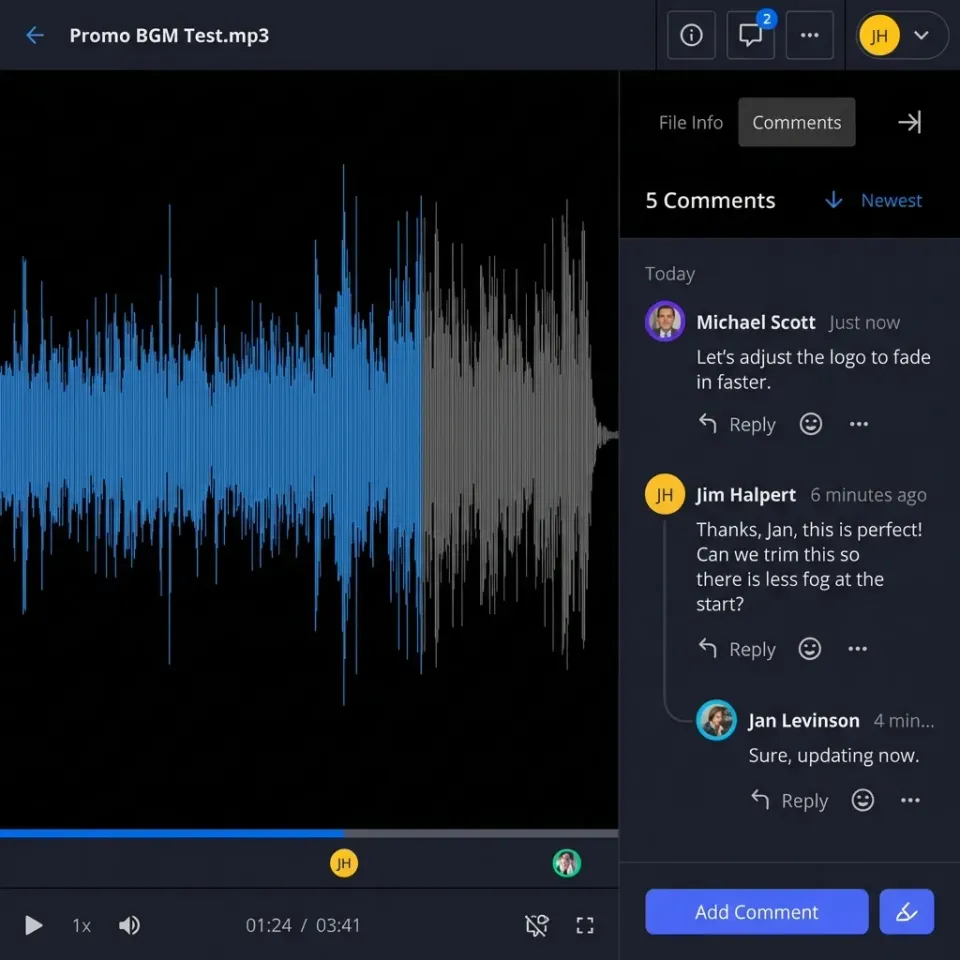
Once uploaded, in-browser previews let clients inspect work without installing specialist desktop software. Fastio previews PDFs, spreadsheets, Word documents, presentations, native design and camera formats including PSD, AI, RAW photos, and CAD drawings, audio files with visual waveform navigation, and large video files. Video uses adaptive bitrate (HLS) streaming so clients can play and scrub footage in the browser immediately without waiting for the original file to download.
Anchored Comments, Version History, and File Locks
Feedback stays attached to the work when reviewers use anchored comments pinned to a specific PDF page, an image region, a video timestamp, or a text selection on a file version.
Every file in a workspace or share keeps per-file version history. When your team uploads a revised cut or updated contract, recipients on the share link always see the current version while earlier versions remain available to restore. When multiple teammates or AI agents work in the same space, advisory per-file file locks let a writer acquire and heartbeat a lease so others can see who holds the file, with takeover available to anyone with write permission and full version history preserving concurrent edits.
AI Search, Portal AI, and Metadata Views
When Workspace Intelligence is enabled, files are indexed automatically for hybrid search (combining exact full-text matching with semantic retrieval) and document chat with citations to specific files, pages, and passages. Inside client portals, Ripley (Portal AI) can answer a client's questions directly from the shared documents.
For structured document sets such as contracts, policies, or invoices, Metadata Views turn workspace files into a sortable, filterable table. You describe the columns you need in plain English (such as effective dates, counterparties, renewal terms, or invoice totals), and Fastio extracts typed fields across PDFs, Word documents, spreadsheets, and scanned pages so your team can search and filter by metadata value.

Security Controls, Activity Logs, and Agent Handoffs
Delivering confidential financials, legal matters, or unreleased creative work requires clear visibility into how files are stored, modified, and handed off at the end of an engagement.
Encryption and Detailed Activity Logs
Fastio protects files with encryption in transit and at rest and runs on cloud infrastructure partners, including Google Cloud Platform and Cloudflare, that are certified to industry-leading security standards.
Across every organization, a detailed activity log records storage changes and system activity by both people and AI agents: uploads, edits, moves, deletions, membership and permission changes, and share creation. Administrators can review who changed what and when across workspaces, and Enterprise plans add legal holds and an audit stream to a SIEM.
Scoping AI Assistants and Transferring Ownership
Many firms now use Claude, ChatGPT, or custom agents to draft client reports, summarize deal rooms, or organize intake files. Connecting an assistant through Fastio's consolidated MCP toolset (https://mcp.fast.io/mcp/tools for Claude and general MCP clients, https://mcp.fast.io/mcp/operations for ChatGPT and Codex custom servers, or https://mcp.fast.io/mcp/code for coding agents, with setup instructions at mcp.fast.io/docs) opens a Review Permissions screen where you choose Read Only or Read & Write access and select the exact workspaces the assistant can reach. For automated scripts or headless agents, a scoped API key restricts the agent to one client workspace so revoking the key affects no other client.
Checklist for Delivering and Closing Out Client Shares
- Before delivery: Verify file names follow your date and version convention, confirm internal notes and drafts stay outside the shared folder, and check whether downloads should be enabled or disabled.
- During delivery: Place final files in the client's workspace or synced folder, configure the Send, Receive, or Exchange share with a password and expiration date, and send the portal or share link.
- At project handoff: When an AI agent builds an organization and workspace structure on a client's behalf, ownership transfer lets the agent hand the organization to the client's human administrator with a claim link. Revoke external share links once the retention window closes.

Frequently Asked Questions
What is the safest way to share files with clients without exposing internal folders?
Isolate client files from your internal directory tree by placing each client engagement in its own dedicated workspace or by creating a share scoped only to the client deliverables folder. Add password protection and an expiration date to the share link, and disable file downloads if the client only needs to preview drafts in the browser.
Should clients need to create an account to view or upload files?
No. Requiring guests to register an account adds friction and often leads people to send sensitive files over email instead. In Fastio, external clients can open a branded portal, preview and download files in a Send share, or upload documents to a Receive share by link without creating an account, and external guests do not consume organization seats.
How can teams share large video, CAD, or design files with clients?
Use a workspace or share that supports chunked uploads and in-browser media previews. Fastio supports uploads up to 25 GB on Starter, 50 GB on Business, and 100 GB on Enterprise, renders PSD, AI, RAW photos, CAD drawings, and PDFs directly in the browser, and streams video with adaptive bitrate playback so clients can review cuts immediately and leave timestamped anchored comments.
How do permissions work when sharing a single folder with a client in Fastio?
In Fastio, access is granted per organization, workspace, and share through member roles. To give a client access to one folder without exposing the rest of a workspace, create a share backed by that folder using Shared Folder Storage Mode, or give the client project its own workspace.
Can we share files with clients while keeping our documents in Google Drive or SharePoint?
Yes. Fastio's Cloud Sync connects selected folders from Google Drive, Dropbox, Box, and OneDrive (including SharePoint libraries through OneDrive for Business) to a Fastio workspace on a schedule or on demand, one-way or two-way. Your files stay in their original drive while clients and AI assistants interact only with the scoped workspace.
How do you control what an AI assistant like Claude or ChatGPT can access in client folders?
Keep each client in a separate workspace and select only the relevant workspace on the Review Permissions screen when connecting Claude or ChatGPT to Fastio. You can also set the connection to Read Only so the assistant can read but not change files, or issue a workspace-scoped API key for a dedicated agent.
Related Resources

Deliver Client Files Through Branded Portals and Scoped Shares
Isolate each client in a dedicated workspace or branded portal with password protection, expiring links, and in-browser media previews. Monthly plans start with a 14-day free trial.