Law Firm Secure Documents: File Sharing and Collaboration for Legal Teams
Managing law firm secure documents breaks down when matter folders in SharePoint, Google Drive, or Box mix privileged attorney work product with files meant for clients, expert witnesses, and co-counsel. Isolating each matter into a dedicated workspace with role-based permissions, branded shares, encryption in transit and at rest, and a detailed activity log lets legal teams exchange files and connect AI assistants without exposing the underlying drive.

Why Matter Files Leak from Standard Drives
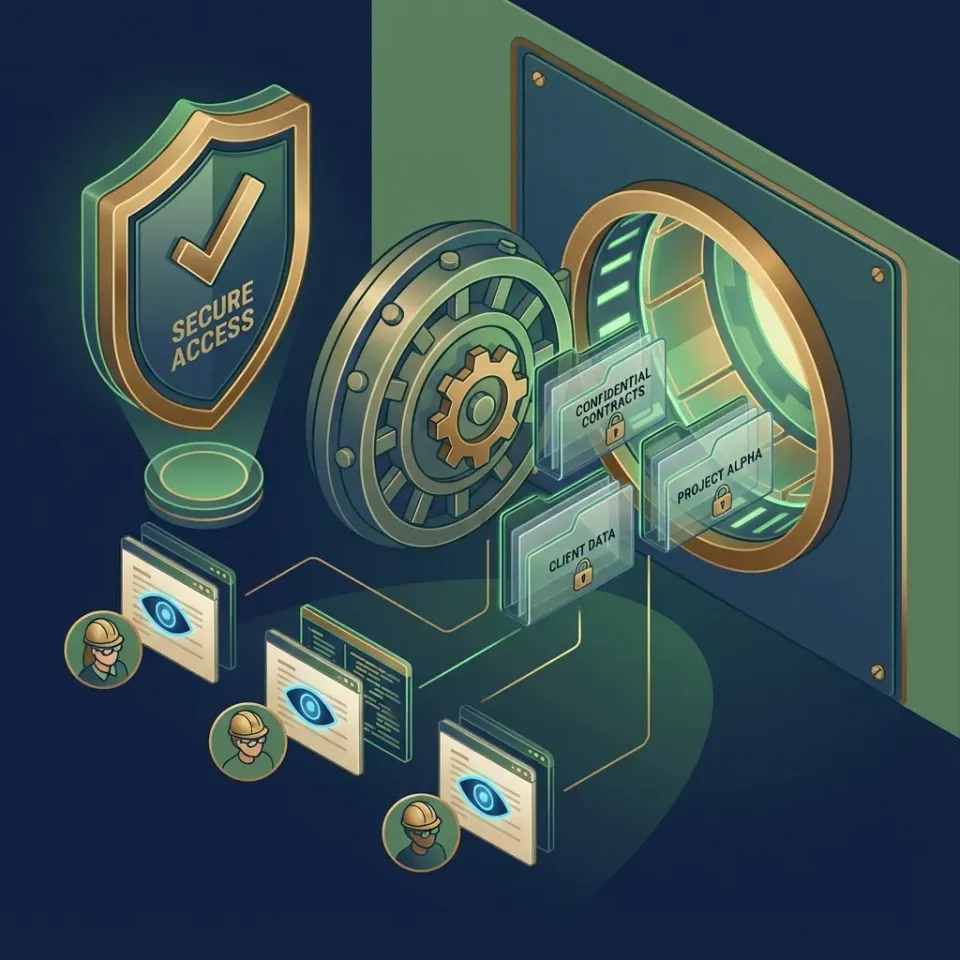
Matter folders in SharePoint, Google Drive, Box, or Dropbox rarely match the boundaries of who should see what outside the firm. A single litigation or transaction folder holds privileged strategy notes alongside opposing-counsel productions, expert exhibits, and client intake files. When an attorney emails a zip archive, creates a broad folder link, or connects an AI assistant straight to the firm's primary cloud drive, internal drafts sit one permission mistake away from exposure.
The human element was a component of 68% of breaches in the Verizon 2024 Data Breach Investigations Report, and the IBM Cost of a Data Breach Report 2025 puts the global average cost of a data breach at $4.4 million USD. In legal practice, that exposure rarely starts with a network intrusion. It starts when someone forwards a link with wider access than intended, leaves an outside expert in a shared drive after a matter closes, or grants an AI connector user-level permissions that span every SharePoint site the attorney can read.
Restructuring years of matter directories to fix permissions is not realistic for a busy IT lead or managing partner. Law firm secure collaboration requires a workspace layer where each matter, deal, or client engagement gets its own access perimeter, while source files remain in the repository where the firm already works.
Helpful references: Fastio Workspaces, Fastio Collaboration, Fastio Security, and Fastio AI.
Related guides
- Law Firm Document Sharing: Secure External Delivery for Counsel and ClientsLaw firm document sharing requires controlled, encrypted pathways to distribute privileged files, discovery materials,...
- ShareFile for Legal: Secure Document Exchange and Law Firm PortalsShareFile for Legal provides law firms with encrypted file sharing, branded client portals, and audit trails to replace...
- Clio for Co-Counsel: Setting Up Joint Matter Collaboration and Secure File SharingClio for co-counsel enables law firms to share matter files, notes, and billable time entries with partnering attorneys...
- Co-Counsel Document Sharing: Secure Workspaces for Joint Litigation TeamsCo-counsel document sharing requires specialized protocols and neutral workspaces that allow collaborating law firms to...
- How Law Firms Structure Document Collaboration for Drafting and RedlinesLaw firm document collaboration encompasses the systems and processes that enable attorneys, paralegals, and outside...
- The Complete Law Firm File Migration Checklist for IT & Legal OpsA successful law firm file migration requires systematic auditing, matter taxonomy design, pilot testing, and strict...
More on this subject: Legal Teams (247 guides)
Core Controls for Secure File Sharing for Law Firms
Evaluating law firm secure collaboration software starts with concrete access, storage, and sharing controls rather than broad marketing promises. Whether a firm uses a dedicated legal document management system such as NetDocuments or iManage, a private-cloud platform such as FileCloud, an enterprise drive such as Box or Microsoft SharePoint, or a workspace platform such as Fastio, the daily risk lives in how files cross firm boundaries.
- Encryption in transit and at rest. Files must be encrypted moving between browsers, APIs, and storage servers, and encrypted on disk so privileged material is protected in storage and during transfer.
- Organization-owned workspaces and role-based permissions. Files belong to the organization rather than an individual attorney's personal account. In Fastio, permissions are set per organization, workspace, and share through member roles. Every workspace member accesses that workspace according to their role, and separating scope means creating a dedicated workspace per matter or placing specific folders and files into a share.
- Purpose-built shares for external parties. Legal document collaboration involves three distinct flows: sending final filings or disclosures out, collecting client records in, and exchanging redlines with co-counsel. Branded shares and client portals let recipients open or upload files without creating an account or consuming a paid seat.
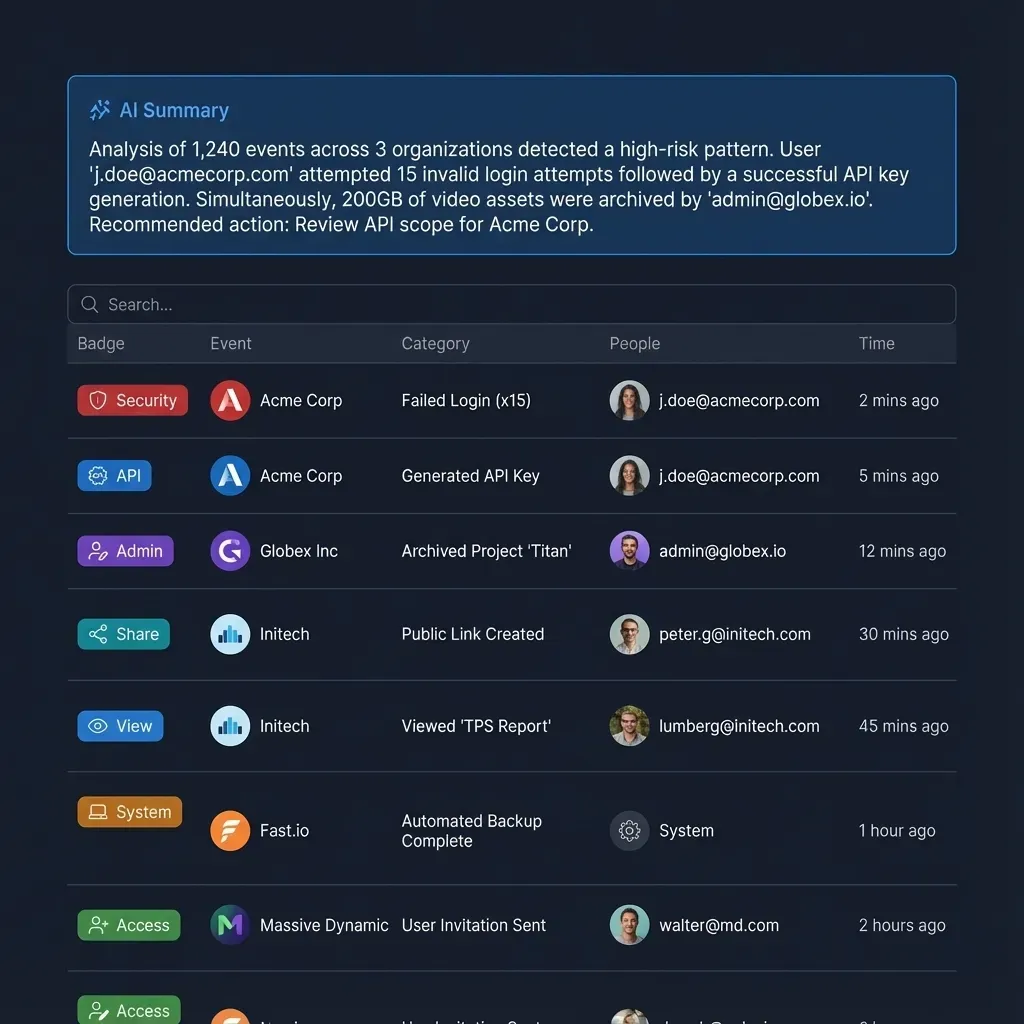
- Detailed activity logs. A detailed activity log records what changed across an organization and who changed it, covering uploads, edits, moves, deletions, membership and permission updates, and share creation across both people and AI agents. On Fastio Enterprise plans, organizations also gain legal holds, a compliance auditor role, security alerts, and an audit stream to a SIEM.
- Per-file version history and advisory file locks. Every file keeps its full version history so earlier drafts can be restored after a mistake. Advisory per-file locks let a writer or agent acquire and heartbeat a lease before editing so colleagues see who is working on a draft, while anyone with write permission can override a stale lock if needed.
Link Controls for External Counsel and Clients
When sharing discovery productions, closing binders, or court exhibits outside the firm, link-level controls replace email attachments. Shares and client portals in Fastio support custom branding with your firm's logo and colors, password protection, expiration dates, per-recipient access grants that can be revoked individually, and disabled file downloads so recipients review documents in the browser.
Collaborating with Clients, Co-Counsel, and Experts in Fastio
Legal teams use Fastio by organizing one workspace per matter, deal, or client engagement while keeping their existing cloud storage intact. Cloud Sync connects selected folders from Google Drive, Dropbox, Box, and OneDrive (including SharePoint document libraries through OneDrive for Business) into a Fastio workspace on a schedule or on demand, one-way or two-way. One-way sync brings matter folders in for review, client sharing, or AI analysis without altering the source drive.
Inside a workspace or share, attorneys and experts review files through in-browser previews covering PDFs, Word documents, spreadsheets, audio recordings, deposition video, and high-resolution images as well as design and camera formats, with no need to download local copies to a laptop. Signed-in reviewers pin anchored comments directly to a PDF page, a specific text selection, an image region, or a video timestamp on that file version, keeping case discussion attached to the exhibit itself instead of scattered across email threads. Beside the files sit Collaborative Notes, which people and agents co-edit live with visible cursors.
When a matter requires external file exchange, the team creates a branded share matched to the job:
- Send shares deliver closing sets, motion packets, or production volumes with optional passwords, expiration dates, and downloads turned off.
- Receive shares collect client intake documents, financial records, or witness materials from anyone with the link without requiring a login.
- Exchange shares and Content Portals give co-counsel, expert witnesses, or corporate clients a branded room to upload and review files together. If an agent builds an organization on the firm's behalf, ownership transfer lets it hand the organization to the firm administrator with a claim link.
Once an engagement letter, settlement agreement, or stipulation is ready for execution, built-in e-signature sends the document for signature directly from the workspace. Signers can be routed in sequence or in parallel, need no account, and can verify with an optional one-time passcode. Each completed envelope produces a tamper-evident audit certificate recording the signer's IP address and browser and files the executed copy back into the workspace.



Scope Legal Matter Files for Clients, Co-Counsel, and AI
Give every matter its own workspace with synced cloud folders, branded client portals, e-signature, and scoped AI access. Monthly plans start with a 14-day free trial.
Setting Up a Per-Matter Workspace for Legal Document Exchange
A law firm IT lead or legal operations manager can set up a per-matter workspace in a few concrete steps without migrating the firm's primary storage:
- Create the organization and matter workspace. Start an organization on a paid plan (monthly plans begin with a 14-day free trial, credit card required) and create a dedicated workspace for the matter, such as
Smith v. JonesorProject Atlas Acquisition. Invite the partners, associates, and paralegals assigned to that matter using organization seats. - Bring in only the folders the matter needs. Use Cloud Sync to connect the specific SharePoint library (via OneDrive for Business), Google Drive folder, Box folder, or Dropbox directory for that matter, on a schedule or on demand. For a one-time copy instead of an ongoing sync, use cloud import. Sensitive folders outside that scope stay out of the workspace.
- Separate internal work from external shares. Keep internal case strategy and draft work product inside the workspace where only workspace members have access. To share a single folder or specific exhibits with outside counsel, an expert witness, or a client, place that folder or file set into a branded share or client portal rather than adding outsiders to the workspace.
- Apply share protections and coordinate edits. Set a password, an expiration date, per-recipient access grants, or disabled downloads on the share. When multiple attorneys or agents update shared files, use advisory file locks and rely on per-file version history to restore any prior version if needed.
- Review the detailed activity log. Check the organization's detailed activity log to verify uploads, edits, moves, deletions, permission updates, and share creation across team members and connected agents.
Scoped AI Search, Metadata Extraction, and Agent Access Over Legal Files
Connecting Claude or ChatGPT straight to a firm's SharePoint or Google Drive often stalls because standard user permissions are wider than what the assistant should reach. Putting a matter into its own Fastio workspace gives the IT lead a clean boundary before turning on AI features.
With Intelligence enabled on a workspace, files are indexed as they arrive for hybrid search that combines exact full-text matching (for Bates numbers, party names, or clause wording) with semantic retrieval by meaning. Attorneys can ask questions across a single folder or the entire matter workspace and get answers with citations pointing to the exact files, pages, and passages used. Inside a branded client portal, Ripley AI can also answer client questions over the shared documents in that portal.
For structured contract review and due diligence, Metadata Views extract typed fields across PDFs, Word documents, spreadsheets, and scanned pages into a sortable, filterable grid. Legal teams describe the columns they want in plain English, such as effective dates, counterparties, renewal terms, and governing law, and then filter or search by those extracted values across the workspace.
Firms that run Claude, ChatGPT, or custom agents connect them to Fastio through the hosted Model Context Protocol server using a consolidated MCP toolset:
- Claude (web, desktop, mobile, and Claude Cowork): In Customize, open Connectors, add a custom connector at
https://mcp.fast.io/mcp/tools, and sign in. - ChatGPT and Codex: Install the Fastio plugin from
chatgpt.com/plugins(orcodex plugin add fast-io@openai-curated-remote), or configure a custom MCP server athttps://mcp.fast.io/mcp/operations. - Coding agents (Claude Code, Cursor, VS Code, Gemini CLI): Connect to
https://mcp.fast.io/mcp/codefollowing the setup steps athttps://mcp.fast.io/docs.
During OAuth sign-in, a Review Permissions screen lets the administrator or attorney choose which specific workspaces the assistant can reach and whether the connection is Read Only or Read & Write. With Read Only selected, write and delete tools are not offered to the assistant. For automated work, a scoped API key limits a bot or pipeline to one workspace, and revoking it affects nobody else.
Governance Practices for Law Firm File Sharing
Software controls only protect client confidences when paired with consistent operational rules across partners, associates, paralegals, and IT administrators.
- Scope by workspace, never by ad-hoc links. Create one workspace per matter, deal, or department. Because workspace members reach the whole workspace according to their role, keep unrelated matters in separate workspaces rather than mixing them in one shared directory.
- Use shares for external subsets. Whenever a client, court reporter, expert witness, or co-counsel needs access to a single folder or a curated production set, create a dedicated share or portal for those files with an expiration date and password.
- Prefer Read Only for exploratory AI work. When connecting Claude or ChatGPT to review discovery transcripts or summarize lease agreements, select Read Only on the Review Permissions screen and limit the grant to the single matter workspace under review.
- Coordinate concurrent drafting. Use anchored comments on PDFs and exhibits to keep redline feedback in context, Collaborative Notes for case memos, and advisory file locks with per-file version history when both people and agents generate or update files in the same workspace.
- Retain organizational ownership. Keep all case workspaces under the firm's organization subscription (or, when an agent builds the organization, use ownership transfer to hand it to the firm with a claim link) so departing staff or contractors can be removed without orphaning client files.
Sources
References used to verify factual claims in this guide.
-
Global average cost of a data breach is $4.4 million USD
-
Human element active in 68% of breaches
Frequently Asked Questions
What is the safest way for a law firm to share documents with clients?
Replace email attachments and unscoped drive links with a branded share or client portal that encrypts files in transit and at rest. Set a password, an expiration date, and per-recipient access grants, and disable downloads when recipients only need to preview documents in the browser. External guests can open or upload files without creating an account.
How do permissions work for law firm documents in Fastio?
Permissions in Fastio are set per organization, workspace, and share through member roles. Every member of a workspace can reach the contents of that workspace according to their role, so firms create one workspace per matter or client engagement. To give outside counsel, an expert, or a client access to only one folder or specific files, place that folder or file set into a share.
What does Fastio's activity log record for legal teams?
Fastio maintains a detailed activity log of changes across the organization for both people and AI agents. It records uploads, edits, moves, deletions, membership and permission changes, and share creation, showing who changed what and when. Enterprise plans also add legal holds, a compliance auditor role, security alerts, and an audit stream to a SIEM.
Can a law firm connect Claude or ChatGPT to specific matter files without exposing SharePoint or Google Drive?
Yes. Sync only the relevant matter folders from SharePoint (via OneDrive for Business), Google Drive, Box, or Dropbox into a dedicated Fastio workspace. When connecting Claude or ChatGPT to Fastio, the Review Permissions screen lets you limit the assistant to that specific workspace and choose Read Only or Read & Write access.
Does Fastio sync with Google Drive, SharePoint, Box, and Dropbox?
Yes. Cloud Sync connects Google Drive, Dropbox, Box, and OneDrive folders (including SharePoint document libraries through OneDrive for Business) to a Fastio workspace on a schedule or on demand, either one-way or two-way. Firms can also bring folders in as a one-time cloud import.
Can lawyers collect client signatures inside the same workspace?
Yes. Built-in e-signature lets teams send agreements and stipulations for signature directly from a workspace, routing signers in sequence or in parallel with an optional one-time passcode per signer. Signers do not need an account, and the completed copy is filed back into the workspace with a tamper-evident audit certificate recording the signer's IP address and browser.
How can legal teams extract contract dates and clauses across hundreds of files?
Enable Intelligence on the workspace for hybrid full-text and semantic search with page-level citations, and use Metadata Views to define fields in plain English such as effective date, counterparty, renewal term, and governing law. Fastio extracts those fields across matching PDFs, Word documents, and scanned pages into a sortable, filterable grid.
How does Fastio prevent conflicting edits when multiple people or agents work on case files?
Every file keeps per-file version history so prior versions can be restored at any time. Writers and agents can also use advisory per-file locks (acquire, heartbeat, and release, with override available to anyone with write permission) to signal who is actively editing a file, and anchored comments to pin feedback directly to a file version.
Related Resources

Scope Legal Matter Files for Clients, Co-Counsel, and AI
Give every matter its own workspace with synced cloud folders, branded client portals, e-signature, and scoped AI access. Monthly plans start with a 14-day free trial.