How to Connect AnythingLLM to OneDrive for Workspace Search
Connecting AnythingLLM to OneDrive gives local and team AI workspaces direct access to corporate files without consuming local disk space or vector databases. While AnythingLLM lacks a native cloud storage connector for Microsoft 365, teams can sync OneDrive folders into cloud workspaces. Querying these pre-indexed files over remote MCP delivers fast semantic search with exact document citations while avoiding Microsoft Graph API rate limits.

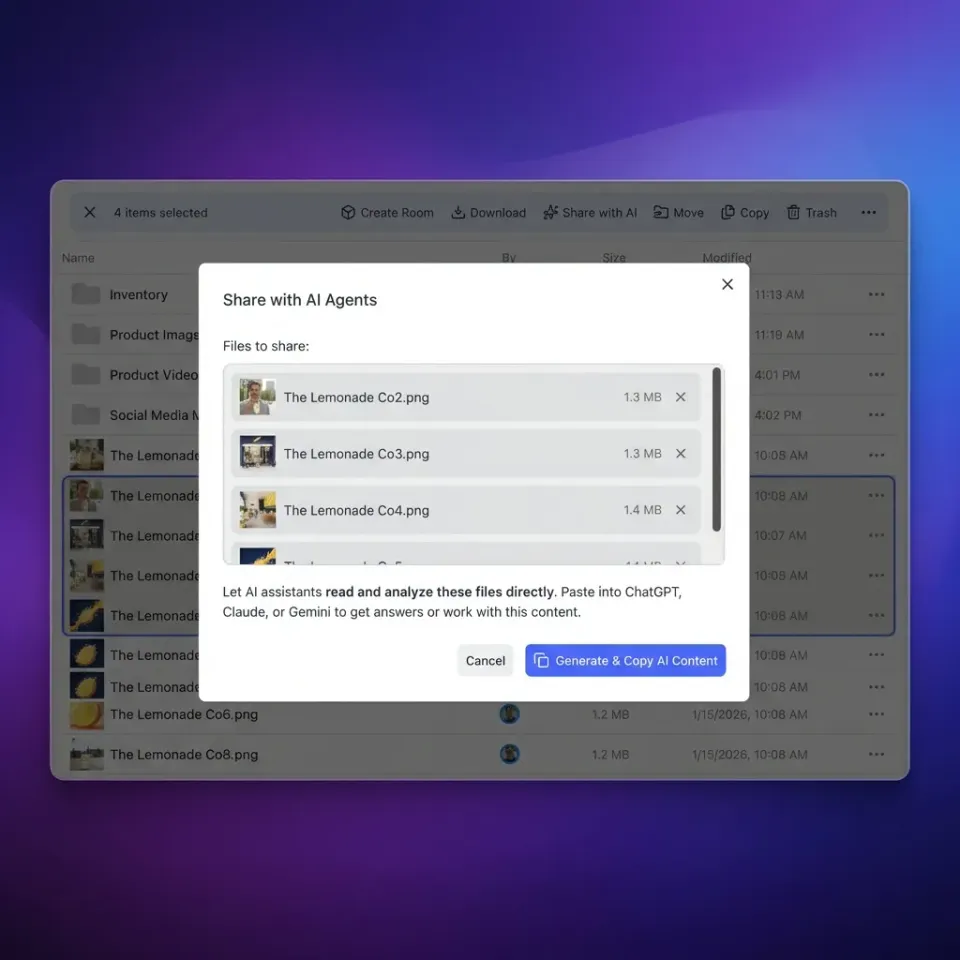
How Teams Address the OneDrive Retrieval Bottleneck in AnythingLLM
Connecting local AI workspaces directly to enterprise cloud storage breaks down the moment a retrieval query spans hundreds of shared spreadsheets, slide decks, and PDF reports. When an agent in AnythingLLM attempts to inspect corporate documents stored in Microsoft OneDrive, conventional workflows force users to mirror whole directories to local disks or pull multi-megabyte payloads across rate-limited cloud APIs. The bottleneck is rarely the language model's reasoning capacity. It is the storage and transport architecture: pulling raw binaries across network boundaries stalls interactive chat sessions, inflates local vector stores, and fails to track document revisions across active team environments.
AnythingLLM has emerged as a preferred interface for privacy-conscious teams that want to run retrieval-augmented generation on developer workstations or private servers. By pairing local embedding models with desktop vector stores like LanceDB or Chroma, AnythingLLM keeps operational context contained within company boundaries. The application connects to local inference engines like Ollama as well as hosted commercial models, giving developers flexibility in how they route tasks.
Organizations managing their operational records in Microsoft 365 quickly discover an integration void. AnythingLLM does not provide an out-of-the-box, native cloud connector for OneDrive. While AnythingLLM offers built-in data connectors for public web scrapers and developer repos, it does not maintain an automated background bridge to Microsoft cloud drives. Without a dedicated AnythingLLM OneDrive connector, teams must either manually move files or build custom integration scripts. When building an AnythingLLM OneDrive integration, teams must address transport, rate-limiting, and indexing challenges before exposing files to agent chats.
Connecting AnythingLLM to OneDrive via Fast.io allows local and desktop LLM workspaces to search indexed corporate documents through remote MCP tools without consuming local vector storage.
Teams evaluating open-source interfaces face identical barriers with LibreChat. While LibreChat provides broad model support and multi-user chat workspaces, setting up a LibreChat OneDrive integration or configuring a LibreChat OneDrive connector often requires custom middleware or direct Microsoft Graph app configurations. Whether you want to connect AnythingLLM to OneDrive or connect LibreChat to OneDrive, attaching an enterprise drive directly to a conversational agent introduces architectural problems.
How Teams Attempt Direct OneDrive Access Today
Before adopting workspace indexing layers, engineering teams typically attempt three common workarounds to feed OneDrive documents into AnythingLLM:
Manual File Export and Upload: Team members manually download folders from the OneDrive web portal to local storage, extract zipped archives, and drag individual documents into the AnythingLLM document manager. This manual approach breaks down immediately as documents evolve. Every contract update, quarterly spreadsheet revision, or updated security policy requires someone to re-download the file and rebuild the workspace embedding.
Files-On-Demand Virtual Disk Sync: Windows and macOS users often turn to the native OneDrive desktop client, pointing AnythingLLM directly at their local OneDrive sync folder. This workflow collides with OneDrive Files-On-Demand. Files-On-Demand stores cloud documents as virtual filesystem stubs until an application requests them. When AnythingLLM scans a folder tree to generate embeddings, parsing these offline stubs causes zero-byte file reads, unhandled parser exceptions, and application freezes. To avoid local stub issues, teams frequently evaluate OneDrive alternatives.
Local stdio MCP Scripts: Developers configure custom Model Context Protocol servers running as local standard input and output processes on their laptops. These scripts use Microsoft Graph client secrets to query files during active chats. While this avoids manual dragging and dropping, it binds the integration to a single developer workstation and subjects every query to raw API request throttling.
Related guides
- How to Connect LangChain to OneDrive Files for AI AgentsConnecting LangChain to Microsoft OneDrive gives AI agents access to corporate documents, but loading deep directories...
- How to Connect LangGraph Agent Workflows to OneDrive DocumentsConnecting LangGraph to OneDrive enables cyclic agent workflows and state machines to retrieve, synthesize, and ground...
- How to Connect LlamaIndex to OneDrive Files for AI AgentsA LlamaIndex OneDrive integration links LlamaIndex data loaders to Microsoft OneDrive accounts, allowing AI pipelines...
- How to Connect LangChain to Box Files for AI AgentsConnecting LangChain to Box gives AI agents access to enterprise files, but traversing raw folders through native...
- How to Connect LlamaIndex to Box Documents for Production RAGConnecting LlamaIndex to Box enables developers to build retrieval-augmented generation (RAG) pipelines over secure...
- LlamaIndex OneDrive Reader: Querying Documents in RAG PipelinesThe LlamaIndex OneDrive reader extracts documents and metadata from Microsoft accounts for vector indexing, but direct...
More on this subject: AI Agents: General Guides (218 guides)
Why Direct Microsoft Graph API Ingestion Fails at Scale
Attempting to connect AnythingLLM directly to Microsoft OneDrive via custom API scripts or community connectors exposes several structural flaws once document collections grow beyond a small test folder.
First, establishing programmatic access to OneDrive for work or school accounts requires configuring Microsoft Entra ID. Developers must register an enterprise application, configure tenant-wide permissions (such as Files.Read.All), grant admin consent, and distribute client credentials. For distributed teams, storing client secrets or refresh tokens across individual desktop installations creates security risks and administrative overhead.
Second, Microsoft Graph enforces strict per-tenant and per-user throttling limits. When an AnythingLLM agent processes an open-ended research prompt, it often scans multiple folders and inspects dozens of files to locate relevant facts. A high volume of rapid document requests triggers HTTP 429 (Too Many Requests) or HTTP 503 service unavailable responses from Microsoft Graph. Agents stall while executing backoff routines, resulting in slow query responses.
Third, native Office documents present parsing hurdles. Microsoft Word documents (.docx), PowerPoint presentations (.pptx), and Excel sheets (.xlsx) are zipped XML packages. To search a single paragraph, an agent calling raw storage APIs must transfer the entire multi-megabyte binary across the network, unpack it in local memory, and extract the text. Repeating this process across dozens of files consumes bandwidth and exhausts local RAM.
Fourth, local vector storage expands rapidly. Ingesting an entire departmental OneDrive library into a local LanceDB, Chroma, or Milvus instance consumes tens of gigabytes of disk space on individual laptops. When five team members run AnythingLLM locally, each machine redundantly embeds and stores the exact same corporate corpus.
Finally, document freshness remains unmanaged. AnythingLLM includes an Automatic Document Sync feature preview, but its watch mechanism monitors local file paths and specific web URLs rather than remote cloud drives. It cannot track when a colleague edits a OneDrive document in the browser.
Contrasting Direct Graph Retrieval Against Workspace Search
The table below contrasts the operational reality of querying raw OneDrive APIs against searching pre-indexed cloud workspaces:
In published connector benchmarks, Fast.io was measured the fastest and the lowest cost of the providers tested. By shifting file synchronization and semantic indexing to an intelligent workspace layer such as Fast.io workspaces, AnythingLLM agents retrieve answers without pulling full file payloads across the wire.
How to Configure Fast.io Cloud Sync for OneDrive Folders
The most dependable path for connecting AnythingLLM to OneDrive is separating file synchronization from agent querying. Fast.io is the persistent, intelligent workspace where OneDrive files are synchronized, structured, and indexed, allowing AnythingLLM to query them via the remote Model Context Protocol.
1. Set Up an Organization and Workspace
Sign in to Fast.io and establish a dedicated workspace for your project or department. Fast.io workspaces isolate files, permissions, and intelligence settings. Role-based permissions are managed at the organization, workspace, and share levels through assigned member roles, keeping team members and autonomous agents restricted to the environments they are granted.
2. Configure Cloud Sync for OneDrive
Within your workspace settings, connect your OneDrive account using Cloud Sync. Cloud Sync connects Google Drive, Dropbox, Box and OneDrive folders to a workspace, one-way or two-way, on a schedule or on demand. For Microsoft accounts, Cloud Sync supports OneDrive for work or school.
You can configure sync behavior based on team requirements:
One-Way Sync: Automatically pulls new and updated documents from OneDrive into the Fast.io workspace on your chosen schedule. Changes made by agents in Fast.io do not modify your source OneDrive files.
Two-Way Sync: Keeps both environments aligned on a schedule. If an agent writes an analysis or summary into the Fast.io workspace, the resulting artifact synchronizes back to your OneDrive folder during the next scheduled run.
On-Demand Sync: Allows administrators to trigger an immediate folder refresh before initiating intensive agent research sessions.
3. Automatic Indexing with Intelligence Mode
Once files arrive in the Fast.io workspace, Intelligence Mode handles document ingestion automatically. The platform extracts text from PDFs, Word documents, spreadsheets, presentations, and markdown notes. Scanned documents and image attachments pass through optical character recognition pipelines.
The workspace generates both dense vector embeddings for semantic similarity and sparse lexical indices for exact-match keyword lookups. By combining full-text, semantic, and metadata search into a unified retrieval index, agents can locate specific contractual terms, invoice numbers, or high-level strategic concepts without manual preprocessing.
4. Extract Structured Data with Metadata Views
In addition to semantic text retrieval, teams managing repetitive operational records (such as vendor agreements, invoices, or project specs) can use Metadata Views. Metadata Views turn unstructured documents into a live, queryable database. Users describe the fields they need in plain language, and the system populates a structured spreadsheet with typed values (Text, Numbers, Booleans, Dates, and JSON). Agents can query these structured properties directly over MCP to perform accurate filtering before retrieving full text passages.
5. Generate a Scoped API Key
Open Organization Settings in Fast.io, navigate to API Keys, and generate a new key. Scope the key with read permissions for the specific workspace holding your synced OneDrive records. This key authenticates your AnythingLLM desktop or server instance over remote MCP.


Connect AnythingLLM to OneDrive with Fast.io Workspaces
Sync OneDrive folders into intelligent workspaces and search company records via remote MCP. Retrieve citation-backed answers without local storage bloat. Monthly plans start with a 14-day free trial, which requires a credit card. Plans are Starter at `$9.99/mo`, Business at `$49.99/mo`, and Enterprise at `$199.99/mo`.
How to Connect AnythingLLM to OneDrive via Remote MCP
With your OneDrive documents synchronized and indexed in Fast.io, connecting AnythingLLM requires configuring the Model Context Protocol. Fast.io provides a hosted, remote MCP server operating over Streamable HTTP, eliminating the need to install local Node.js or Python daemons.
1. Locate the AnythingLLM MCP Configuration
AnythingLLM manages external agent tools through the anythingllm_mcp_servers.json file. The MCP Server configuration file is located in the plugins/anythingllm_mcp_servers.json file in the AnythingLLM storage directory. If the file does not yet exist, opening the Agent Skills page in the AnythingLLM user interface creates it automatically.
Depending on your operating system, the configuration file resides at:
- macOS:
~/Library/Application Support/anythingllm-desktop/storage/plugins/anythingllm_mcp_servers.json - Windows:
%APPDATA%\anythingllm-desktop\storage\plugins\anythingllm_mcp_servers.json - Linux:
~/.config/anythingllm-desktop/storage/plugins/anythingllm_mcp_servers.json - Docker: Located inside the persistent
plugins/directory mapped to your container's storage volume.
2. Add the Fast.io Remote MCP Server Block
Open anythingllm_mcp_servers.json in a text editor and add the Fast.io server definition under the mcpServers object. For general desktop and team agents, connect to https://mcp.fast.io/mcp/tools:
{
  "mcpServers": {
    "fastio": {
      "type": "streamable",
      "url": "https://mcp.fast.io/mcp/tools",
      "headers": {
        "Authorization": "Bearer YOUR_FASTIO_API_KEY"
      }
    }
  }
}
Replace YOUR_FASTIO_API_KEY with the scoped key generated in your Fast.io organization settings.
3. Reload Agent Skills in AnythingLLM
Save the configuration file. Inside the AnythingLLM application, open the Settings panel, navigate to Agent Skills, and click the Refresh button. AnythingLLM reads the updated JSON file and establishes a connection with https://mcp.fast.io/mcp/tools over Streamable HTTP. You do not need to restart the AnythingLLM desktop application or restart your Docker container.
4. Connecting LibreChat to the Same Synced OneDrive Workspace
Teams using LibreChat can connect LibreChat to OneDrive through the identical Fast.io workspace using LibreChat's native MCP integration. Open your librechat.yaml configuration file and declare the remote MCP server under the mcpServers section:
mcpServers:
  fastio:
    type: streamable-http
    url: https://mcp.fast.io/mcp/tools
    headers:
      Authorization: "Bearer YOUR_FASTIO_API_KEY"
Save librechat.yaml and restart LibreChat or refresh the MCP tools panel. Both AnythingLLM and LibreChat now query the exact same synchronized OneDrive files through unified workspace search.
5. Verify Retrieval and Citations in Chat
Open an AnythingLLM workspace chat and invoke agent mode with the @agent prompt prefix. Ask a question that requires information from your synced OneDrive folder:
@agent Check our vendor agreements in OneDrive and list the renewal dates and payment terms for ACME Corp.
The agent identifies the query intent, invokes the Fast.io search tool over MCP, and inspects the matching text chunks returned by the cloud workspace. The model generates an accurate response grounded in your source documents, accompanied by specific file citations.

Operational Governance, Versioning, and Troubleshooting
Deploying AI retrieval across corporate documents requires maintaining strict data integrity, auditability, and connection stability.
Per-File Version History and Change Tracking
When colleagues update files in OneDrive, scheduled Cloud Sync pulls the modifications into your Fast.io workspace. Fast.io maintains complete per-file version history for all workspace records. Rather than overwriting files destructively, every update creates a new revision while preserving earlier drafts.
Intelligence Mode automatically updates its dense and sparse search indices for the modified passages. Previous agent interactions remain auditable against historic file versions, and current queries always retrieve the latest authoritative data.
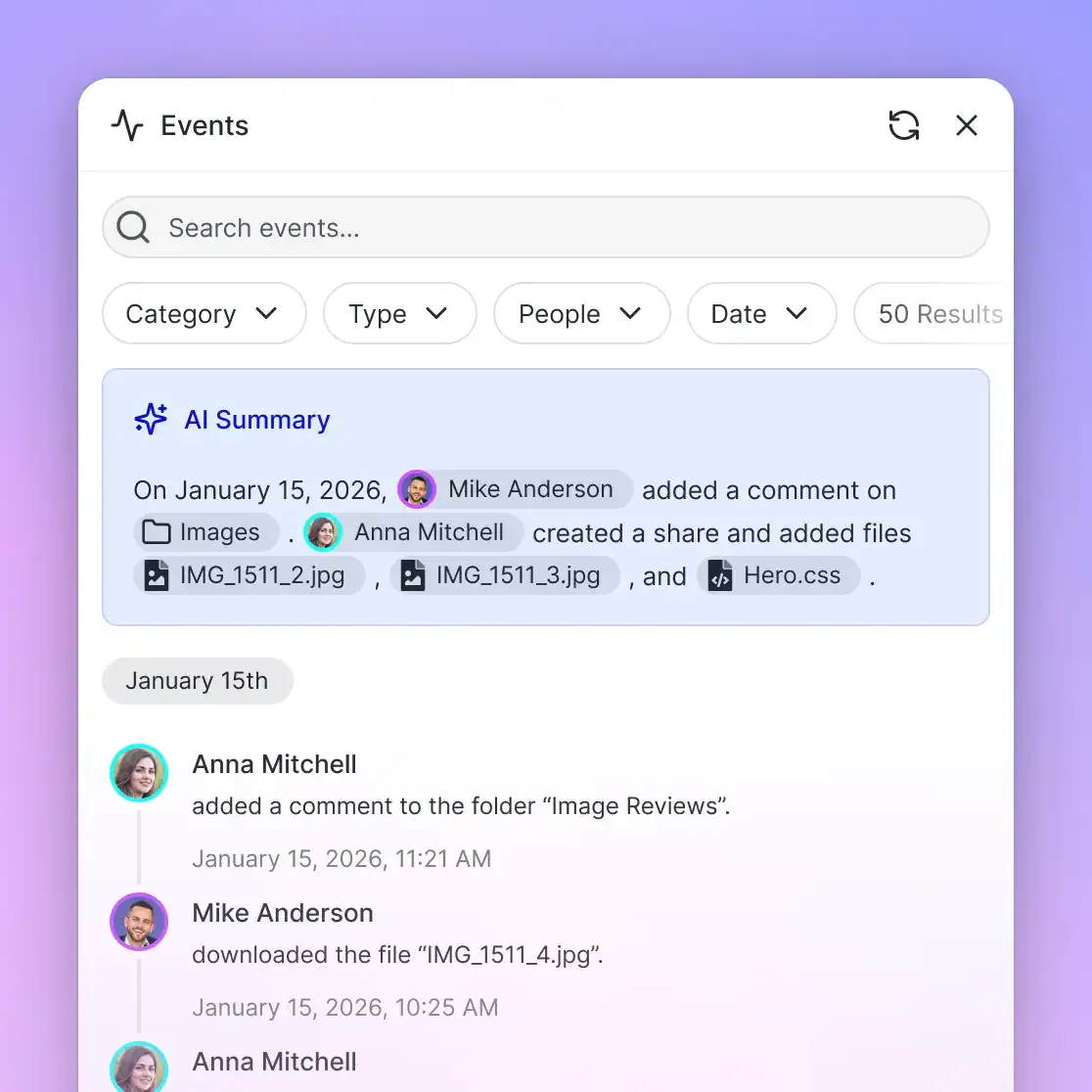
To monitor collaborative workflows, Fast.io maintains a detailed activity log. The activity log tracks changes across the organization, recording uploads, edits, moves, deletions, and share updates made by team members and autonomous agents.
Troubleshooting MCP Connection Hurdles
If AnythingLLM fails to discover tools or returns empty query responses, check these common operational points:
Transport Specification: Confirm that the transport type in
anythingllm_mcp_servers.jsonis set tostreamable. Fast.io communicates over Streamable HTTP. Do not configure standard input/output (stdio) or legacy SSE transport settings for this endpoint.Authorization Header Syntax: Check that the
Authorizationheader containsBearerfollowed immediately by your API key. Trailing spaces, missing quotes, or misplaced brackets in the JSON file will prevent successful authentication.Intelligence Mode Verification: Verify that Intelligence Mode is switched on for the specific Fast.io workspace holding your OneDrive documents. If Intelligence Mode is disabled, documents will be stored but will not be indexed for semantic search.
Model Context Window Capacity: When running smaller local models (such as 3B or 7B parameter models via Ollama), tool calling reliability depends on prompt capacity. Compact local models can struggle to parse detailed tool schemas alongside retrieved document chunks. If a local model fails to invoke tools, test the query using a larger model or a hosted frontier model to confirm configuration validity.
Fast.io Subscription Plans and Trial Terms
Fast.io provides tiered subscription plans designed for teams coordinating documents across humans and autonomous agents:
Monthly plans start with a 14-day free trial, which requires a credit card. Credits meter AI search and intelligence processing across your workspaces, with additional credit packs available at $10 per 100,000 credits. Storage beyond the plan is billed in money at 1.5 cents per GB monthly, and additional bandwidth is 4 cents per GB.
Sources
References used to verify factual claims in this guide.
-
The Automatic Document Sync feature for AnythingLLM allows users to watch a document for active changes.
-
The MCP Server configuration file is located in the plugins/anythingllm_mcp_servers.json file in the AnythingLLM storage directory.
Frequently Asked Questions
Can AnythingLLM connect to Microsoft OneDrive directly?
AnythingLLM does not offer a native cloud connector for Microsoft OneDrive. Connecting AnythingLLM to OneDrive is achieved by syncing OneDrive folders into an intelligent workspace platform like Fast.io and querying those files through a remote Model Context Protocol endpoint.
How do I add OneDrive documents to AnythingLLM workspaces?
You can add OneDrive documents to AnythingLLM by setting up scheduled Cloud Sync between your OneDrive for work or school account and a Fast.io workspace. Once Fast.io indexes the files, add the remote MCP endpoint `https://mcp.fast.io/mcp/tools` to `anythingllm_mcp_servers.json` to allow AnythingLLM agents to search the documents.
Does Fast.io support OneDrive sync for AnythingLLM?
Yes. Fast.io Cloud Sync supports one-way and two-way scheduled sync for OneDrive for work or school folders. Files synced into Fast.io workspaces are automatically indexed for hybrid semantic search and exposed to AnythingLLM via remote MCP.
What happens when files change in OneDrive?
When documents are modified in OneDrive, Fast.io Cloud Sync pulls the updated versions on your configured schedule. Fast.io preserves previous drafts in per-file version history and updates the workspace search indices, ensuring AnythingLLM agents always retrieve current facts.
How does connecting via MCP compare to local Files-On-Demand sync?
Pointing AnythingLLM at a local OneDrive Files-On-Demand folder causes errors because online-only files exist as virtual stubs, resulting in zero-byte file reads. Connecting via remote MCP offloads document parsing and vector indexing to the cloud, returning only relevant text excerpts to AnythingLLM without consuming local disk space.
Can LibreChat use the same Fast.io MCP setup for OneDrive files?
Yes. Teams looking for a LibreChat OneDrive connector can configure `https://mcp.fast.io/mcp/tools` in `librechat.yaml` under `mcpServers`. This allows LibreChat users to connect LibreChat to OneDrive documents with citation-backed answers.
What are the subscription plans and trial terms for Fast.io?
Monthly plans start with a 14-day free trial, which requires a credit card. Subscription tiers are Starter at `$9.99/mo`, Business at `$49.99/mo`, and Enterprise at `$199.99/mo`. Storage capacity, team seats, and the monthly credit allowance for AI queries scale with each tier.
Related Resources

Connect AnythingLLM to OneDrive with Fast.io Workspaces
Sync OneDrive folders into intelligent workspaces and search company records via remote MCP. Retrieve citation-backed answers without local storage bloat. Monthly plans start with a 14-day free trial, which requires a credit card. Plans are Starter at `$9.99/mo`, Business at `$49.99/mo`, and Enterprise at `$199.99/mo`.